 Cropped
Blog
Download
Cropped
Blog
Download
Blog /
This week in Cropped: October 10 to 16
This was the busiest week yet. Cropped can now record a website at every screen size on all three systems, show every social size side by side before you export, turn screenshots into a step-by-step guide, and put callouts and motion straight onto a video's timeline. It also learned to follow a moving subject, cut out a background and write captions. Everything still runs on your own computer, and nothing is uploaded.
If you already have Cropped, it updates itself. If not, the 14-day trial needs no signup or card.
#Record any website at every screen size
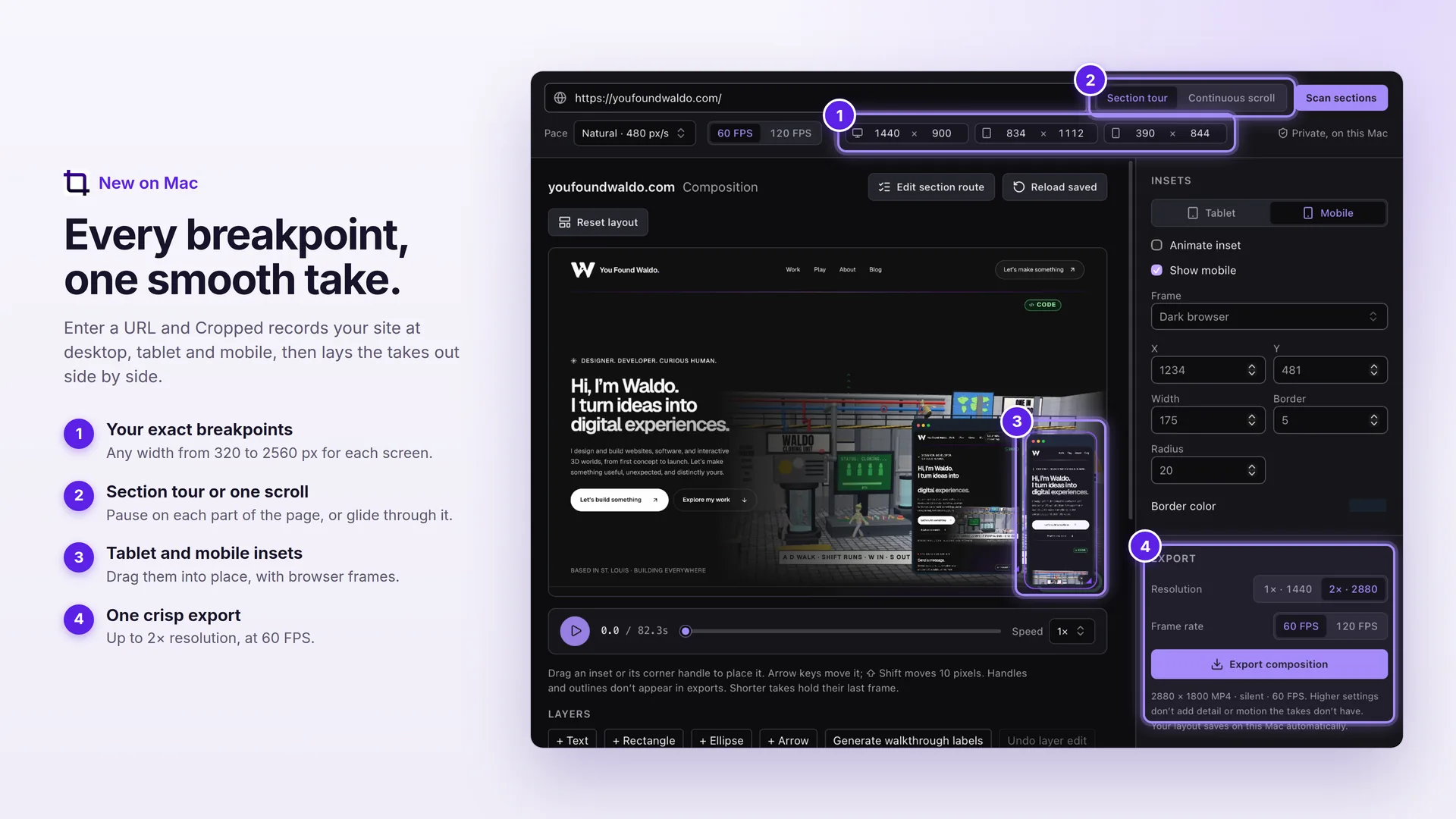
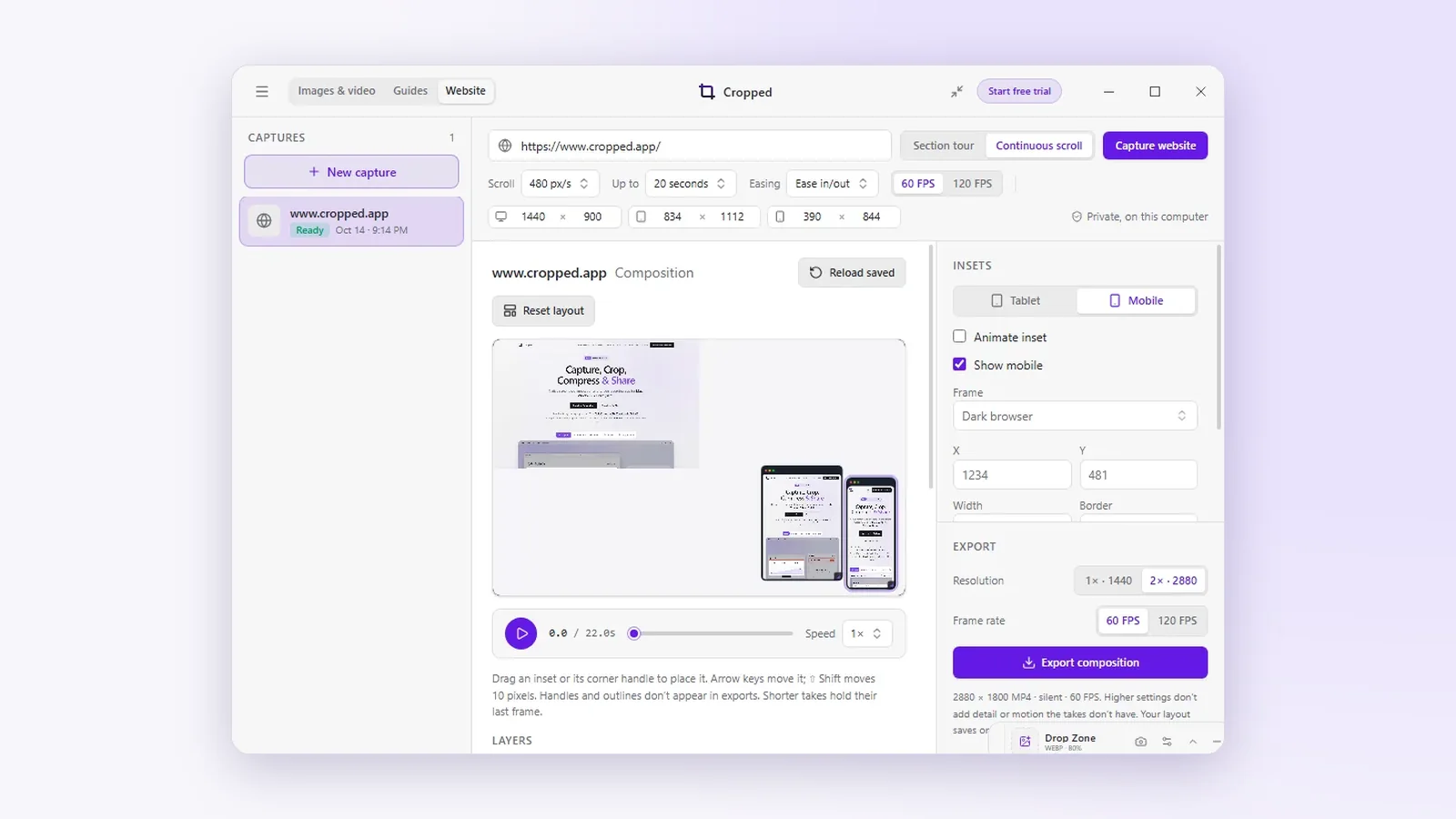
Paste a link and Cropped records your site at the desktop, tablet and mobile widths you pick, with a sharp 2× render of every frame. Then it lays the takes out side by side, so one export shows the whole responsive story. On a Mac it also finds each section of the page and tours through them at a pace you set.
That used to mean a browser, a screen recorder and a video editor. Now it's one window, and it works on Mac, Windows and Linux (Beta).
#See every social size before you export
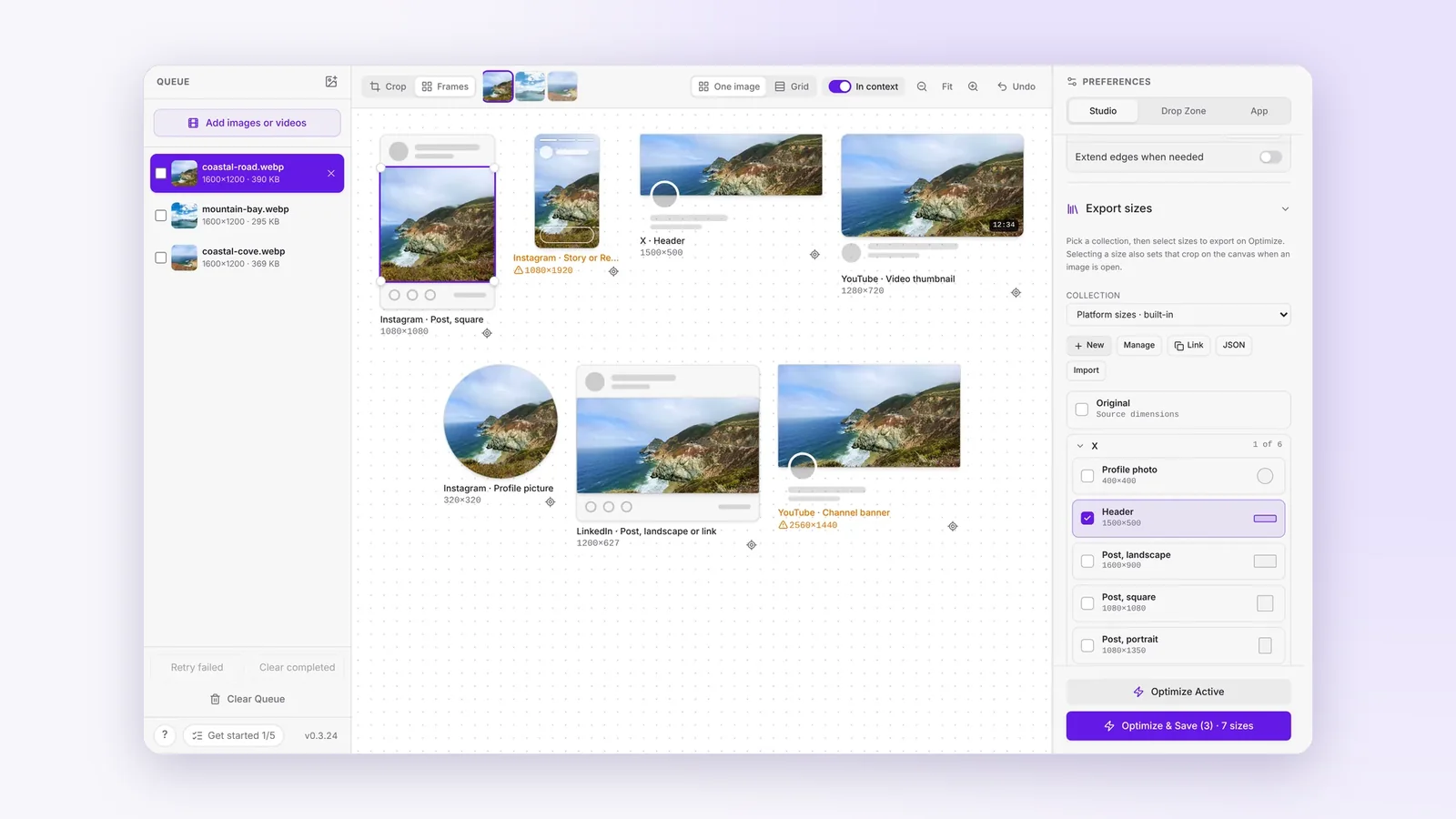
Tick two or more export sizes and switch to Frames to see each one side by side, exactly as it will save. Drag inside a frame to reframe just that size. In context shows each size inside a simple mock of a feed post, a Story with its safe areas, a header with a profile photo, or a video thumbnail, so you can catch a cropped-off face before you post.
When you export WebP or AVIF, Cropped also saves a PNG or JPG copy next to each file, for the places that still don't accept them.
#Turn screenshots into a step-by-step guide
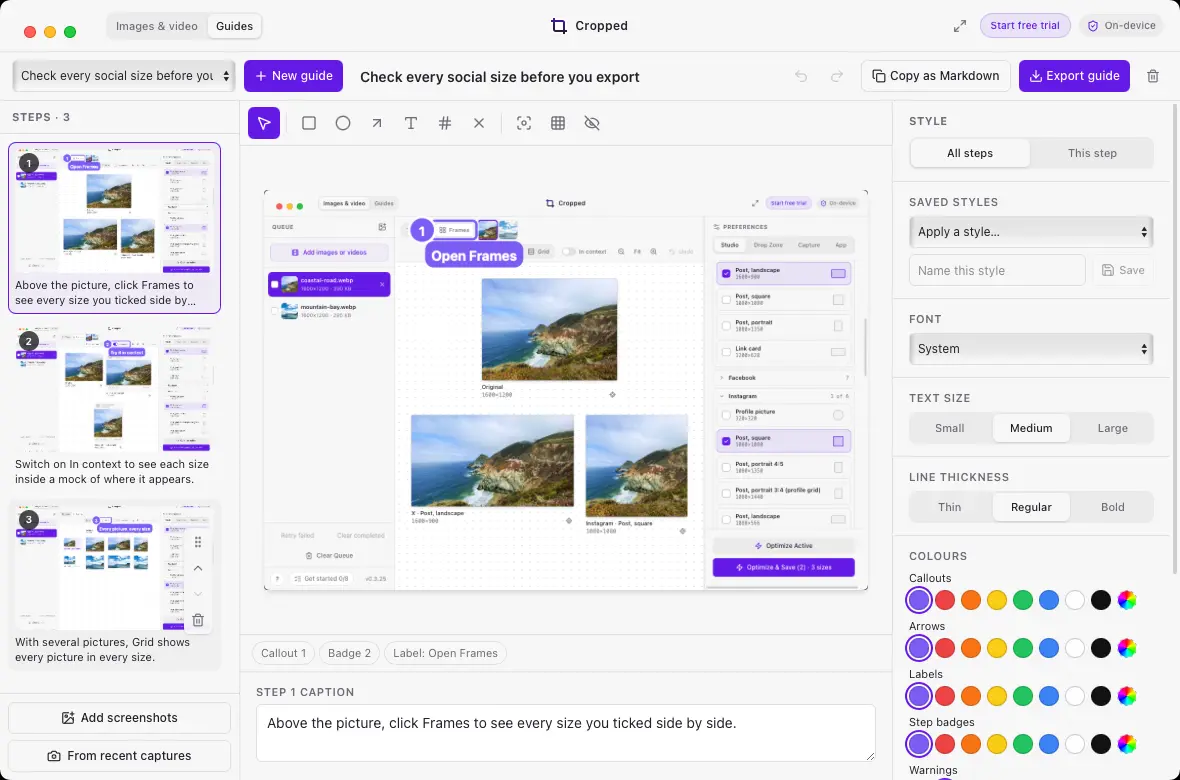
Switch to Guides at the top left of the Studio and your screenshots become numbered steps, each with a caption plus boxes, arrows, labels, numbered badges and blur. The Style panel sets the font, colours and badge style for every step at once. Export the guide as pictures, or copy it as Markdown for a README or a help page.
#Callouts and motion, right on the timeline
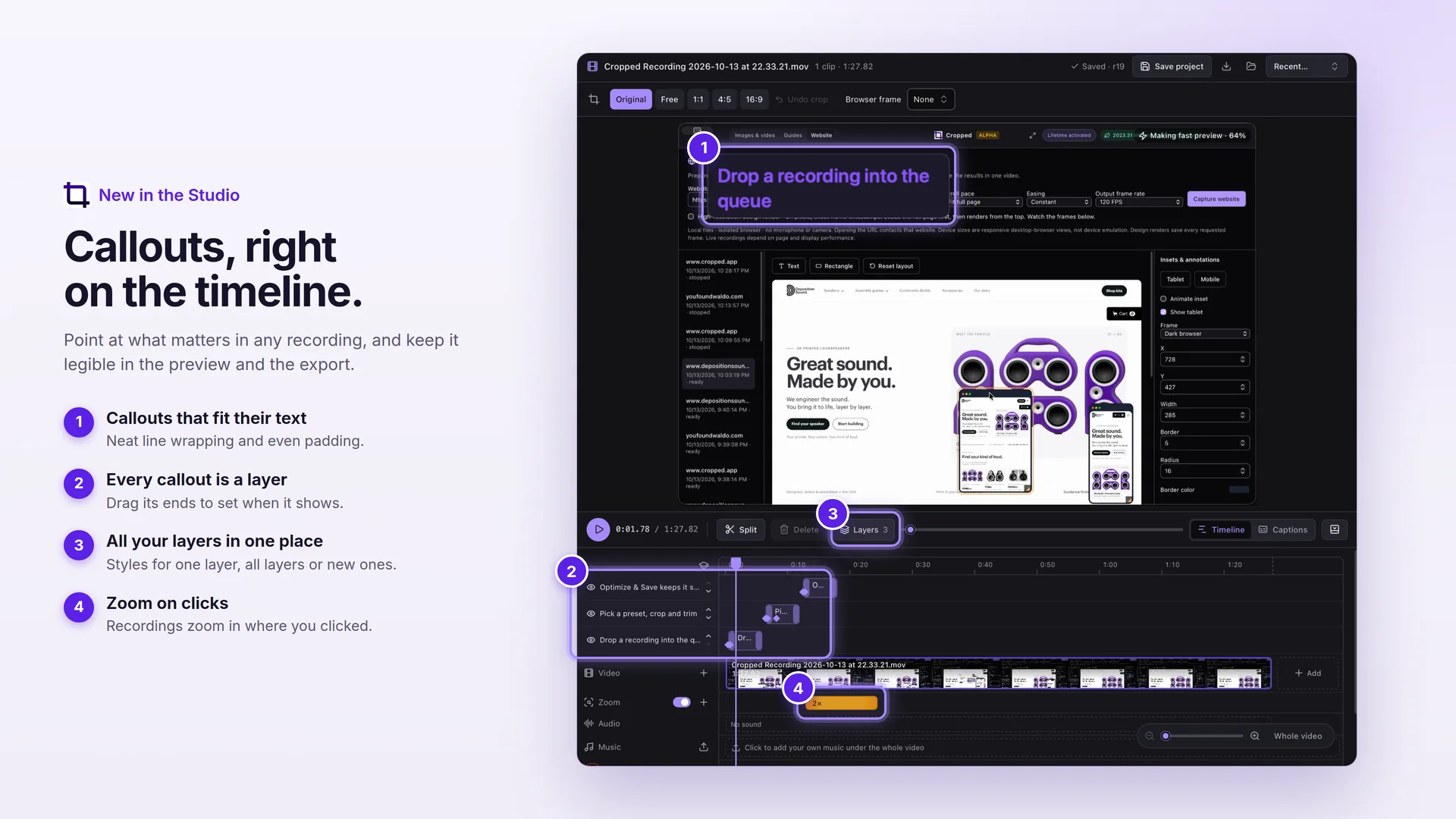
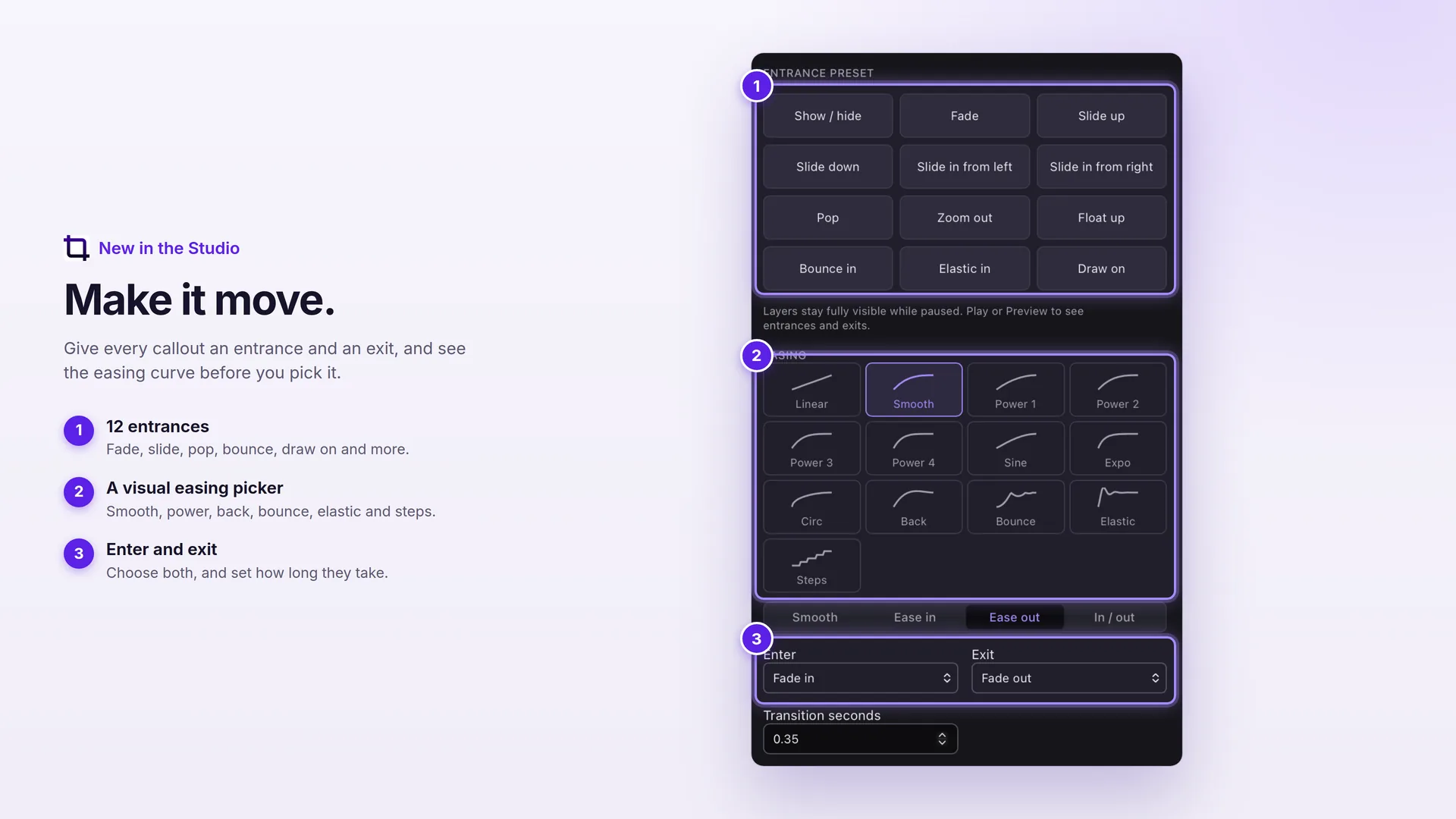
Every callout, arrow and numbered step in a video is now its own layer on the timeline, so you can see when it appears and drag it to fit. Text wraps neatly with even padding and looks the same in the preview and the export. The new Layer tab keeps every annotation tool in one grid, with 12 entrances and a visual easing picker to make them move.
The controls above and below the video also shrank from five rows to two, so the picture gets the room.
#Captions and click zooms for screen recordings
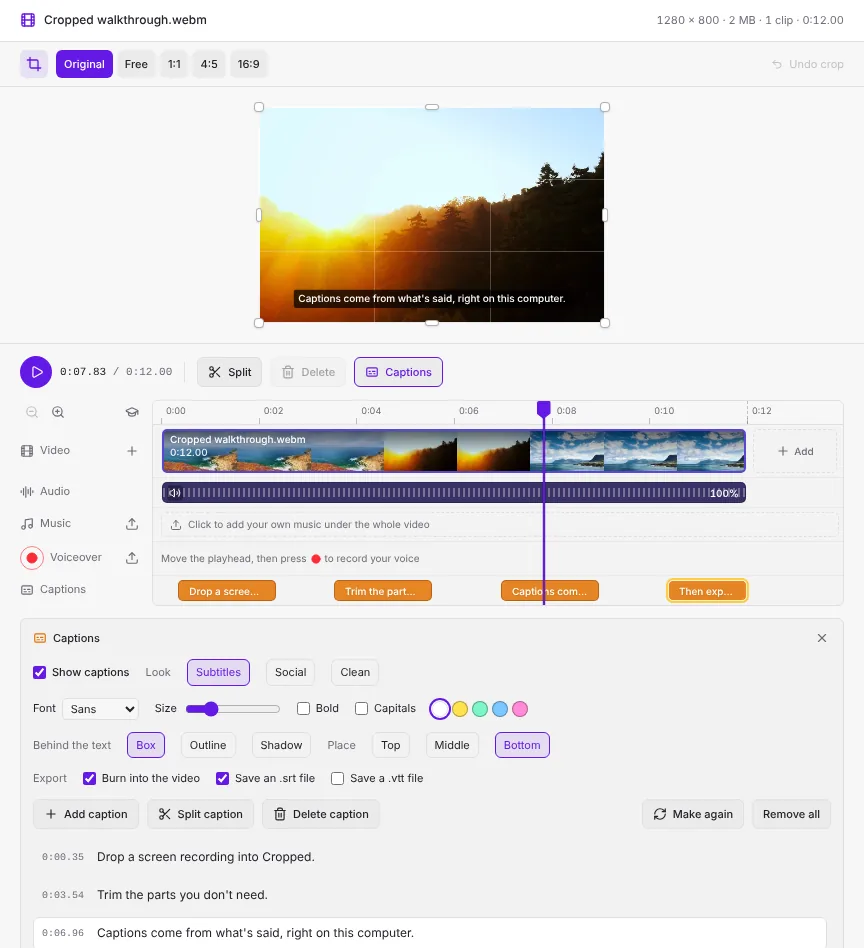
Click Captions under a video and Make captions writes them from what is said, on your computer. Fix a word, retime a line on the Captions lane, pick a look, then burn them in or save an .srt or .vtt file.
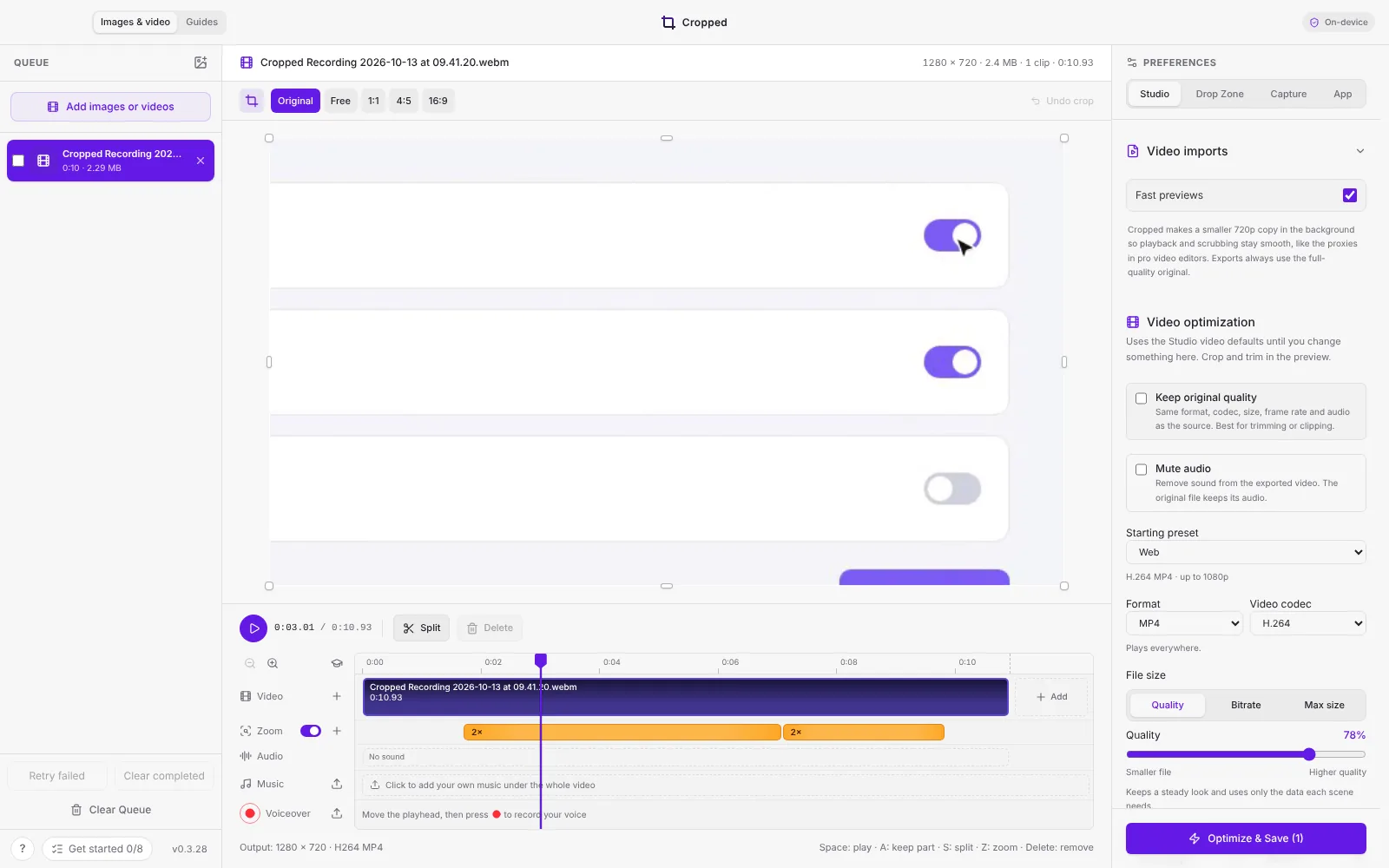
Recordings also remember where you clicked and zoom in smoothly on each click. Move, resize or remove any zoom on the Zoom lane, or press Z to add your own. Click zooms work on Mac, Windows, and Linux desktops that use X11.
#Follow a moving subject (Mac, Beta)
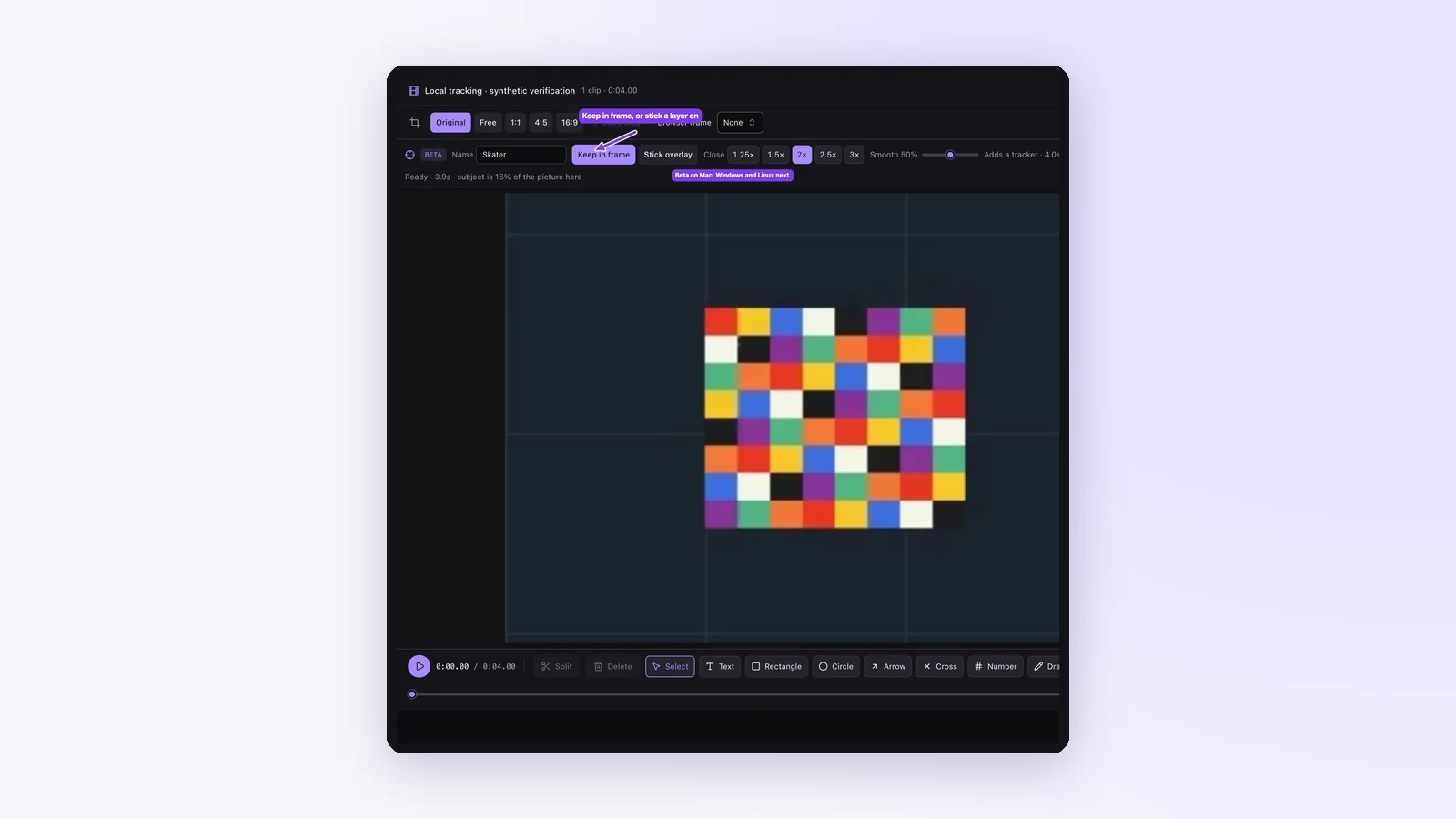
Track subject finds a person or object and follows it through the clip. Keep in frame moves the crop with them, which is handy for turning a wide shot into a vertical one. Stick overlay pins a label, a blur or a picture to them and keeps its shape as they move. It runs on your Mac with nothing uploaded, and Windows and Linux are next.
#Remove a background (Beta)
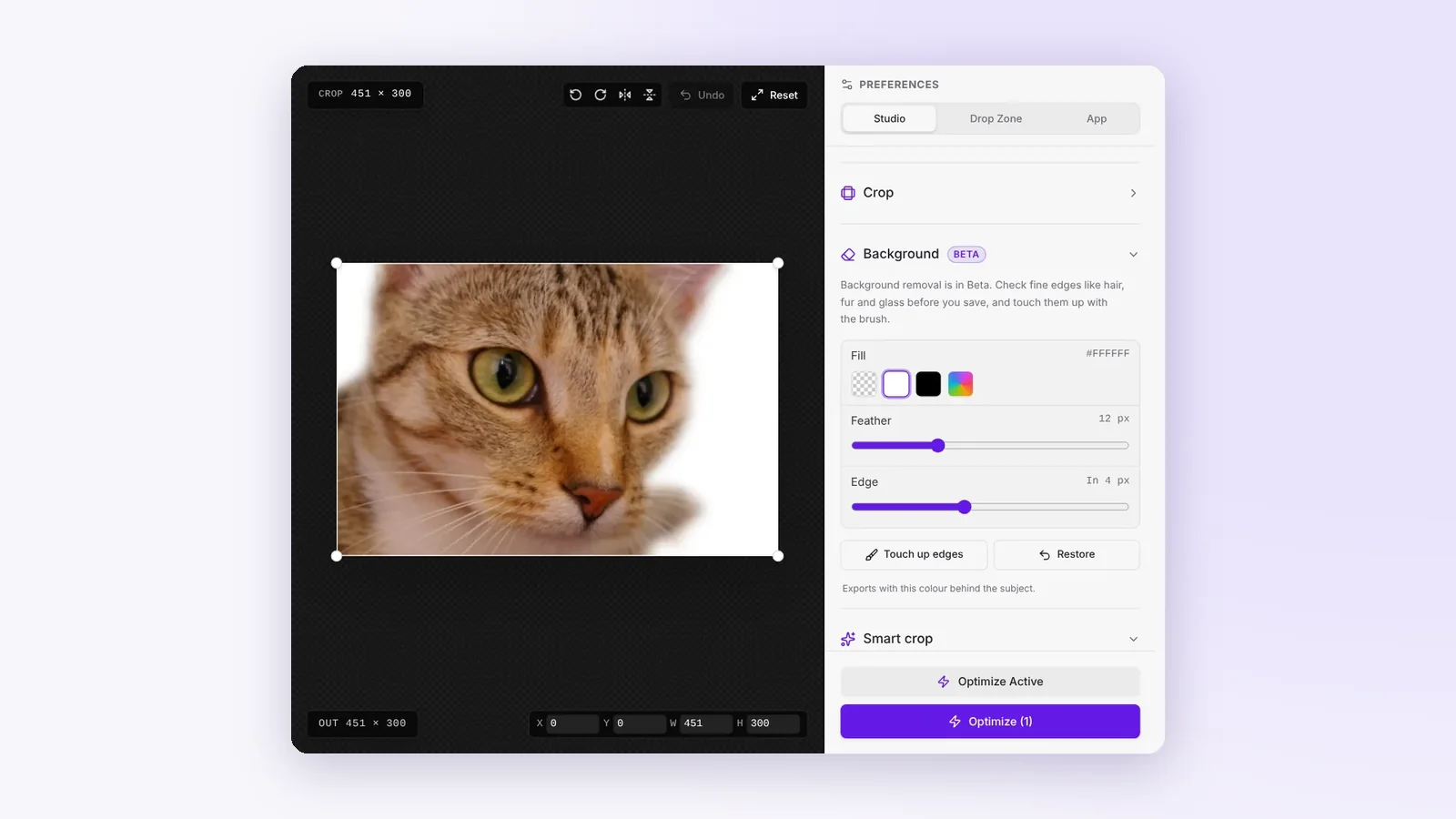
Remove background finds the subject and clears everything else. Leave it see-through or put any colour behind it, and touch up the edges with a brush. Two sliders tidy the outline: Feather softens it, and Edge pulls it in to drop a halo or pushes it out to keep more of the subject.
On a Mac it uses the subject lifting built into macOS. On Windows and Linux it uses a sharper model that downloads once and then works offline.
#Every favicon and app icon from one crop
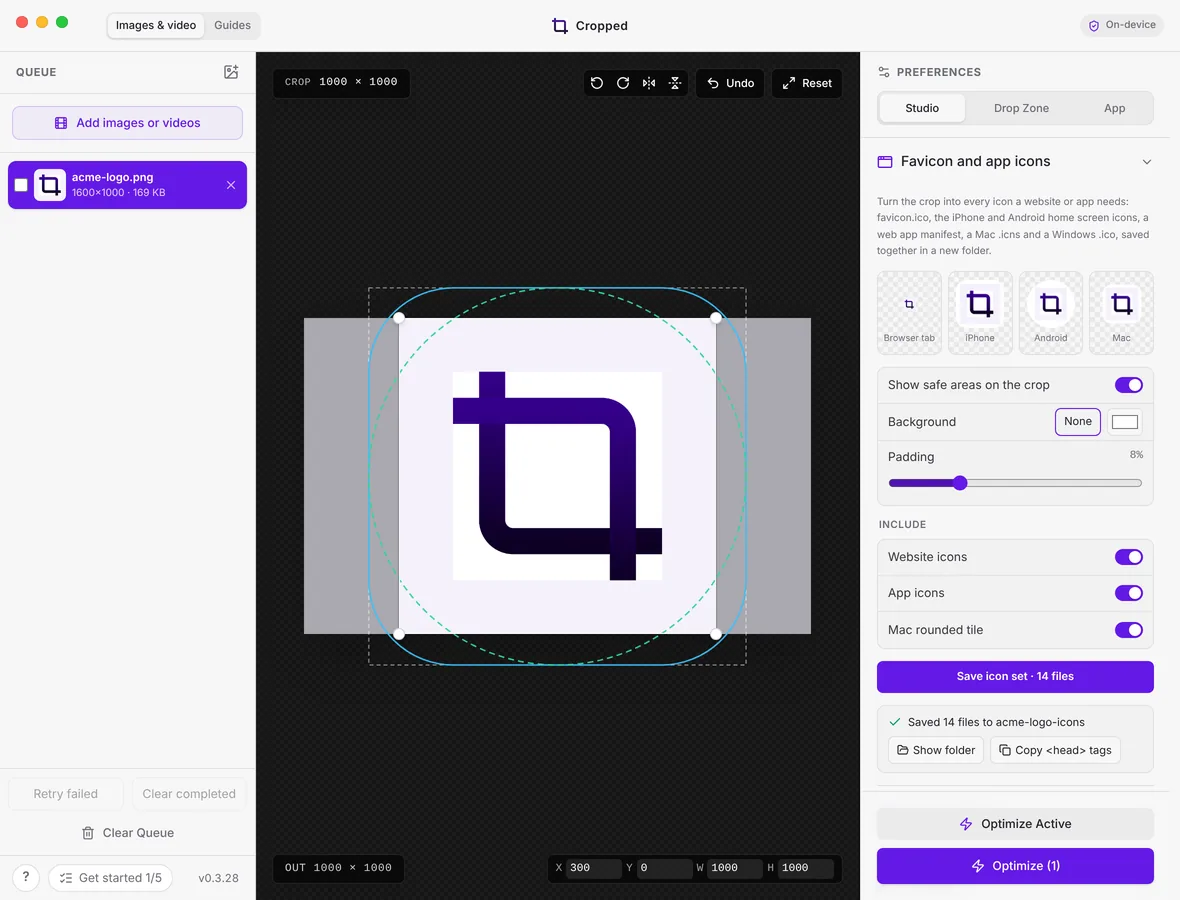
Crop your logo once and Save icon set writes favicon.ico, iPhone and Android icons, a web manifest, a Mac .icns and a Windows .ico, along with the head tags to paste into your site.
#Tidier screenshots
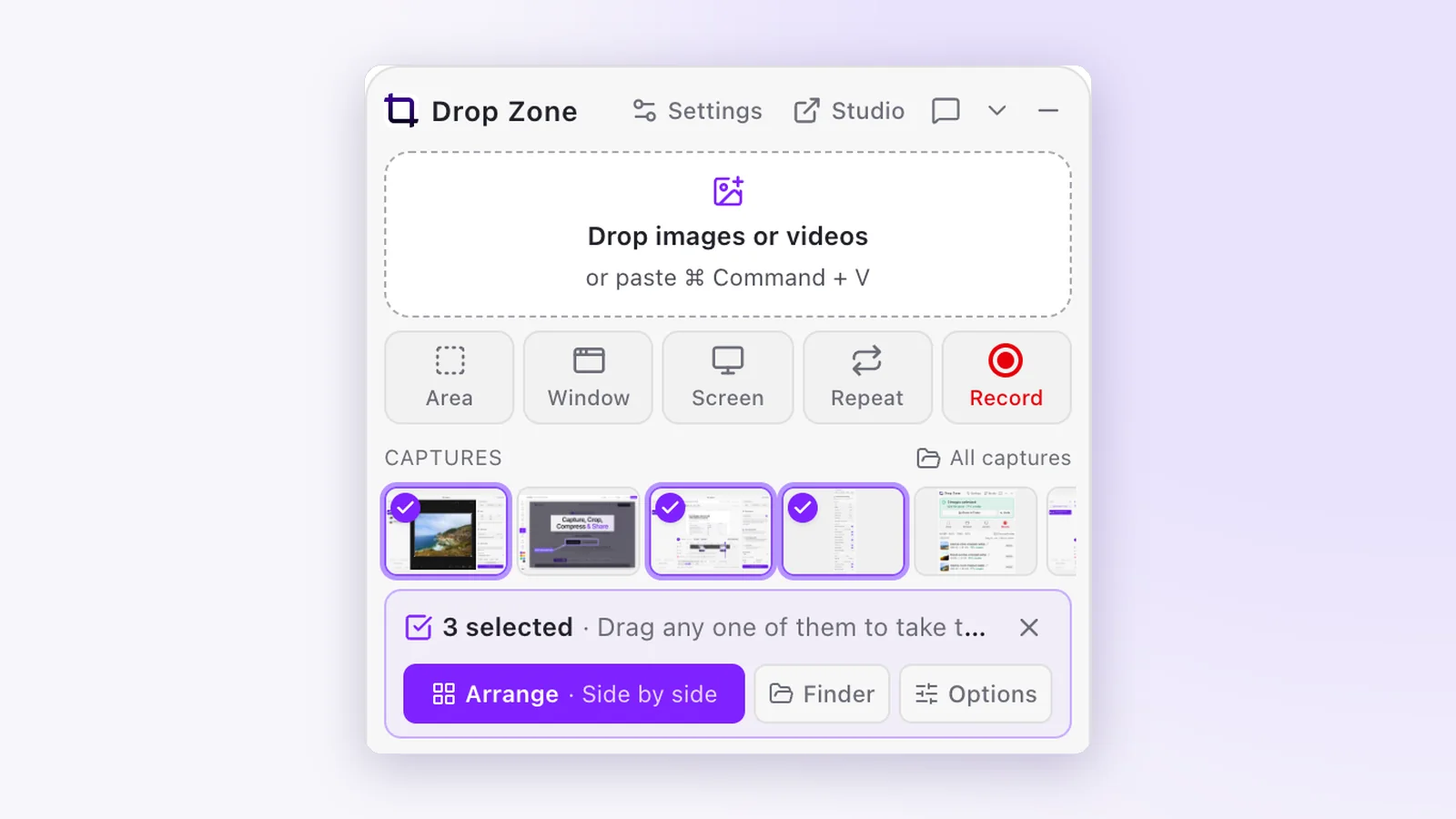
Select a few captures in the Drop Zone and Arrange lines them up in a row, column or grid with your padding and background. Annotate has three new tools: X mark, Blur, which turns private details into a coarse mosaic, and Number, for numbered circles that count up with each click.
#Also new this week
- Your AI app can see your windows. On Mac, Claude, Cursor or Codex can list your windows, capture one by name, read the text on it and point at a button. On Mac and Windows they can record a single window. Cropped asks once before each AI app can look.
- Trim to the exact frame. While you drag a trim handle, the preview shows the frame you're cutting to. Hold still to slow down, and keep holding to step one frame at a time.
- Drop one file, get the Drop Zone. Drop a single picture or video and the Drop Zone opens, ready to trim, optimize or send to the Studio. Hover a recording's frames to scrub through it.
- Undo a delete. Delete captures with ⌫ and bring them back with Undo for six seconds.
- Windows catches up. Videos play and scrub in the Studio, and windows have proper minimize, maximize and close buttons.
- Your work is saved as a file. Every video project keeps a .cropped file up to date in Documents › Cropped Projects.
- Window captures always save. If Cropped can't read the webpage area in Chrome or another browser, it saves the whole window instead.
- Faster and lighter. Big batches of pictures load about four times faster, and Cropped for Mac is about 40 MB smaller.
#On cropped.app
There's a new Download page with every system and every version, a Features page you can tour chapter by chapter, and a Developers page for anyone who opens Photoshop, Canva, Premiere or HandBrake for a two-minute job.
The $14.99 intro price ends Friday, October 23 at 11:59 pm PT. After that, a lifetime license is $24.99, once, with every update included.
This round-up covers Cropped 0.3.22 to 0.3.39. Every change is listed on Updates.