 Cropped
Download
Download free
Blog / ·
Cropped 0.3.59: Simple Cropped, Annotate tabs and full-page website shots
Cropped 0.3.59 is out on Mac, Windows and Linux. It's the biggest change to how Cropped feels since it launched: it opens on the three things most people came for, takes the screenshot the moment you let go, and keeps every other tool one click away.
If you already have Cropped, it updates itself. If not, download it: Core is free, with no account or card.
#Three jobs on Home
Cropped now opens on Home, which asks one question: What do you want to do? Pick Take a screenshot, Record my screen or Make a file smaller, and Cropped does the rest. Your last three captures sit under Recent, ready to mark up or edit. See Cropped Help.
Everything else moved to More tools at the top left: Crop and resize, Mark up a picture, Edit a video, Capture a website, Saved video projects and Make a step-by-step guide. Nothing was taken away.
#Let go, and it's copied
Drag over part of your screen and let go. The screenshot is taken right then and copied, ready to paste into a chat, an email or a document. Cropped steps out of the way first, from Home, the Drop Zone or a shortcut, and comes back if you cancel.
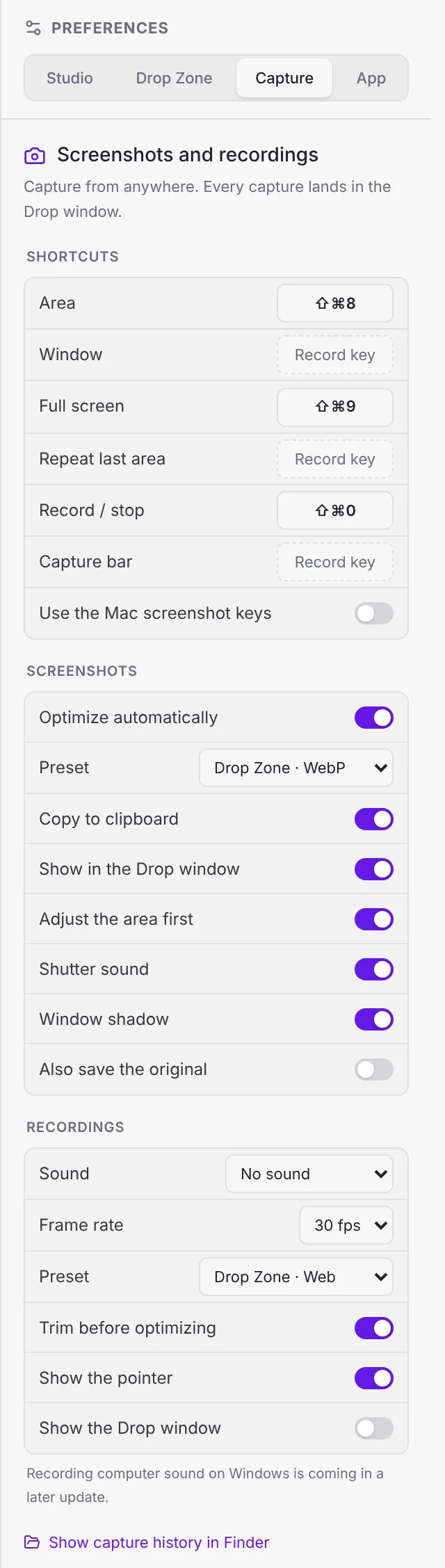
Like to fine-tune the edges, set a timer or type an exact size first? Set Capture style to Advanced in Settings › Capture. If you used Cropped before, you keep the style you had. See Screenshots.
#A calmer Drop Zone
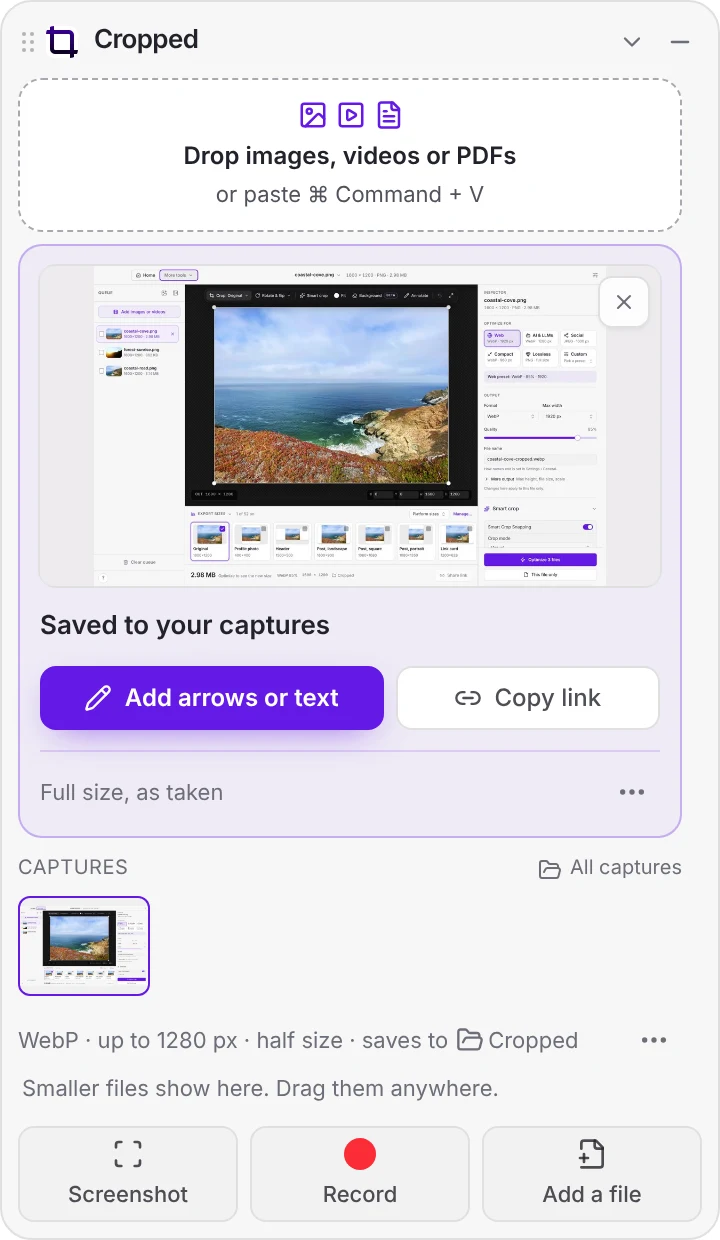
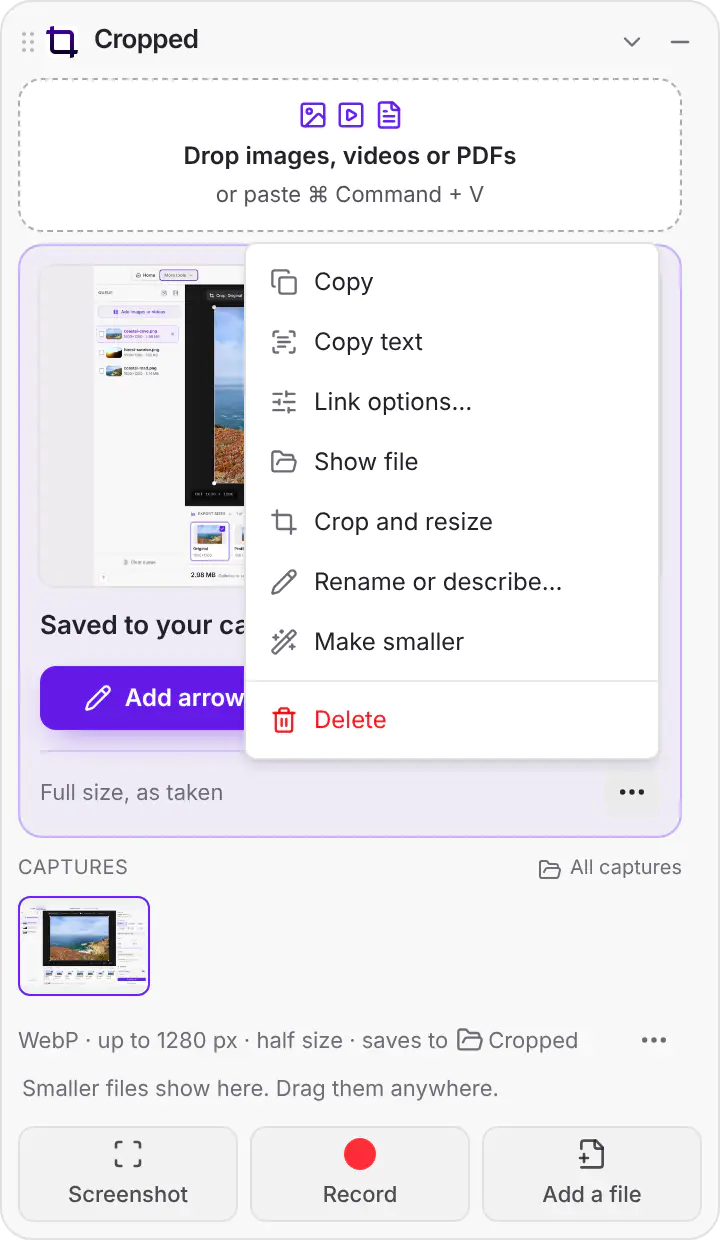
The Drop Zone has three buttons along the bottom: Screenshot, Record and Add a file. A new screenshot's card has two buttons, Add arrows or text and Copy link (Pro) or Show file, with everything else under ···. Recordings are made smaller as soon as they land, and copying one applies your trim first. See The Drop Zone.
You can also choose when the Drop Zone opens, or turn it off, in Settings › General › Drop Zone opens.
#Annotate tabs
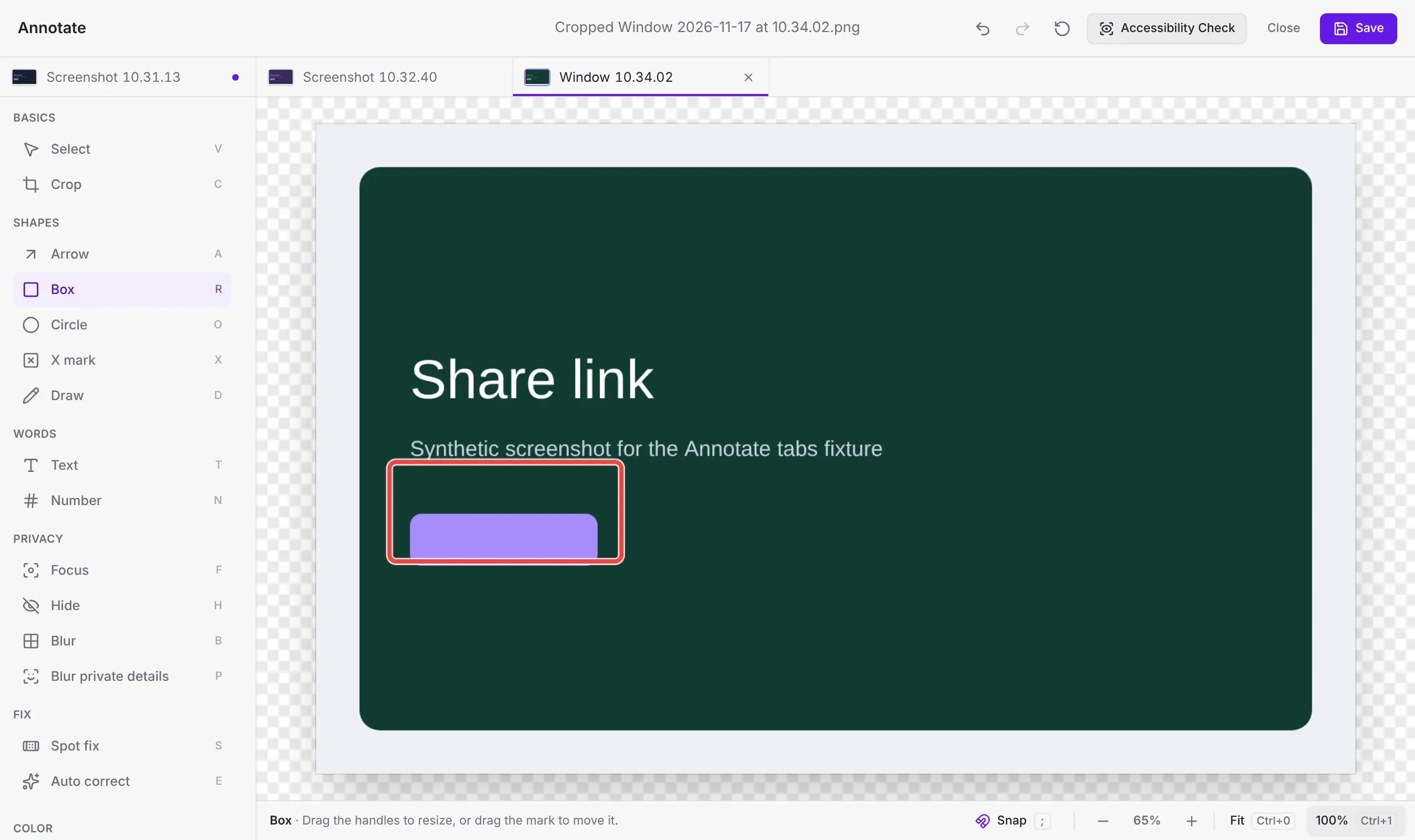
Take several screenshots in a row and each one opens in its own tab, in one Annotate window, with a small picture on each tab. Switch between them, and save or close each when you're done. See Annotate screenshots.
#Full-page website shots
More tools › Capture a website is back, and it now takes full-page screenshots: paste a list of addresses, pick a page width, and Cropped saves each whole page, top to bottom, as one sharp picture. It's handy for design reviews, client sign-off and archiving a site. Scrolling videos are still there too. See full-page screenshots or the Capture a website guide.
#Copy the text in any picture
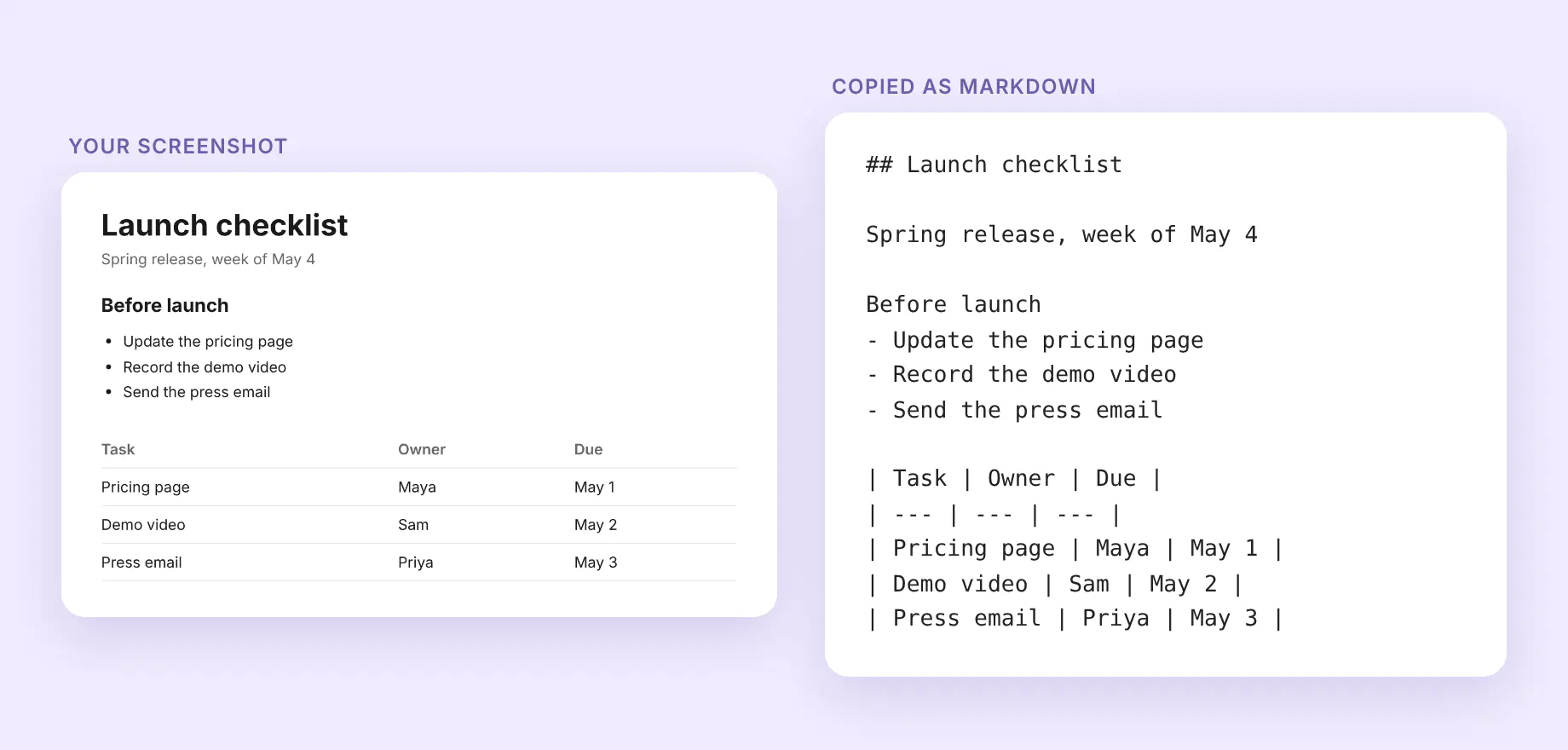
Choose Copy text on a picture's card and its words are on your clipboard, ready to paste. Copy as Markdown keeps headings, lists and tables. It's read on your computer and it's free. See Copy text from any picture.
#Styles for every video
In the Studio, Styles gives any video a background, room around the screen, rounded corners and a shadow. Camera shows only when a recording has a webcam, with your camera's own settings. The camera bubble on Home has its own button, and it stays on for your next recording. See Camera looks and video styles.
#Cropped Export for Figma: try the beta
Our new Figma plugin, Cropped Export, is free, and you can try the beta today. It saves every picture, icon and video on a Figma page as one zip, cropped to what's shown and made small: 85% smaller than Figma's own export in our test on Cropped's design file. With Cropped Pro, Send for review puts your frames on one cropped.pro link that people can comment on, no Figma account needed. See Cropped Export for Figma.
When a video in your file can't be exported from Figma, the plugin hands it to Cropped: open the file it saves, and Cropped finds your originals, crops them and compresses them. See Finish Figma videos in Cropped.
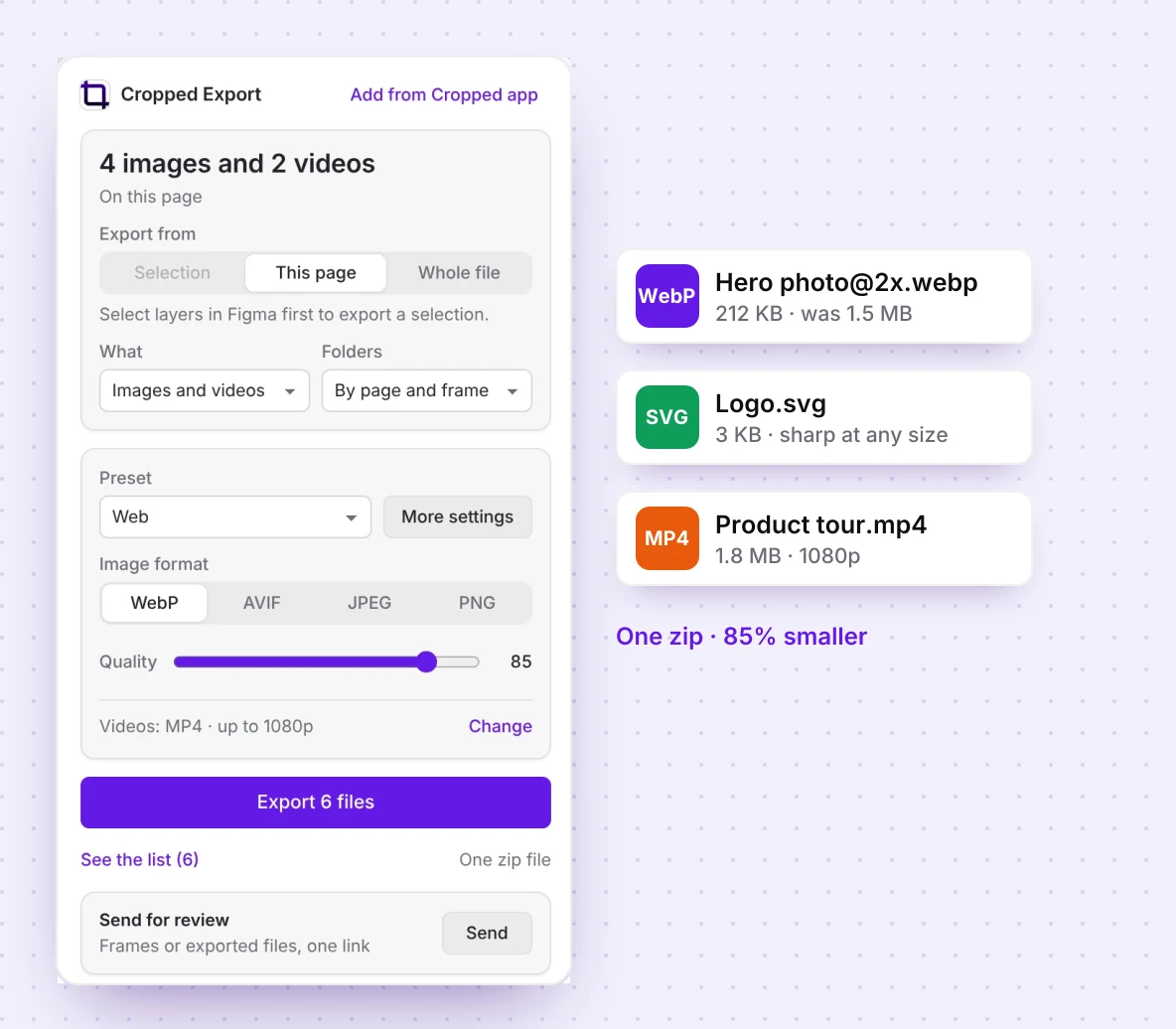
To try the beta: download it from cropped.app/figma, then in the Figma desktop app on Mac or Windows, choose Plugins › Development › Import plugin from manifest and pick its manifest.json. We've submitted Cropped Export to the Figma Community and are waiting for Figma to approve it. Once they do, you'll be able to install it in one click from inside Figma, and we'll post the link here.
#Settings and more
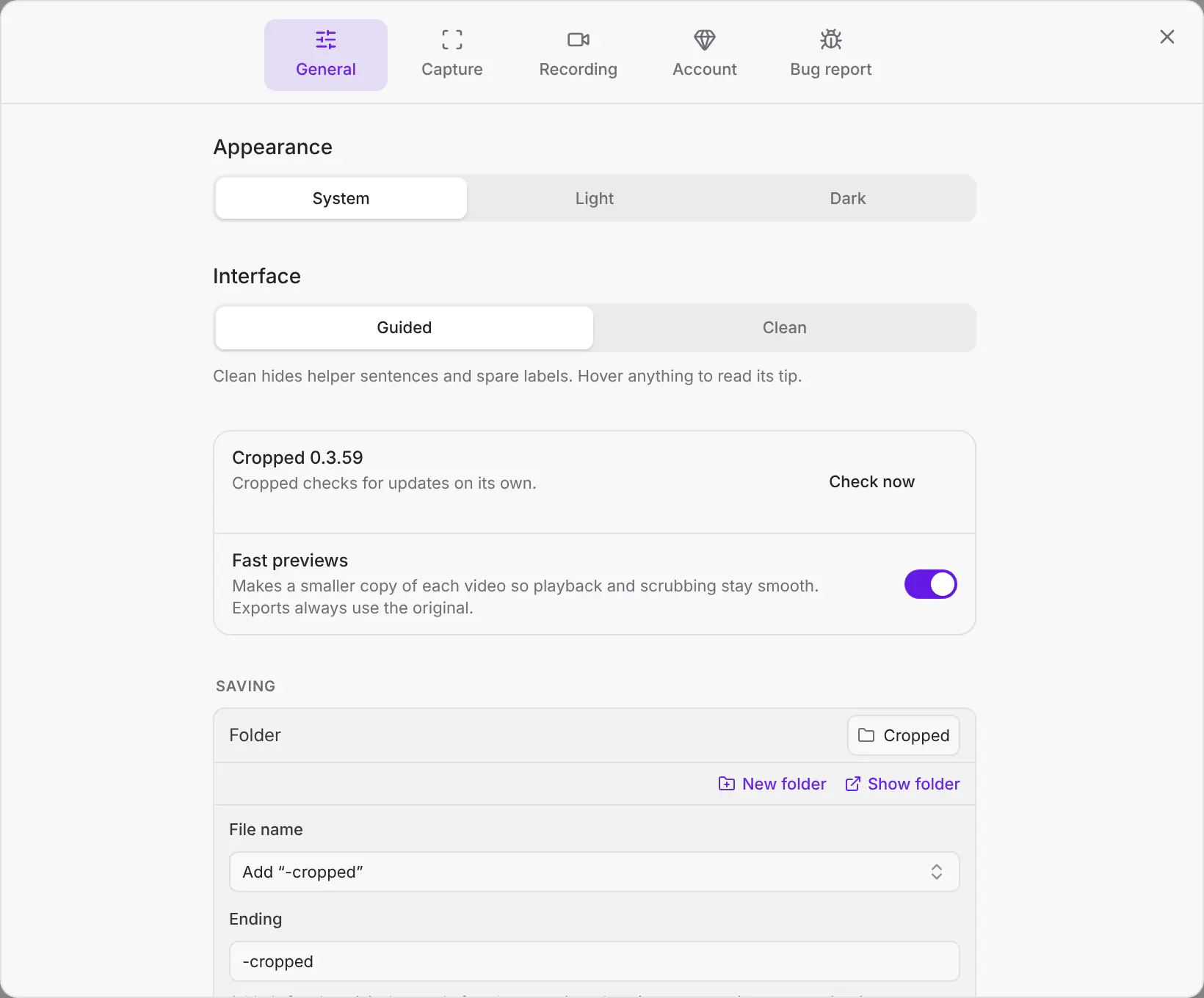
- Settings has five tabs: General, Capture, Recording, Account and Bug report.
- Quality is now Best, Balanced or Smallest. Balanced is what you had before.
- One Help panel: ask a question, try the three jobs, and find the guide, your keys and feedback.
- During a Pro trial, you can ask for an email the day before it ends.
- On Windows, copying an AI Pack works when a file name has a curly quote in it, along with other security fixes.
The full list is on Updates.
More from the blog
All posts-
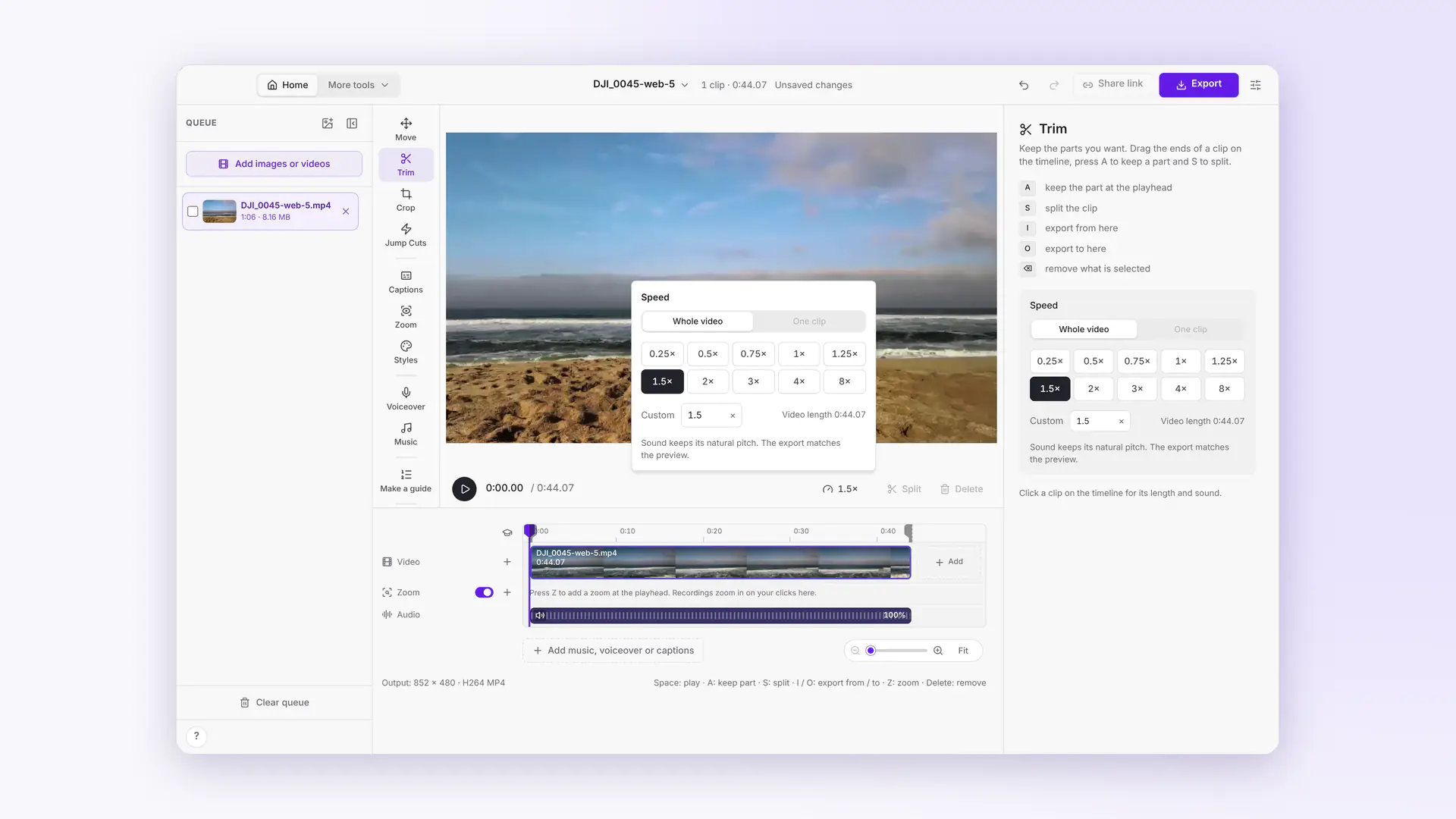 This week in Cropped: smaller videos, a Speed button, Move and Cropped music
Dropped videos come out at least 25% smaller, a Speed button speeds up any clip, Move drags and sizes the video on the preview, Styles gets soft edges, and the Studio has its own music.
-
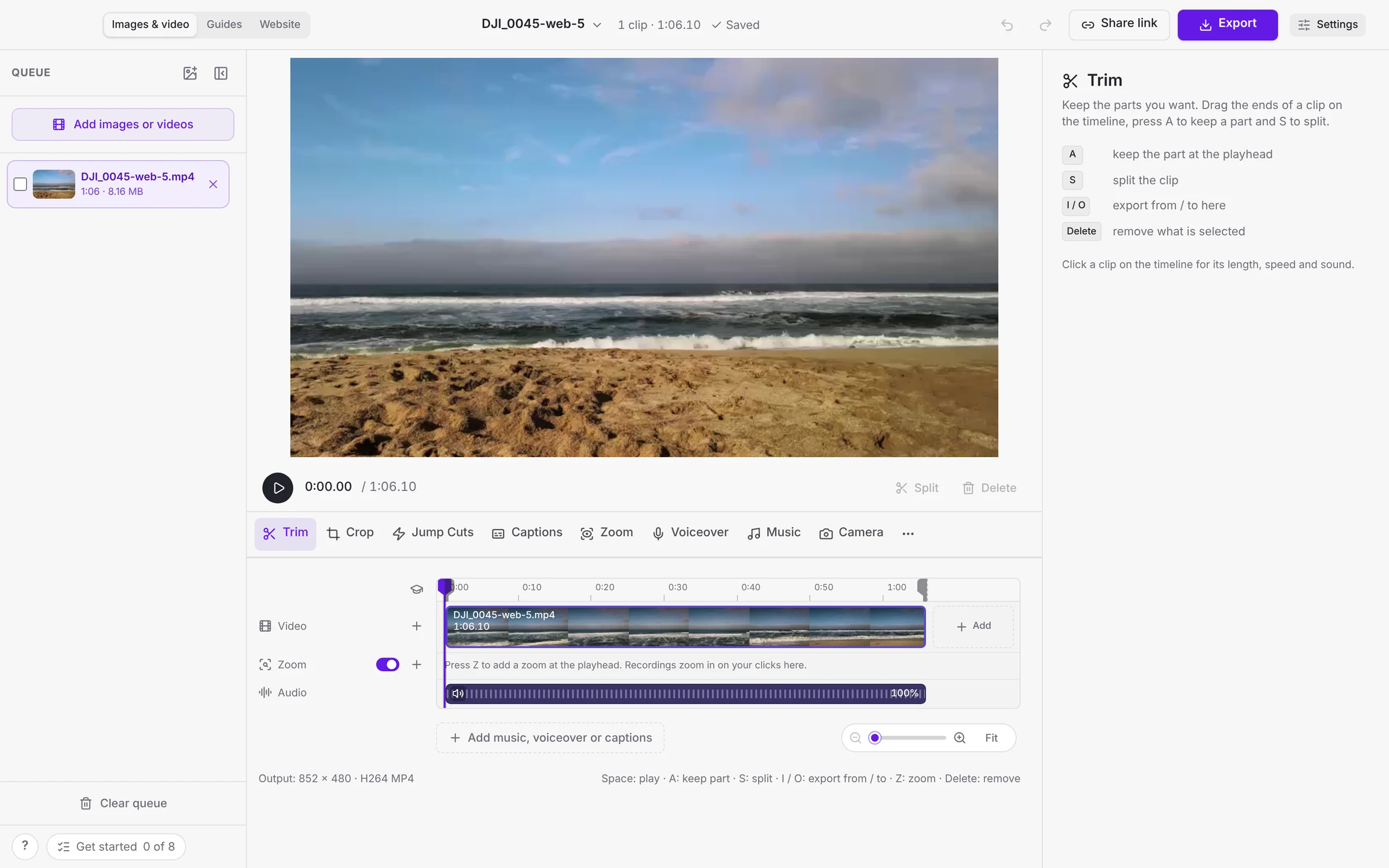 This week in Cropped: camera looks, a calmer Video Studio, guides from any video and AI Packs
Your camera becomes its own track with smooth looks, videos get styles, the Video Studio has one tool row, any video becomes a guide, and screenshots become AI Packs.
-
Cropped 0.3.56: a calmer Video Studio, setup in one screen, and guides from any video
The Video Studio has one tool row and Export in the title bar, Cropped sets itself up from one first-launch screen, any video becomes a step-by-step guide or document, and the image editor fits in one toolbar.
-
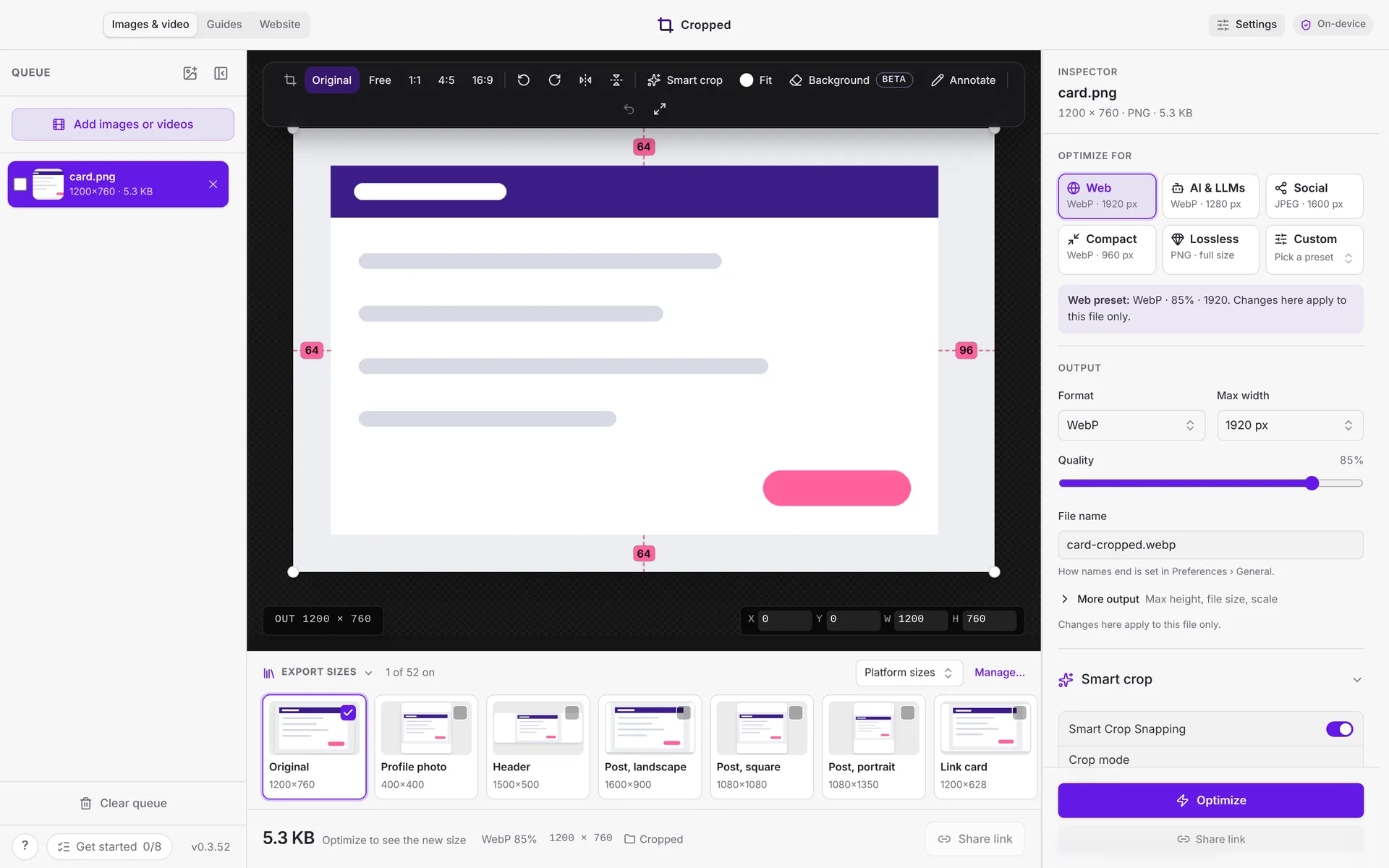 This week in Cropped: Core is free, a new Annotate, instant links and clean mic sound
Cropped Core is now free, Annotate got a redesign with snapping, share links copy the moment you click, and Mac recordings sound clean with any microphone.