 Cropped
Download
Download free
Blog / ·
Cropped 0.3.56: a calmer Video Studio, setup in one screen, and guides from any video
Cropped 0.3.56 is out on Mac, Windows and Linux. The Video Studio is quieter and easier to find your way around, Cropped sets itself up from one screen the first time you open it, and any video can become a step-by-step guide.
If you already have Cropped, it updates itself. If not, download it: Core is free, with no account or card.
#A calmer Video Studio
The Studio now has one tool row under the video: Trim, Crop, Jump Cuts, Captions, Zoom, Voiceover, Music and Camera. The tool you pick opens on the right, with its controls and shortcut keys, so the timeline stays in view. The project name, undo, Share link and Export sit in the window title bar, and Export opens a popover with its settings.
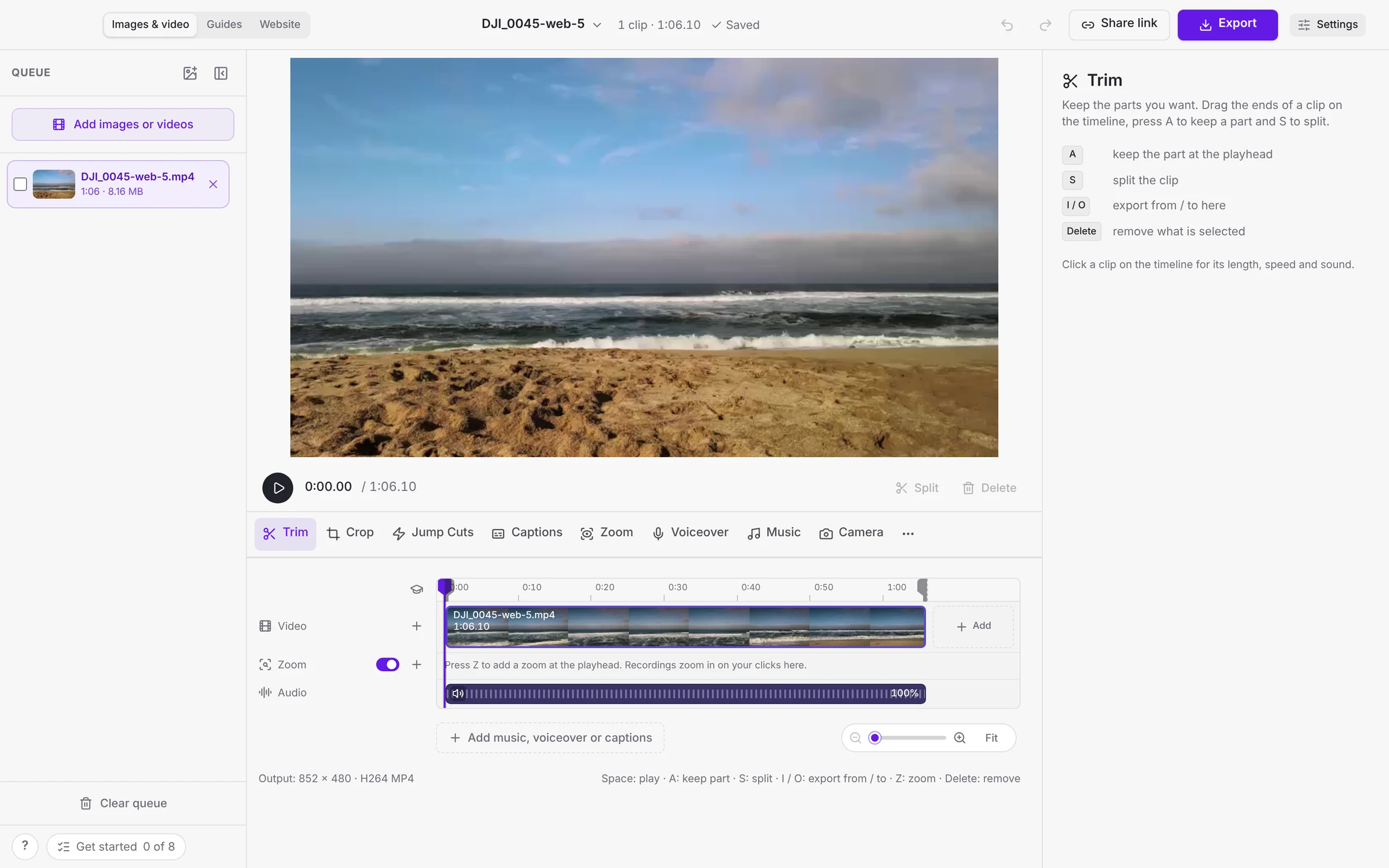
Videos in the queue show a poster frame, so you can tell them apart. Jump Cuts has its own panel: choose what to cut, including pauses, and see the cuts before you apply them. Zooms and video styles ease in and out, and the camera glides smoothly. Drag the camera bubble to make a move at the playhead, and it keeps clear of captions.
New to the Studio? Click the graduation cap above the timeline for Learn the Studio, a short tour in six parts, with Learn more on every step. See Edit videos.
#Set up in one screen
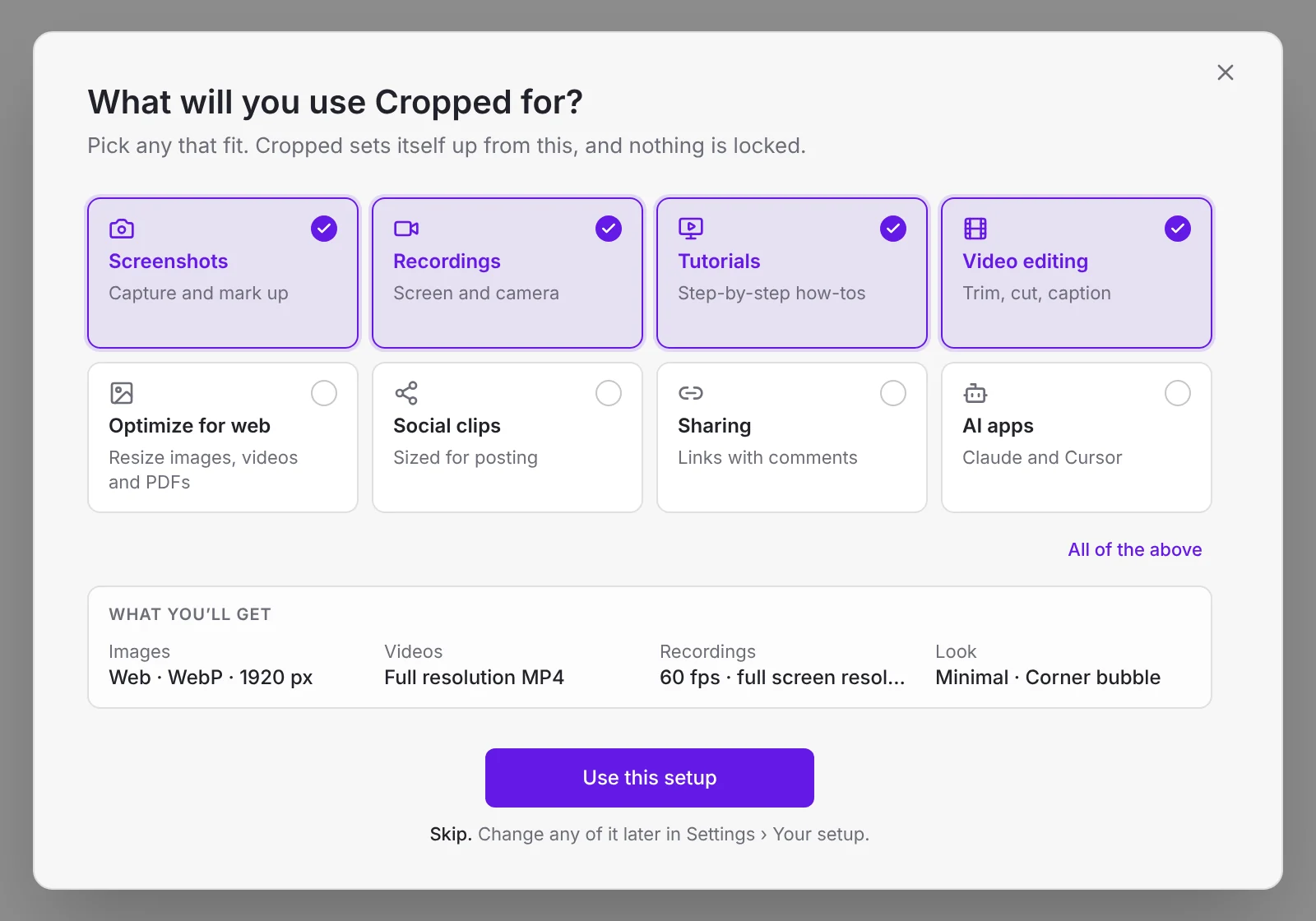
The first time you open Cropped, it asks what you'll use it for: screenshots, recordings, tutorials, video editing, optimizing for the web, social clips, sharing or AI apps. Pick any that fit and Cropped sets its image and video exports, recording frame rate and the look of new videos to match. Nothing is locked, and every choice is in Settings › Your setup. See Your setup.
#Guides and documents from any video
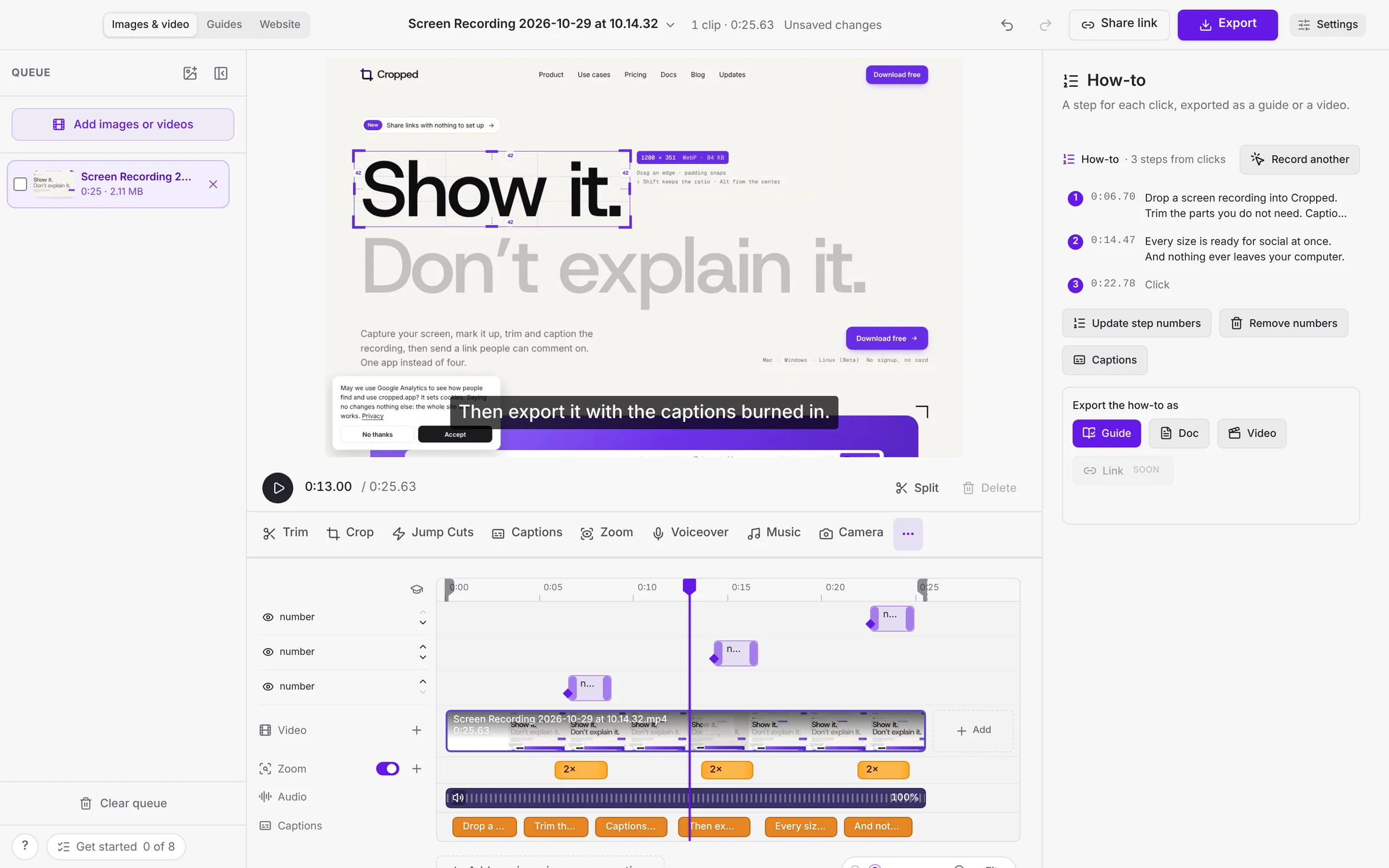
Open any video, recorded in Cropped or not, and Cropped turns it into numbered steps from your clicks, screen changes and what you said. Make a step-by-step guide or a document in one click, and Record it in Guides brings the recording back as one step per click. See Make a guide from any video.
#One toolbar for pictures
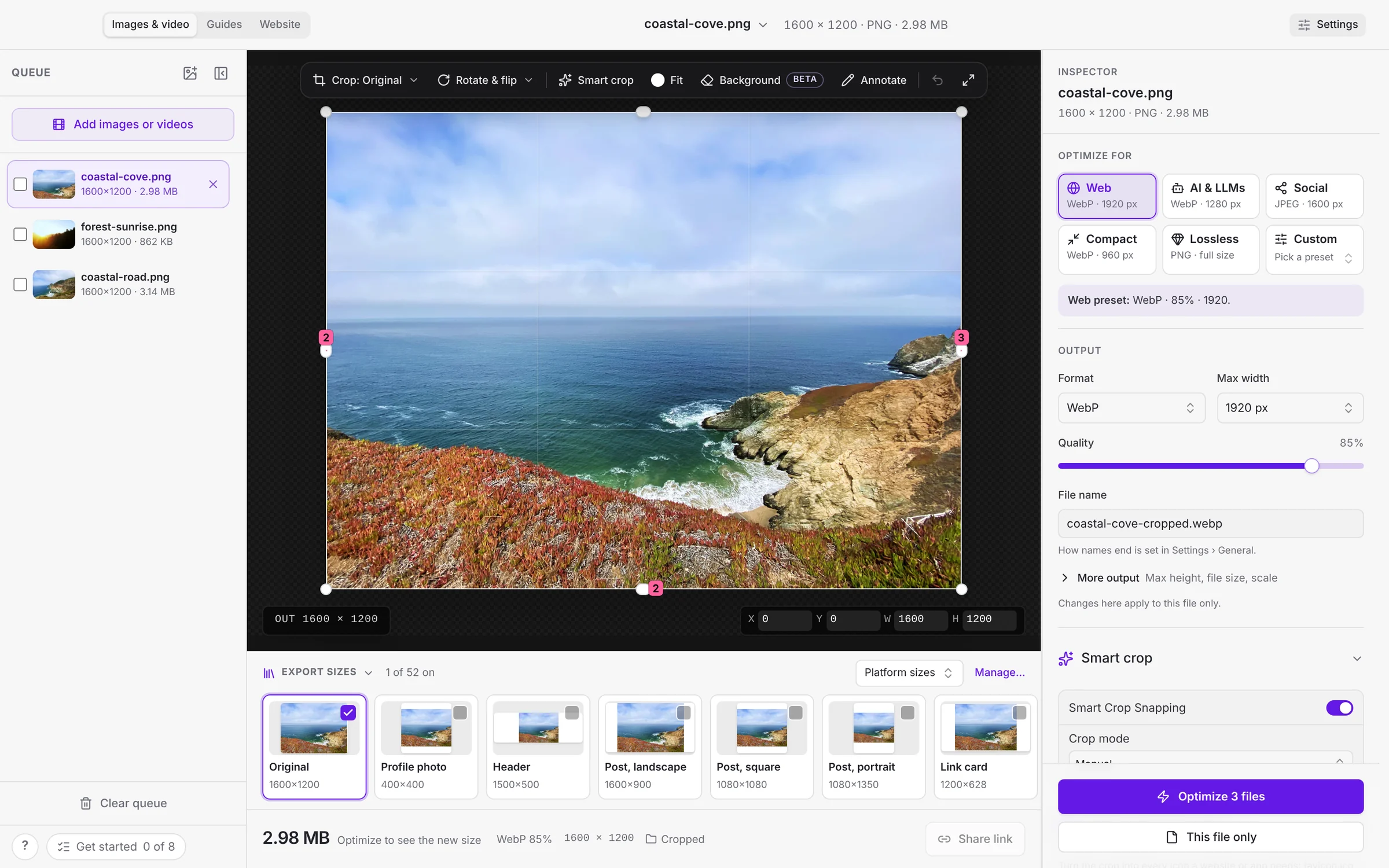
The image editor fits in one row above your picture: Crop (with every shape and Reset), Rotate & flip, Smart crop, Fill, Background and Annotate. Click the picture's name in the title bar to show the file in Finder or remove it from the queue. See The Studio window.
#AI Packs and the Drop Zone
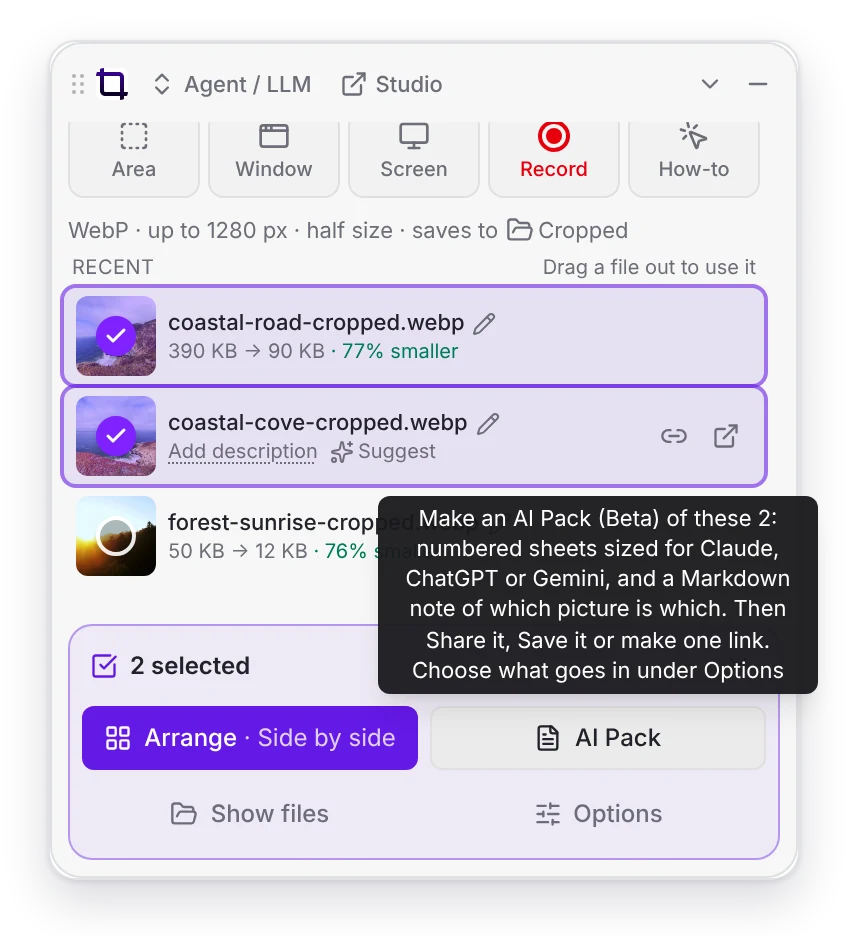
On Pro, select two or more screenshots in the Drop Zone to make an AI Pack for Claude, ChatGPT or Gemini, then Share, Save, copy the note, or get one link for the whole pack. The capture card is roomier, and you can click the picture to annotate it. Annotate can blur private details, auto correct a picture and spot fix small marks. See Annotate.
#Faster and steadier
Cropped does less in the background, so it's lighter while you work. A newer update replaces one that was waiting for a restart, and Settings › General shows your version and what Restart to update is waiting on. Zoom on clicks works in window recordings too.
The full list is on Updates.
More from the blog
All posts-
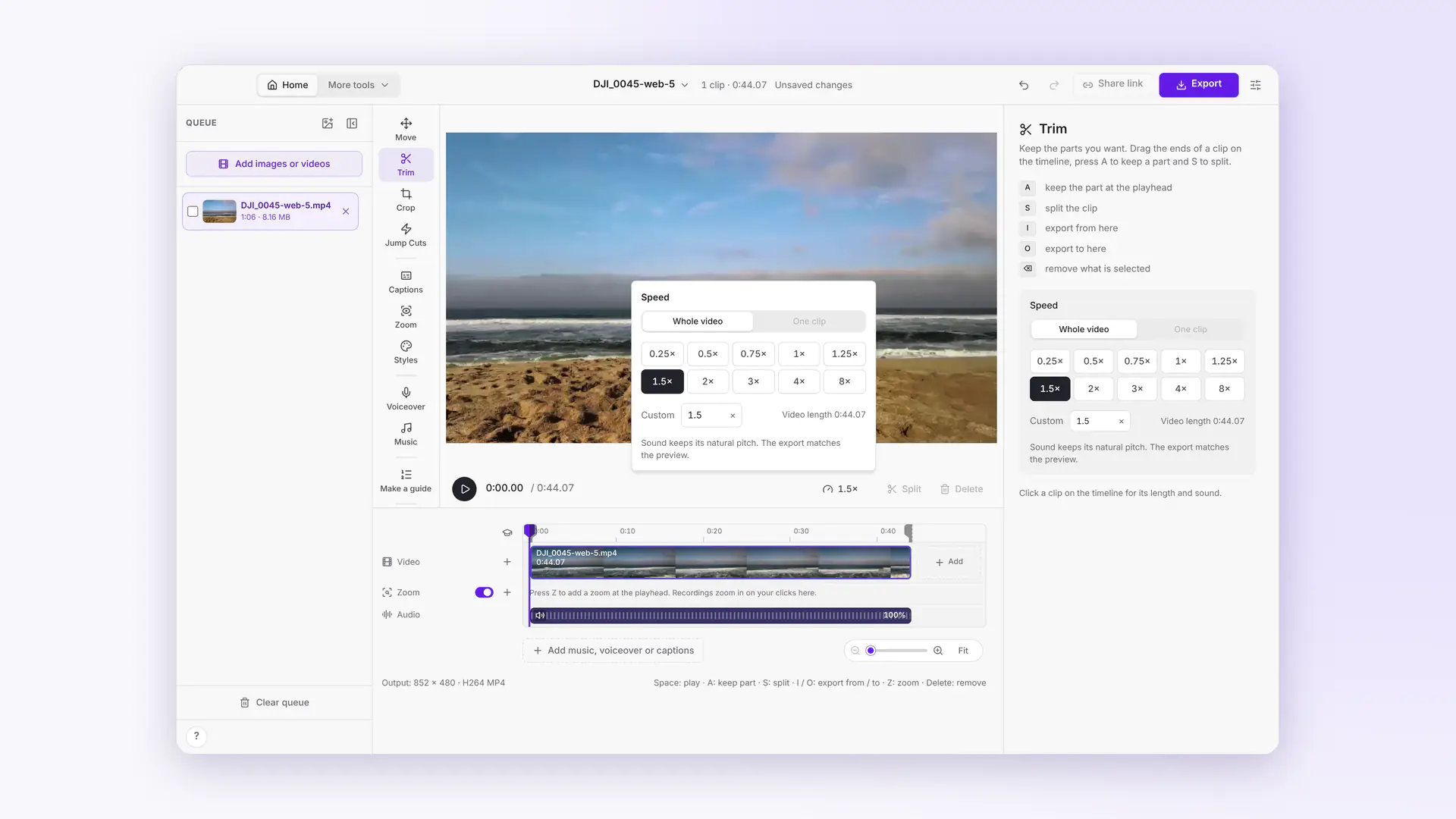 This week in Cropped: smaller videos, a Speed button, Move and Cropped music
Dropped videos come out at least 25% smaller, a Speed button speeds up any clip, Move drags and sizes the video on the preview, Styles gets soft edges, and the Studio has its own music.
-
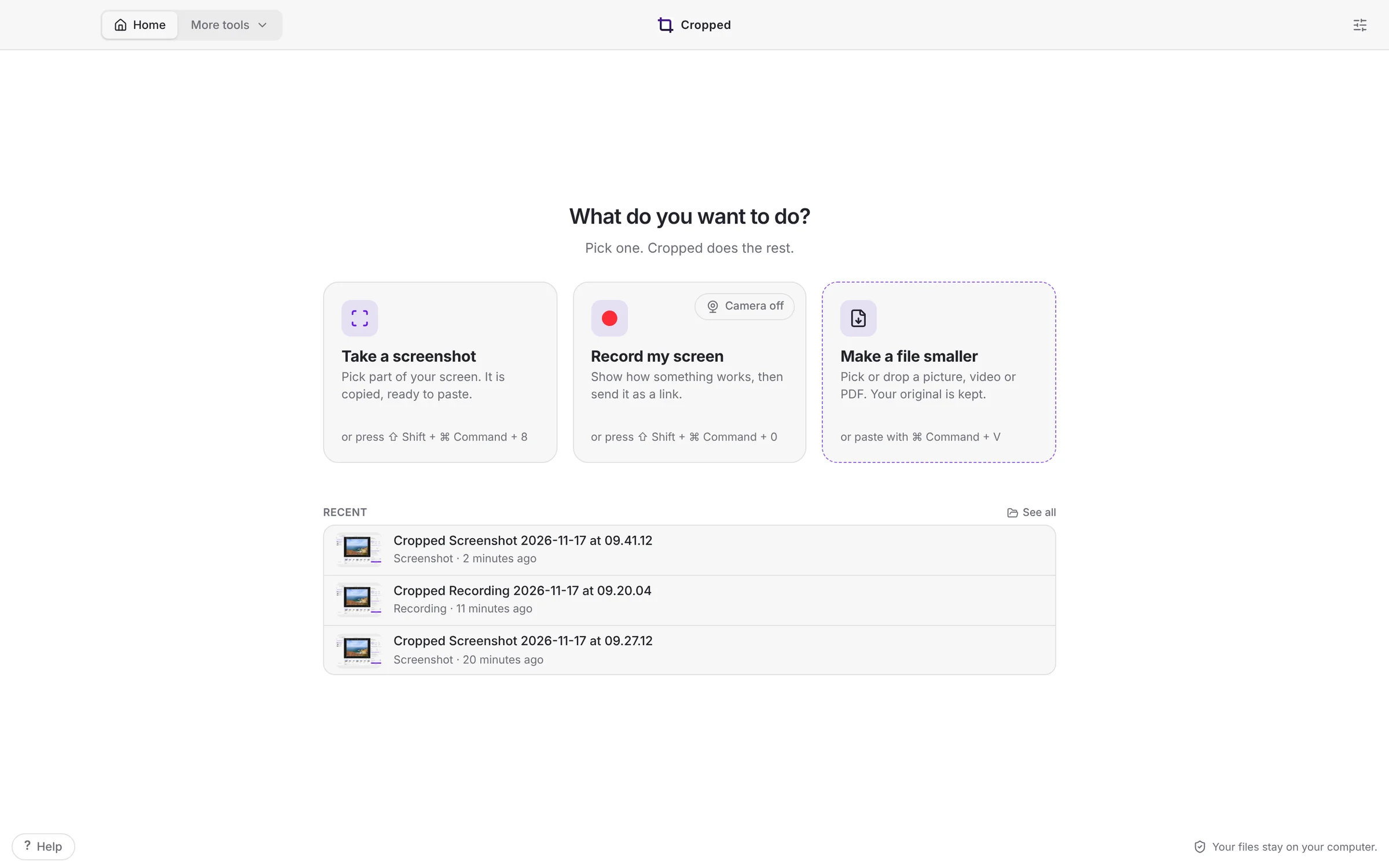 Cropped 0.3.59: Simple Cropped, Annotate tabs and full-page website shots
Cropped opens on three jobs, takes the screenshot the moment you let go, opens every screenshot in its own Annotate tab, captures whole web pages, copies the text in any picture, and finishes your Figma videos.
-
This week in Cropped: camera looks, a calmer Video Studio, guides from any video and AI Packs
Your camera becomes its own track with smooth looks, videos get styles, the Video Studio has one tool row, any video becomes a guide, and screenshots become AI Packs.
-
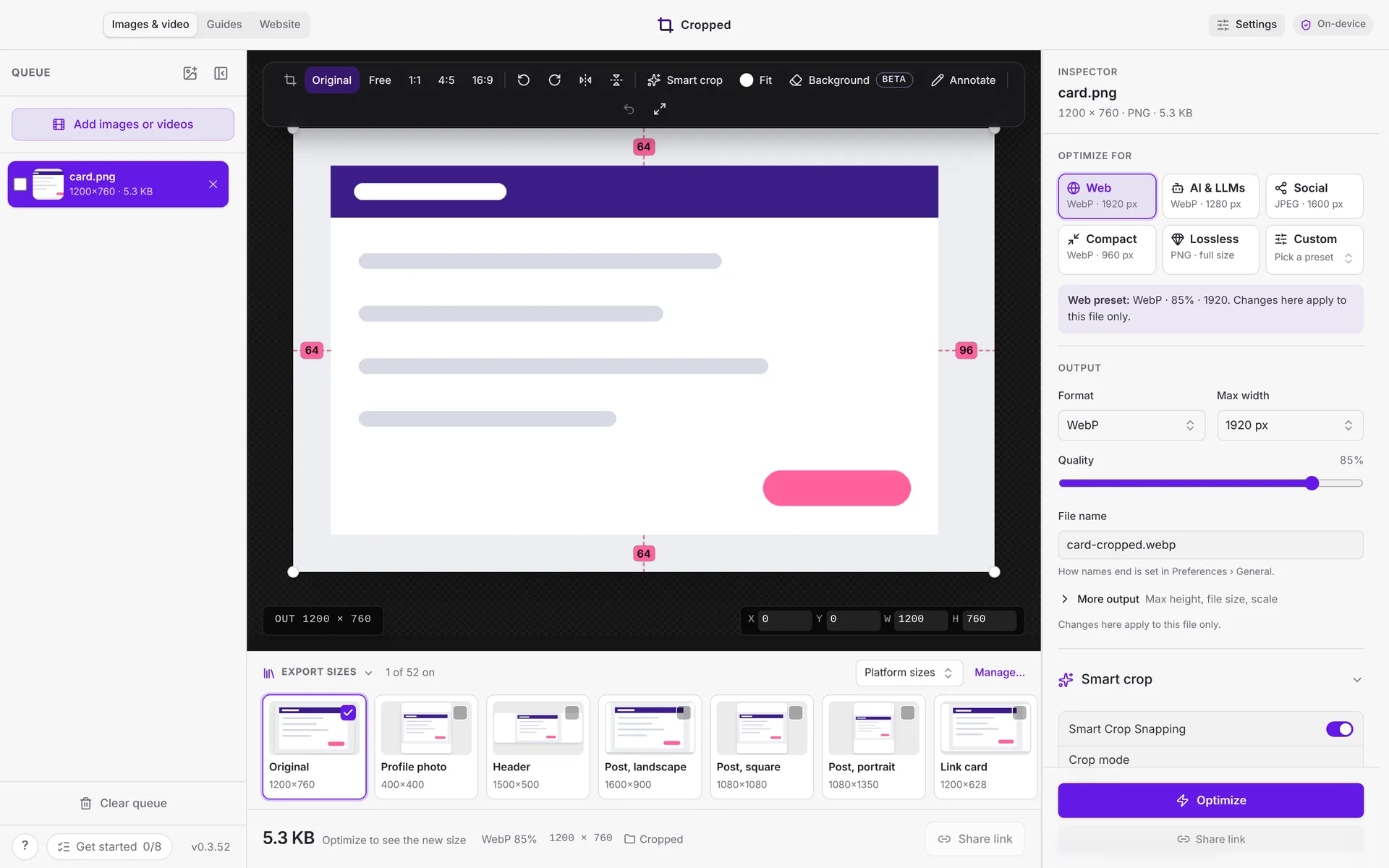 This week in Cropped: Core is free, a new Annotate, instant links and clean mic sound
Cropped Core is now free, Annotate got a redesign with snapping, share links copy the moment you click, and Mac recordings sound clean with any microphone.