 Cropped
Help
Cropped
Help
Help / Capture & annotate
Share a screenshot or video as a link
Send anyone a link to a screenshot or video. They open it in their browser, no account needed, and can leave comments, to-dos and questions on it. The file lives in your own storage, not on our servers, so you stay in control of it.
Quick answer: connect your storage once (one token pasted from Cloudflare, steps below), then in the Drop Zone click a capture and click Share link. The link is copied to your clipboard.
Share link is part of the Cropped Pro add-on. Anyone can open a link and comment on it for free. It works the same on Mac, Windows and Linux.
What you need
- Cropped Pro (or Cropped Platinum).
- A place to keep your shared files. We recommend Cloudflare R2: the first 10 GB are free and there is no charge when people watch or download. Any S3-compatible storage also works, such as Amazon S3, Backblaze B2 or Wasabi.
You set this up once. After that, sharing is one click.
Set up Cloudflare R2 (recommended)
Cropped does most of the work. You make one token on Cloudflare and paste it into Cropped.
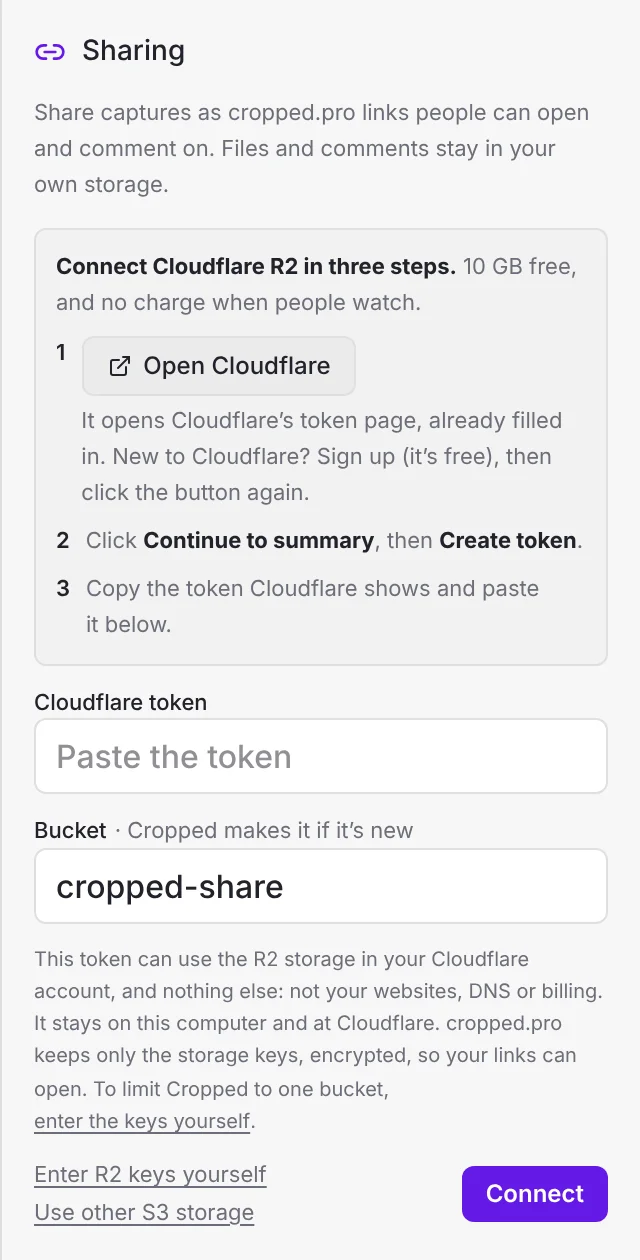
Step 1: Open Cloudflare from Cropped
- Open the main Cropped window and open Preferences (on a Mac it's called Settings): click the gear in the top bar, or press ⌘ Command + , (Windows and Linux: Ctrl + ,).
- Click the Account tab and scroll to Sharing.
- Click Open Cloudflare. Your browser opens Cloudflare's Create token page with everything filled in: a token named Cropped that can use R2 storage.
New to Cloudflare? Sign up at dash.cloudflare.com/sign-up (it's free), confirm your email, then click Open Cloudflare again.
Step 2: Create the token
- If Cloudflare asks which account, pick yours.
- Click Continue to summary, then Create token.
- Click the copy button beside the token Cloudflare shows. It shows it only once.
Step 3: Paste it into Cropped
- Back in Sharing, paste it into Cloudflare token.
- Leave Bucket as cropped-share, or type another name. Cropped makes the bucket if it's new.
- Click Connect.
Cropped finds your account, makes the bucket and works out the storage keys. The token stays on your computer and at Cloudflare.
What the token can do: read and write the R2 storage in your Cloudflare account. It can't touch your websites, DNS or billing. If you'd rather Cropped could only use one bucket, use the steps below instead.
R2 isn't turned on yet? Cropped tells you and shows Turn on R2 in Cloudflare. Cloudflare asks for a card the first time, even on the free plan. You're only charged if you go over the free 10 GB. Then click Connect again.
Set up R2 with keys for one bucket
This takes about ten minutes and gives Cropped a key for one bucket only. In Sharing, click Enter R2 keys yourself. You'll copy four things into Cropped: an Account ID, a bucket name, an Access Key ID and a Secret Access Key.
Make a bucket
- In the Cloudflare dashboard, click R2 Object Storage in the left sidebar (under Storage & databases on some accounts). Turn R2 on if it asks.
- Click Create bucket, name it cropped-share (lowercase letters, numbers and dashes), leave Location on Automatic and click Create bucket.
Your bucket stays private; people never see it directly. cropped.pro shows them the file through a short-lived signed address.
Copy your Account ID
On the main R2 Object Storage page, under Account Details, copy the Account ID (32 letters and numbers).
Create a key for that bucket
- On the R2 Object Storage page, click Manage API tokens (on some accounts it's {} API › Manage API tokens), then Create API token (pick Account API token if it asks).
- Name it Cropped, choose Object Read & Write, then Apply to specific buckets only and pick your bucket.
- Leave TTL on Forever and click Create API Token.
- Copy the Access Key ID and the Secret Access Key now. Cloudflare shows the secret only once.
Connect it in Cropped
Paste the Account ID, Bucket, Access Key ID and Secret Access Key into Sharing, then click Connect.
Cropped saves a small test file, reads it back and deletes it, to make sure everything works. When it says you're connected, you're done. You never have to do this again on this computer.
Share a capture
- In the Drop Zone, click a screenshot or recording to open it.
- Click Share link.
- Pick Optimized copy (smaller, opens faster) or Full resolution, and change the title if you like. The title is what people see at the top of the page.
- Click Share. When it's done, the link is already on your clipboard. Paste it anywhere.
Pictures can be up to 100 MB and videos up to 5 GB.
To choose which file Share link starts with every time, open Preferences › Account › Sharing and pick Share by default.
What people see
The link opens a page at cropped.pro with your screenshot or video. Anyone with the link can:
- Watch or view it, on a phone or a computer, with no account.
- Leave comments with their name. On a video, comments are pinned to the moment they're about. On a picture, they can point at a spot.
- Mark a comment as a to-do or a question.
Comments are saved in your bucket next to the file.
Manage your links
Open Preferences › Account › Sharing (or click Your links after sharing) to see every link you've made. For each one you can:
- Copy the link again, or Open it in your browser.
- Rename it.
- Turn off the link, so it stops opening, and turn it back on later.
- Turn Comments off or on.
- Delete it. This removes the file and its comments from your bucket for good.
Disconnect at the bottom stops all your links from opening until you connect again. Your files stay in your bucket.
Use other S3 storage
- In Preferences › Account › Sharing, click Use other S3 storage.
- Pick Amazon S3, Backblaze B2 or Wasabi and type your bucket's Region: Cropped fills in the storage address. For anything else, pick Other and type the Storage address too.
- Fill in the Bucket and your key (Access Key ID and Secret Access Key; on Backblaze, Key ID and Application Key).
- Use a key that can only read and write that one bucket, and click Connect.
Your provider may charge each time someone watches a video. Cloudflare R2 doesn't, which is why we recommend it.
Privacy and safety
- Your files never go to our servers. They travel straight from your computer to your bucket.
- cropped.pro keeps only the link itself (its short code, title and size) and your key, encrypted, so it can show the file to people who open the link.
- Shared pages aren't listed in search engines. Anyone you give the link to can open it, so share it only with people you'd show the file to.
- Anyone viewing a link can report it. See our Terms for what may be shared.
Troubleshooting
"Cloudflare didn't accept that token." Copy the token Cloudflare shows right after Create token (not the token's name or ID). If you've lost it, click Open Cloudflare and make a new one.
"That token can't use R2." On Cloudflare's token page, keep the R2 permission that Cropped fills in. If the page doesn't show it, choose Workers R2 Storage › Edit yourself.
"The Account ID is the 32 letters and numbers on your Cloudflare R2 page." You pasted something else, such as the token value. Copy the Account ID from your R2 overview page.
Connect says the key doesn't work. Make sure the token has Object Read & Write and that it includes your bucket. Check you didn't swap the Access Key ID and the Secret Access Key. If in doubt, delete the token in Cloudflare and make a new one.
"Check the bucket name." Bucket names are lowercase letters, numbers, dots and dashes, exactly as shown on your R2 page.
Share link shows a Pro mark. Sharing comes with the Pro add-on. Click it to see your options.
A link stopped opening. It may be turned off, or your storage was disconnected. Open Preferences › Account › Sharing to check.
Still stuck? Click the ? button at the bottom left of the Cropped Studio to ask, send us a message, or request a feature.