 Cropped
Help
Help / Crop, optimize & export
Finish Figma videos in Cropped
Updated
Figma doesn't let plugins read videos you uploaded to a design. When the Cropped Export plugin can't get a video's original file, its zip also holds a small file named after your Figma file, such as Homepage - finish videos.croppedvideos. Open it in Cropped, and Cropped finds each original video on your computer, crops it to exactly what its layer shows and compresses it with the plugin's settings.
Quick answer: open the .croppedvideos file from the zip with Cropped, check that Original videos are in shows the folder with your videos (Downloads unless you change it), and click Finish videos. The videos are saved next to the file, in the same folders as the rest of the export.
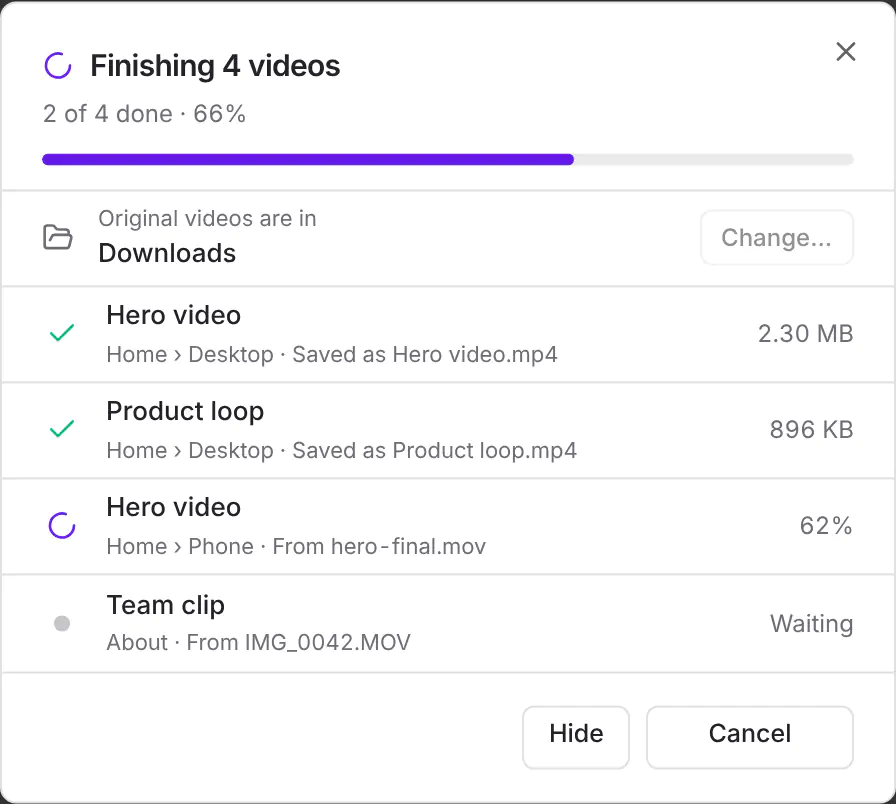
Open the file
Any of these works:
- Double-click it in Finder (Mac).
- Drop it on the Drop Zone or on the Studio.
- In the Studio, click More tools, then Saved video projects, then Open a file…, and choose it.
The Finish videos window opens in the Studio and lists every video in the file, with the page and frame each layer is on, so two layers with the same name are easy to tell apart.
Find the original videos
Cropped looks in your Downloads folder, and in the folders inside it, for the videos you uploaded to Figma. If they're somewhere else, click Change… and choose that folder.
Cropped matches each video by its contents, not its name, the same way Figma recognizes a video you upload twice. So a video called IMG_0042.MOV on your computer is still found for a layer called Team clip. Nothing is uploaded: the matching happens on your computer.
What Cropped makes
- Cropped to the layer. A video placed with Fill comes out as only the part you can see, a cropped video as its crop box, and one placed with Fit as the whole video.
- The plugin's settings. The format (MP4, WebM or GIF), codec, quality, largest size, frame rate, largest file size and sound you picked in the plugin. H.264 videos use your computer's video encoder.
- The same names and folders. Each video is saved where the plugin would have put it, named after its layer, such as
Home/Desktop/Hero video.mp4. Nothing is overwritten: if a file with that name is already there, the new one gets a number.
You can click Hide and keep working while the videos are made; open the same file again to see how far along they are.
When it's done, the window shows how much smaller the videos are than the originals, and Reveal in Finder (Show in File Explorer on Windows) opens the folder.
If a video isn't found or doesn't export
- Not found: the folder doesn't have that video. Click Change…, choose the folder that does, then Try again. The videos already found are made again quickly.
- "This video is turned in Figma": Cropped can't turn videos yet. Remove the rotation in Figma and download again, or crop that video by hand in the Studio.
- Dropped from an app that doesn't say where the file is, such as a zip still open in an archive app: the videos are saved in a new folder in Downloads named after your Figma file. Unzip the export first to have them saved next to the rest.
- On Windows and Linux, double-clicking the file doesn't open Cropped yet. Drop it on the Drop Zone or the Studio instead.
Still stuck? Click the ? button at the bottom left of the Cropped Studio to ask, send us a message, or request a feature.