 Cropped
Help
Help / Crop, optimize & export
Export every image and video from Figma
Updated
Cropped Export is a free Figma plugin that saves every image, icon and video in a file in one go. Each file is cropped to exactly what its layer shows, compressed with the same presets as the Cropped app, and named after its layer, all in one zip.
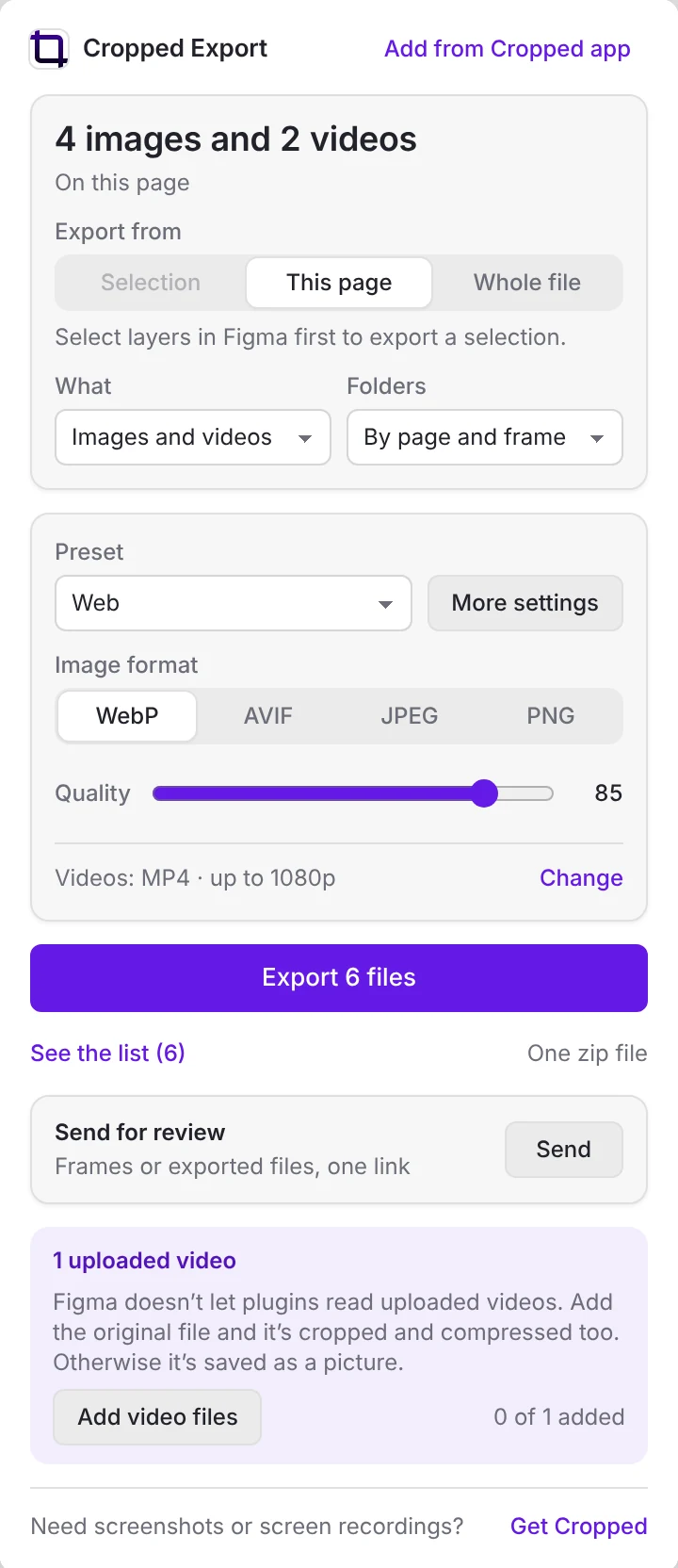
Quick answer: in Figma, run Cropped Export, check the count it shows (for example "24 images and 3 videos"), and click Export (it says how many files, such as Export 27 files). Everything comes in one zip, saved wherever your browser or Figma saves downloads.
See it in action on the Cropped Export page.
Install and run it
- In Figma, open the menu and choose Plugins, then Find more plugins, and search for Cropped Export.
- Click Run. The plugin looks through the page right away.
- Next time, it's under Plugins in your recent plugins. After your first export, an Export again with Cropped Export button also appears in the right panel of the file, so a repeat export is one click.
The plugin works in the Figma desktop app and in Figma in a browser. Exporting happens on your computer and needs no Cropped account. Only Send for review uploads, and only what you pick.
Choose what to export
- Export from: Selection, This page or Whole file. Selection is gray until you select layers in Figma.
- Folders: By page and frame, By file type (an
SVGfolder, aWebPfolder, anMP4folder and so on) or One folder. - What:
- Images and videos saves every picture, video, icon and logo, cropped to the size of its layer. A photo placed with Fill comes out as only the part you can see.
- Frames saves each frame on the page as one picture. Frames you animated in Figma save as video.
- Layers marked for export uses the export settings you already added in Figma's Export panel, so your sizes and suffixes such as
@2xare kept, but the files are compressed. - Selected layers saves exactly the layers you selected.
Click See the list to check every file before you export, and untick any you don't want.
Pick a preset
The presets match the Cropped app, so Web means the same thing everywhere:
| Preset | Pictures | Videos |
|---|---|---|
| Web | WebP, quality 85, 2x, up to 1920 px wide | MP4, up to 1080p |
| Share | JPEG, quality 82, up to 1600 px wide | MP4, up to 720p |
| Agent / LLM | WebP, quality 80, 1x, up to 1280 px wide | MP4, up to 480p |
| PNG, 3x, full size | MP4, full size, high quality | |
| Web · compact | WebP, quality 78, up to 960 px wide | MP4, 720p, 30 fps |
| Web · AVIF | AVIF, quality 65, up to 1920 px wide | MP4 AV1, 1080p |
| Photo · high quality JPEG | JPEG, quality 92, up to 2560 px wide | MP4, 1080p, high quality |
| Thumbnail · WebP | WebP, quality 80, up to 640 px wide | GIF, 320p, 10 fps |
Change the settings
The main screen has the settings you change most: the preset, Image format (WebP, AVIF, JPEG or PNG) and Quality. For size, largest file size and everything else, click More settings next to the preset.
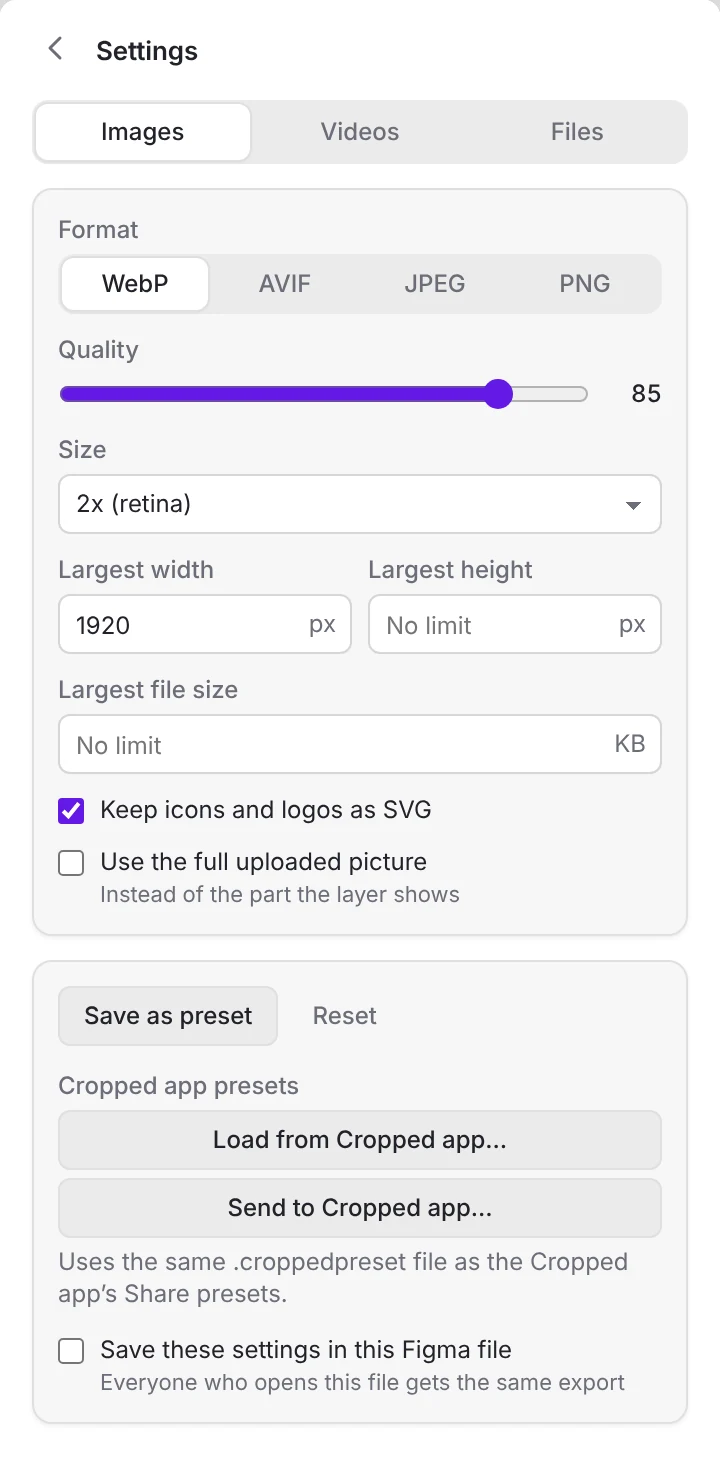
- Images: format (WebP, AVIF, JPEG or PNG), quality, size (0.5x to 4x), largest width and height, and a largest file size in KB. Cropped Export lowers the quality, then the size, until each file fits. PNGs are squeezed without changing a pixel. JPEGs get a background color behind see-through parts.
- Icons and logos stay SVG. Vector artwork, such as icons, logos and imported SVG files, is saved as a real
.svgfile instead of pixels. The same icon used many times is saved once. Turn off Keep icons and logos as SVG to get pictures instead. - Use the full uploaded picture saves the whole picture you placed instead of the part the layer shows.
- Videos: MP4, WebM or GIF, codec (H.264, AV1 or VP9), quality, largest size (from 320p to 4K), frame rate, a largest file size in MB, and sound on or off.
- Files: folders by page and frame, by file type or one folder, layer names as they are or web-friendly names, hidden layers, and a
manifest.jsonthat lists every file with its size and layer.
Every tab has Save as preset and Reset. To keep your changes, click Save as preset and give it a name, such as a client's name. Reset goes back to the preset you started from. Turn on Save these settings in this Figma file and everyone who runs Cropped Export on that file gets the same settings.
Videos
- Frames animated in Figma are saved as video by Figma's own exporter, at your preset's size, frame rate and quality. Only frames placed directly on the page can be saved as video.
- Videos you uploaded to Figma need their original file. Figma doesn't let plugins read uploaded videos, so Cropped Export asks for them: click Add video files and choose the originals. Each one is matched to its layer automatically, then cropped to what the layer shows and compressed. In See the list you can pick the file for a video by hand.
- Without the original file, a video is saved as a picture of the frame Figma shows, and the zip gets a
finish videos.croppedvideosfile: open it in Cropped to finish the videos there (see below).
Video compression uses your computer's video encoder. If a codec isn't available, such as H.264 in some browsers, Cropped Export uses the next one that works and says so.
Compare with Figma's own export
After an export, the result line says how much smaller the zip is than Figma's own export (the smaller of its 2x PNG and 2x JPG), and Compared with Figma's own export shows what the same pictures weigh as Figma's own 2x PNG and 2x JPG, next to what Cropped Export saved. On a big export only some layers are measured and the rest are estimated, marked Estimated. Turn it off in More settings › Files.
Export the selection from Figma's menus
Select layers or a whole screen, then choose Export with Cropped in Quick Actions (⌘/ on Mac, Ctrl+/ on Windows) or under Plugins › Cropped Export. The download starts right away. For a selected frame or group, that's the pictures and videos inside it; for selected pictures or icons, those layers. Layers you exported this way get an Export with Cropped button in Figma's right panel, and the file gets Export again with Cropped Export.
Use the same presets in Cropped
In More settings, under Cropped app presets:
- Send to Cropped app… downloads your presets as a
.croppedpresetfile. Open it in the Cropped app (Settings › General › Share presets) and its screenshots and recordings export the same way. A size of 2x here is 100% in Cropped. - Load from Cropped app… reads a
.croppedpresetfile that you or a client shared from Cropped, and adds its presets here.
Put screenshots and recordings on the canvas
Click Add from Cropped app at the top and choose screenshots and screen recordings, from Cropped or anywhere. They're placed side by side in a new frame next to what you're looking at. WebP and AVIF pictures are turned into PNG, since Figma doesn't take those. Figma adds videos to files on paid plans only.
Finish uploaded videos in Cropped
When an uploaded video is saved as a picture because its original file wasn't added, the zip also has a file ending in finish videos.croppedvideos. Open it with Cropped 0.3.59 or later and Cropped finds the original videos, crops each one to what its layer shows and compresses it with your video settings. See Finish Figma videos in Cropped. On an older Cropped, add the original files in the plugin before you download.
Send for review
With Cropped Pro, Send for review makes one cropped.pro link people comment on in any browser, no Figma account needed. Click Send in the Send for review box on the main screen, or Send for review after an export. Then pick what to send:
- Frames: the frames you selected in Figma, up to 20. Each frame is a page people pin comments on, like pages of a document.
- Exported files: your last export. People see the pictures, comment on them and download the zip.
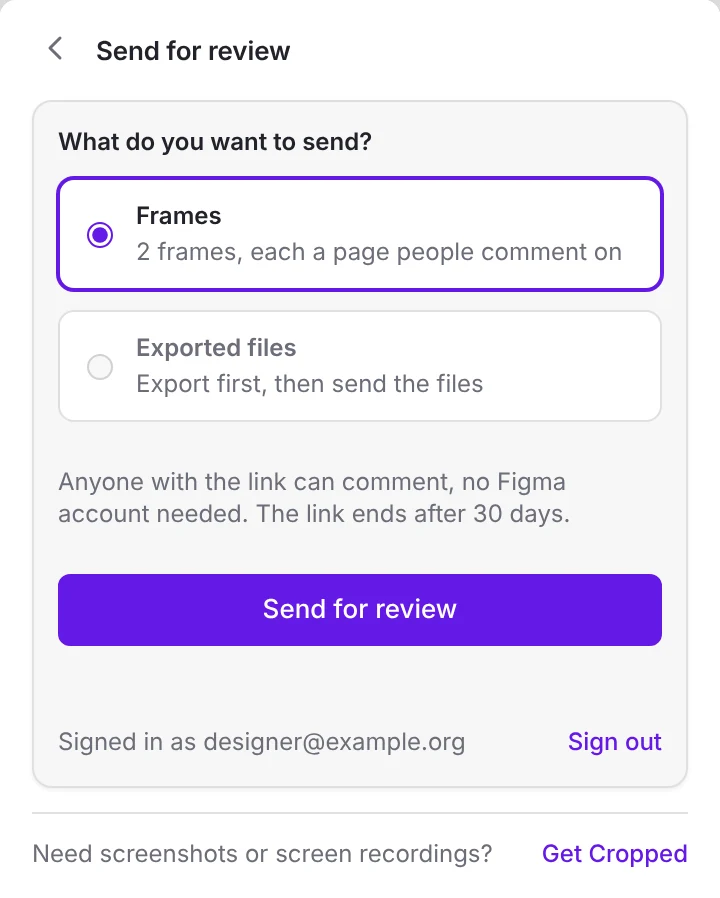
- The first time, enter the email you bought Cropped Pro with, then the 6-number code we email you. You stay signed in until you click Sign out.
- Pick Frames or Exported files and click Send for review. Frames are uploaded as pictures; exported files as previews of up to 40 pictures, a list of the files and the zip, all to your Cropped storage on cropped.pro. The link is copied when it's ready.
- Changed the frames? Select them again and send. They go to the same link as the next version, and earlier versions keep their comments. Choose New link to start over.
Links end after 30 days; change or delete them in your Cropped Library. Comments show on the link, in the Cropped app and in your Cropped Library. People signed in on cropped.pro with Cropped Pro can also reply with a video, recorded from their camera or screen.
Nothing is uploaded unless you click Send for review. Exporting itself never uses the internet.
See review comments in Figma
Comments people leave on a review link come back to the Figma file you sent it from. After you send for review, a Comments button appears next to Send for review on the main screen.
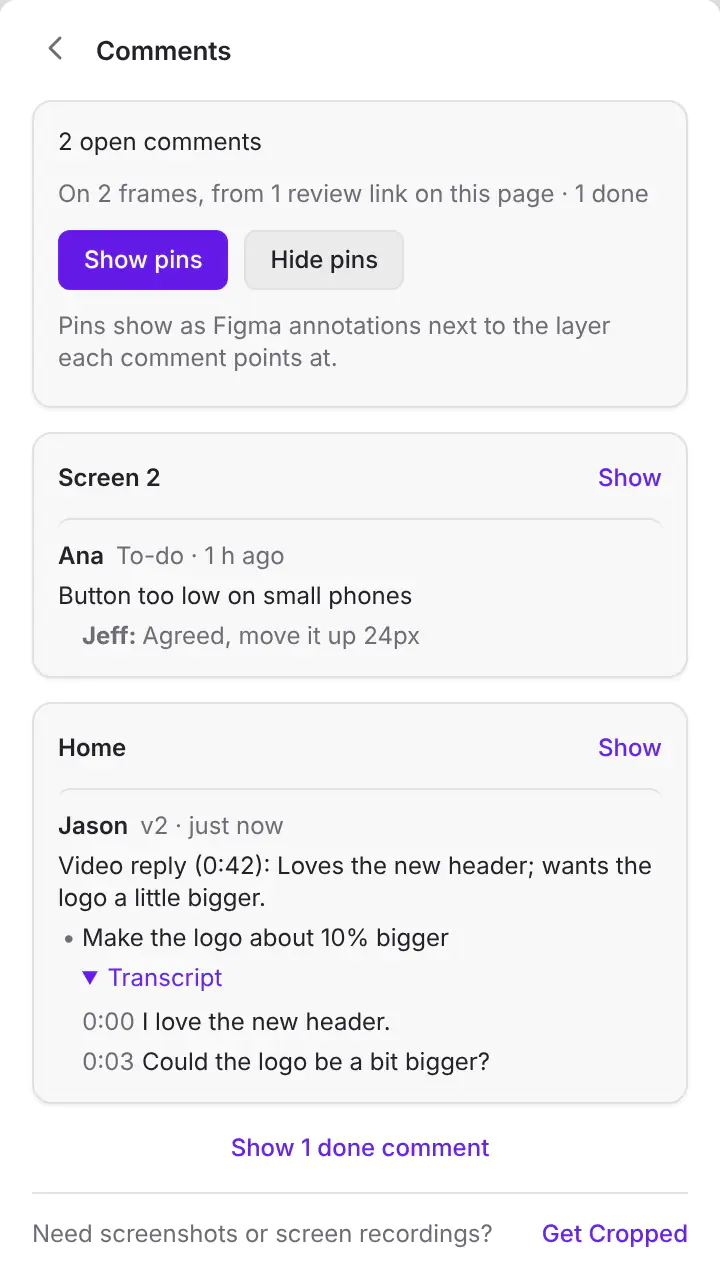
- Read them: comments load each time you open Comments. Open ones are grouped by the frame they're on, with replies underneath, and a Question or To-do tag when they have one. Click a comment to go straight to where it points: Figma selects the layer under the comment's pin or box and zooms in on it, right in the file, with no browser tab. Click Show to jump to the whole frame. Done comments stay hidden until you ask for them.
- Video replies: a transcribed video reply shows its summary and what it asks for. Click Transcript for every line with its time. How transcripts work.
- Show pins: puts each open comment on its frame as a Figma annotation, next to the layer the comment points at, with the author and replies. Turn on annotations in Figma (Shift+Y) to see them. Showing them again replaces the old pins, so they never pile up.
- Hide pins: takes every Cropped pin off this page. Your own annotations stay.
Reply and mark comments done on the link itself, or in the Cropped Comment Center.
Figma doesn't let plugins add real Figma comments, which is why they come in as annotations. Only links sent from this page show up here, and only to the person who sent them.
Troubleshooting
- "Nothing to export here": the page has no pictures, videos or vector artwork. Try Frames, or Whole file.
- "No layers here have Figma export settings": you chose Layers marked for export but no layer has an export setting. Choose Images and videos or Frames.
- A file is still over the size limit: it's listed after the download. Lower the size or raise the limit.
- "Skipped empty layers": layers that show nothing on the canvas, such as a hidden divider or a see-through frame, have nothing to save, so they're left out.
- Where's the zip? Where your downloads go, usually the Downloads folder, named after your Figma file, such as
Homepage - Cropped Export.zip. If Figma asks where to save it, it goes where you picked. Closed that window by mistake? Press Save zip, or Save next to it under Recent exports. Figma doesn't let plugins open Finder or File Explorer, so open it from there. - "You've been signed out" when sending: sign in again with a new code. Signing out in one Figma signs out only that one.
- "Cropped storage isn't on for your account yet": Send for review needs Cropped storage, which comes with Cropped Pro. Write to us from the contact page if you have Pro and see this.
- Very large frames: Figma can't export more than 16,000 pixels on a side, so huge frames are saved a little smaller.
Want screenshots and screen recordings cropped and compressed the same way? Get Cropped for Mac and Windows, with Linux in Beta.
Still stuck? Click the ? button at the bottom left of the Cropped Studio to ask, send us a message, or request a feature.