 Cropped
Help
Cropped
Help
Help / Crop, optimize & export
Trim, crop and pick clips from videos
Open a video in the Studio to cut it down, crop it, and export a small copy. Cropped never changes the original.
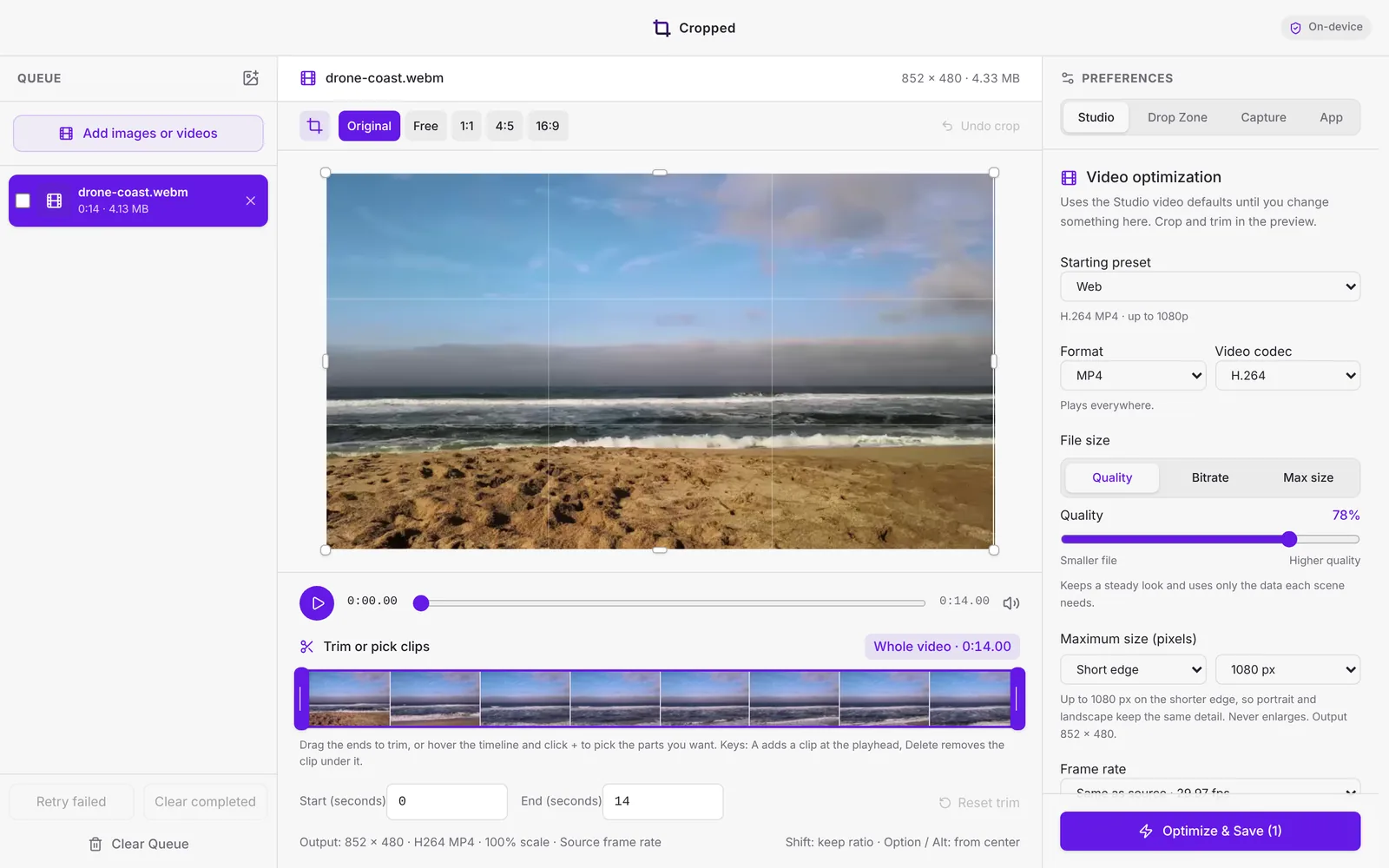
Play and scrub
Press play under the preview, or click the position slider and use the keyboard:
| Key | Action |
|---|---|
| Space or K | Play or pause |
| ← Left arrow → Right arrow | Back or forward one frame |
| Shift ← Left arrow → Right arrow | Back or forward one second |
| Home / End | Jump to the trim start or end |
| A or + | Add a clip at the playhead |
| Delete | Remove the clip under the playhead |
The speaker button mutes the preview. It doesn't change the exported audio.
Trim the start and end
Drag the purple handles at either end of the Trim or pick clips timeline. The counter at the top right shows how much you're keeping. For exact times, type them in Start (seconds) and End (seconds). Reset trim goes back to the whole video.
With a handle selected, the arrow keys move it one frame, and Shift-arrow one second.
Pick several clips
Keep only the good parts of a long video. Cropped joins the clips in order when you export.
- Hover the timeline. A + appears where your pointer is.
- Click + to add a clip there. Drag its purple ends to set where it starts and stops.
- Hover a dimmed part of the timeline and click + again for the next clip.
- Hover a clip and click its × to remove it.
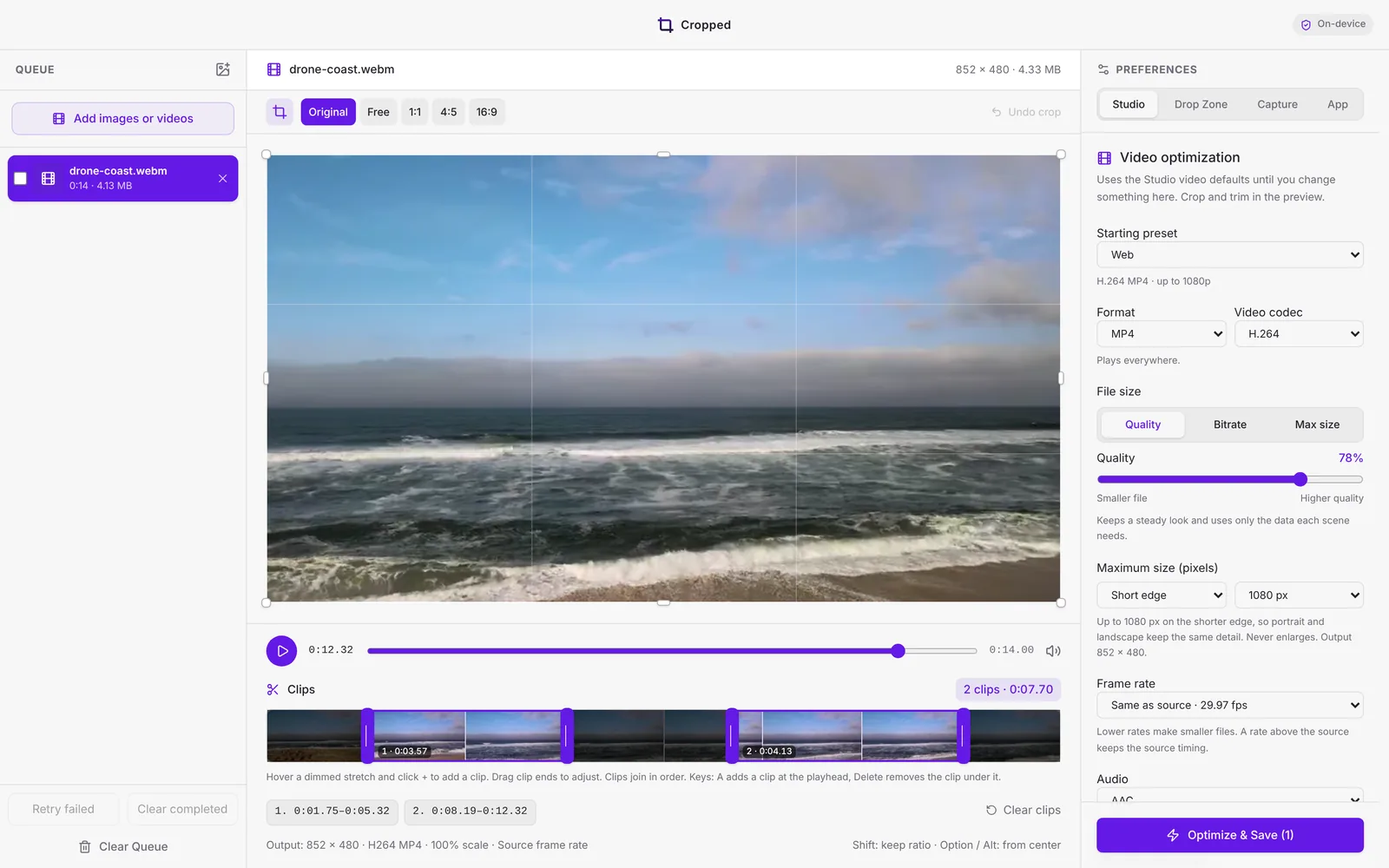
The counter shows the number of clips and their total length, and the preview skips the gaps so you can watch the result. Clear clips goes back to the whole video.
Crop a video
Pick a ratio above the preview: Original, Free, 1:1, 4:5 or 16:9. Then drag the crop box or its handles.
- Hold Shift to keep the ratio, or Option (Windows: Alt) to resize from the center.
- Arrow keys move the crop 1 pixel, and Control-arrow 10 pixels.
- For exact values, open Precise crop dimensions on the right. Videos are encoded at even pixel sizes, so odd values round down by one.
- Undo crop steps back, and the crop button hides the overlay.
Export
Choose a preset or your own settings under Video optimization on the right (see Video formats and presets), then click Optimize & Save. Cropped shows progress, speed and time left. When it's done, click Show saved video.
To use the same settings for every new video, click Use as defaults for new videos.
If a video won't preview
Some formats can't play in the preview. Click Create compatible preview and Cropped makes a temporary preview copy. You can still trim, crop and export.
Still stuck? Click the ? button at the bottom left of the Cropped Studio to ask, send us a message, or request a feature.