 Cropped
Help
Help / AI tools
AI Pack (Beta): give AI feedback on a video in a fraction of the tokens
Updated
A Cropped AI Pack turns a video or screen recording into what an AI needs to review it: a short Markdown timeline and a few pictures of only the moments that changed. Most screen recordings sit still for most of their length, so a pack is usually a handful of pictures instead of hundreds of frames. AI Packs come with the Pro add-on and are a Beta: the budgets, layouts and estimates may change as we tune them. See what AI Packs are for.
Quick answer: in the Drop Zone, click the circle on one video or recording and click AI Pack. Cropped saves a folder in your Drop Zone folder. Click Copy for ChatGPT (or Claude or Gemini) and paste into the chat: on a Mac, Windows and Linux the note and every picture go in together.
Make an AI Pack from screenshots and videos
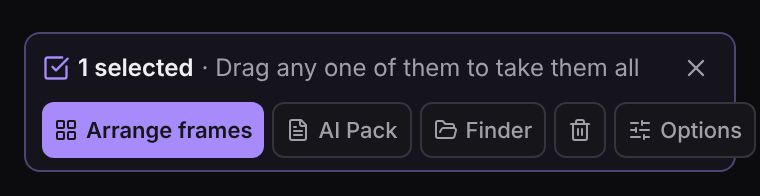
Several screenshots, recordings and videos can go into one pack too. In the Drop Zone, select two or more in the Captures strip or in Recent: click the circle on one, then Shift-click to take a range, or click more to add them. Click AI Pack in the selection bar.
Cropped lays the screenshots out in a few sheets, in the order you took them, each with its number in a purple badge. A tall phone screenshot and a wide desktop one share a sheet without empty space. AI Pack.md lists every picture by number with its file name, size and the sheet it's on, and on a Mac the text on it, so your AI can say "picture 3" and you both know which one. The folder is saved in your Drop Zone folder.
Each video in the selection goes in as a few frames spread across it, about one every 6 seconds and 2 to 8 a video, so a long recording costs about as much as a short one. AI Pack.md says which video each frame came from and which part of it the frame stands for, and with Captions on and Automatic Captions installed, what was said in that part.
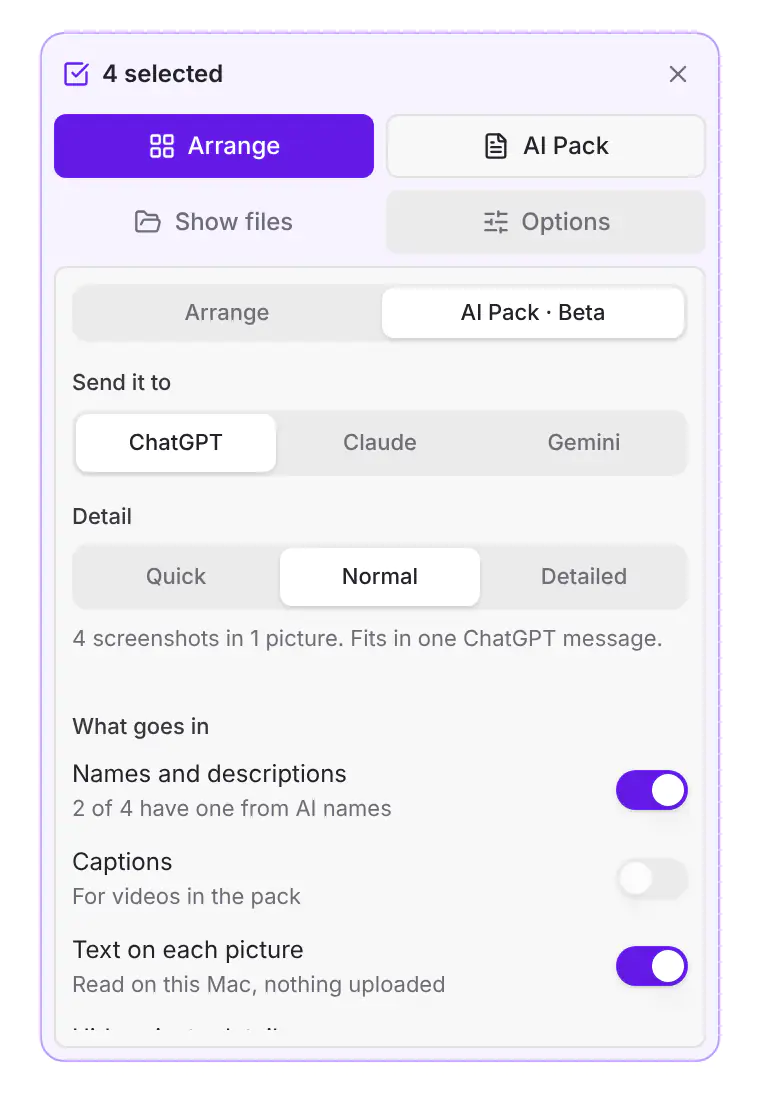
Open Options and its AI Pack tab to choose what goes in:
Captions: for videos in the pack, what is said in each part, from Automatic Captions (Preferences › App › Optional features). It's read on your computer and never downloaded just for a pack.
Names and descriptions: when AI names is on (Preferences › Account › AI tools), each screenshot already has a name and a description from what it shows. They go into AI Pack.md next to its number, so the AI starts from them. A name or description you typed yourself goes in the same way.
Text on each picture: the words on each screenshot, read on your Mac. Nothing is uploaded.
Hide private details: keys, passwords, emails and card numbers covered before saving, on a Mac.
Describe with Claude: the finished pack goes to Claude, Gemini, OpenAI or your own endpoint with your own key, and the answer is written at the top of AI Pack.md. Pick Summary for a line on each screenshot, Summary and review, Bug report, or Your own question. Only the sheets and the Markdown go out.
Quick puts up to 9 screenshots on a sheet, Normal up to 4, and Detailed one a sheet at the largest size the AI reads. When that would go over the budget, the sheets get smaller or fuller until it fits.
For Claude and ChatGPT, the sheets are sized to the Detail. For Gemini, which charges the same for every picture, more screenshots share each sheet. ChatGPT and Gemini packs keep to 10 sheets, so they go in one message.
The line under Detail says how many pictures the pack will be and whether it fits in one message. Hover it for the estimated tokens against sending each screenshot on its own.
A pack takes up to 200 pictures, counting each video's frames, and still fits in one message: up to 20 sheets for Claude and 10 for ChatGPT and Gemini. With many pictures, Detailed gives each one more room (up to about 120k tokens for 200 pictures) so they stay readable, while Quick and Normal stay small. A file Cropped can't read is left out, and AI Pack.md names it.
Cropped remembers the Detail you picked for the next pack.
Copy, share or link a pack
When the pack is ready, it shows Ready for ChatGPT (or Claude or Gemini) with how many moments and pictures it has, under the selection (or under the drop area for files you dropped):
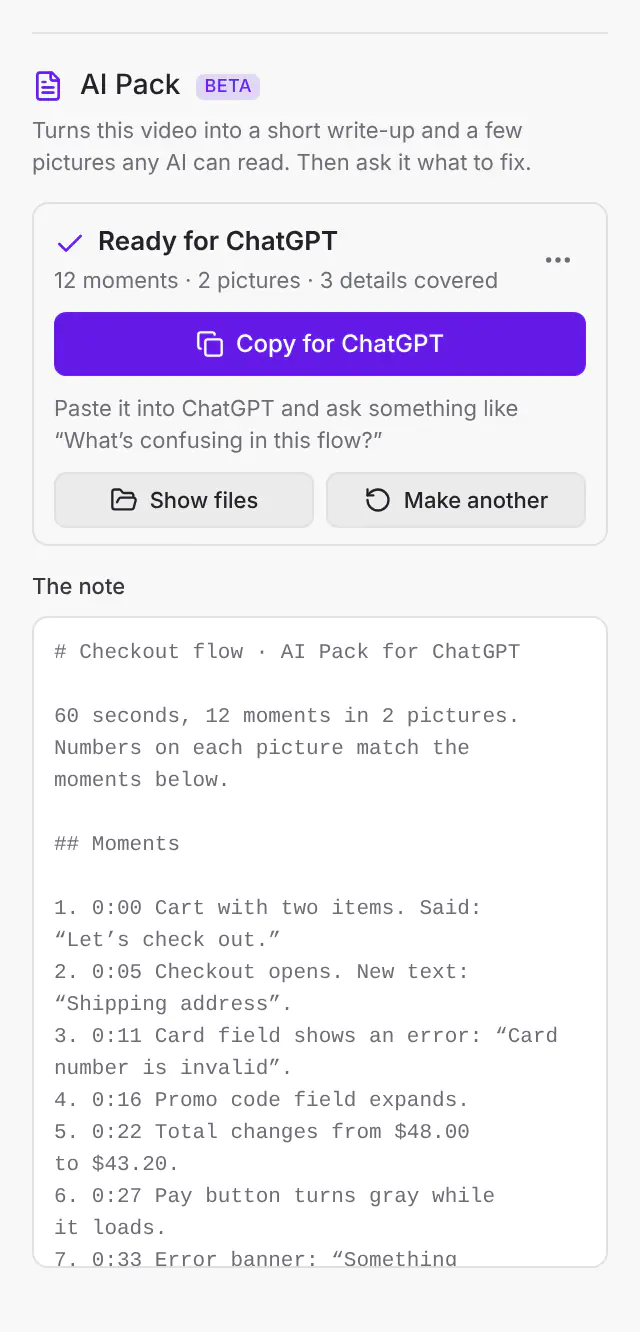
- Copy for ChatGPT (or Claude or Gemini): copies every picture and AI Pack.md as files, so one paste puts the whole pack in the chat. Linux needs wl-copy or xclip for that; without them, Cropped copies the note and shows the folder instead. On a Mac you can also drag the top row to drop every picture and the note somewhere.
- Show files: shows the pack's folder in Finder (Explorer on Windows, Files on Linux).
- The … menu has the rest:
- Share… (Mac): the share menu with every picture and AI Pack.md, for AirDrop, Mail, Messages, Notes or any app with a share extension.
- Save a copy…: pick a folder, and Cropped saves a copy of every picture and AI Pack.md there in a folder of their own.
- Copy the note only: copies AI Pack.md as text.
- Make a share link: one cropped.pro link with every sheet in order, the note, Copy note and one Download all. The link is copied when it's ready; click again to copy it again. Paste the link into Claude, ChatGPT, Cursor or any agent: it reads the note and every sheet in order. Add
.mdto the link for the text version on its own.
Pick who it's for and the Detail
Click Options in the selection bar to choose who the pack is for and how much detail goes in. Cropped remembers your choice for the next pack.
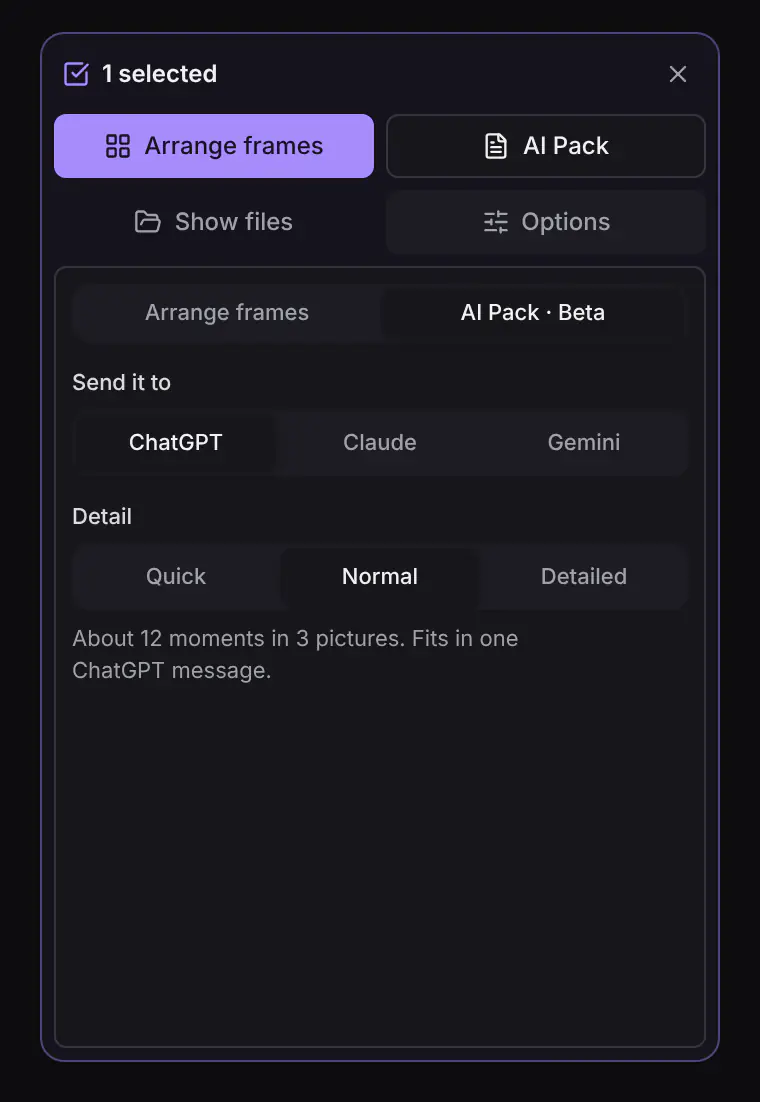
- Send it to: each AI counts pictures differently, so each gets its own pack.
- Claude prices a picture by its pixels, so the pack sends frames at the size the budget allows, plus close-ups of small changes.
- ChatGPT takes about 10 pictures in one message, so the pack keeps to 10 pictures, each no larger than ChatGPT reads.
- Gemini charges the same for every picture whatever its size, so the pack puts many moments in each picture and leaves close-ups out.
- Detail: Quick says what happens, Normal shows each change at a readable size, and Detailed shows small changes at a larger size. A short or still video uses less.
The line under Detail says how many moments and pictures go in, and whether they fit in one message. Hover it for the estimated tokens and how much less that is than sending the whole video. These are estimates, not final numbers: each AI counts its own tokens, and the count changes from model to model.
| Detail | About | What you get |
|---|---|---|
| Quick | 3,000 tokens | One or two pictures and the words. Enough to know what happens. |
| Normal | 12,000 tokens | Readable frames for each change, close-ups of what changed, and the words. |
| Detailed | 40,000 tokens | More moments at a larger size, for fine visual feedback. |
For a 1-minute recording at 1814 by 1080, a full-size frame every second would be about 154,000 tokens for Claude. The Normal pack of the same recording is about 11,000 for Claude and about 3,800 for Gemini.
What's in a pack
- AI Pack.md: the timeline. Each moment has its time range, how much of the screen changed and where (top right, center…), which picture and tile shows it, any steps your AI marked while recording, and what was said when Automatic Captions is installed. On a Mac it also lists new text that appeared on screen.
- Sheets: the moments laid out in a grid, left to right and top to bottom, each with its number and time in a purple badge.
- Close-ups: when only part of the screen changed, like a dialog, a menu or a toast, that part at full size so small text stays readable.
- A summary by Claude, when you turn on Describe with Claude (below).
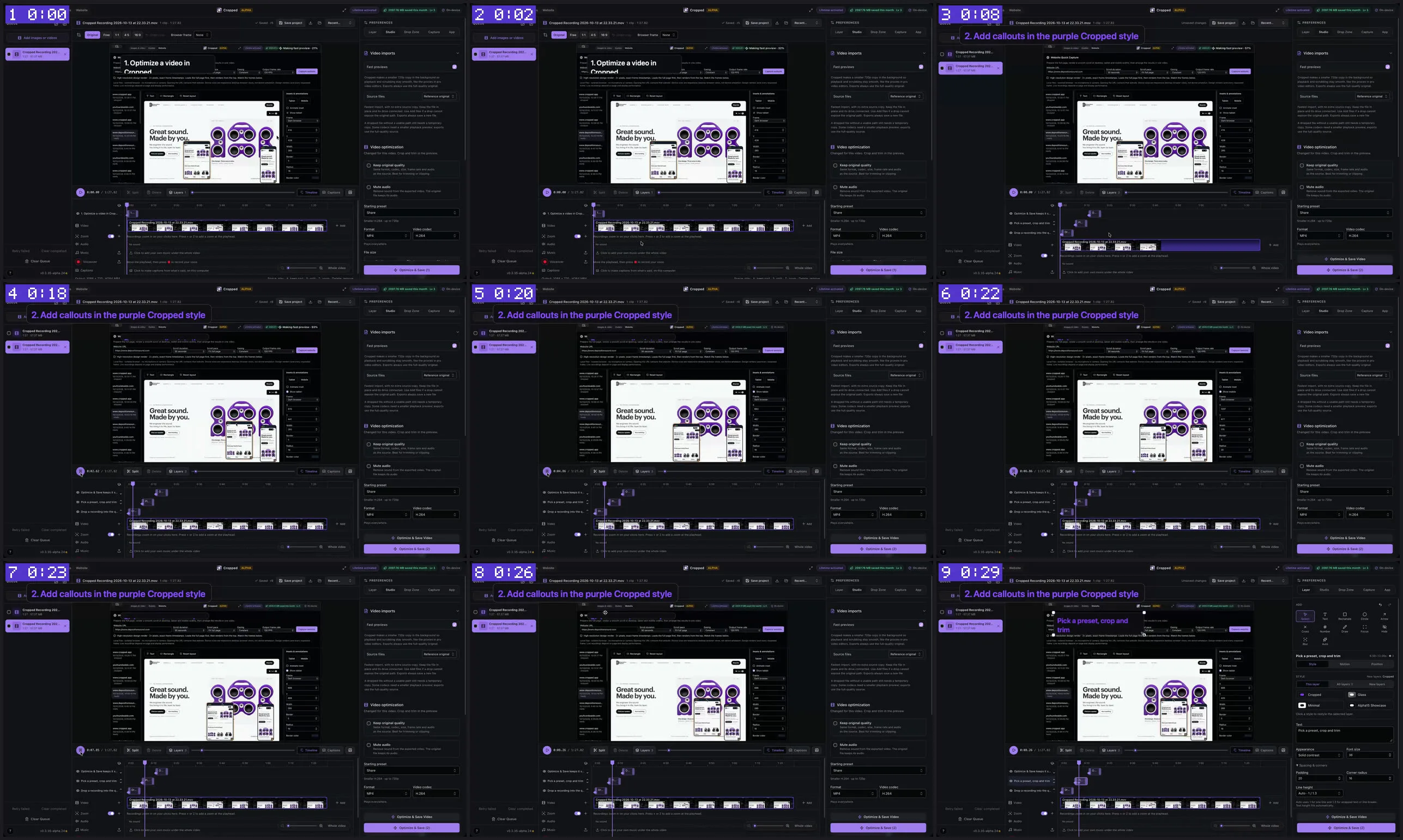
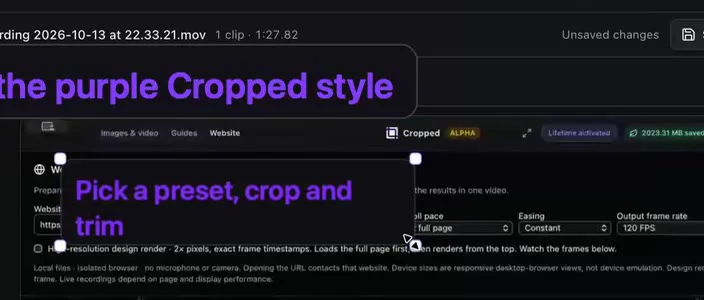
A moment is when the screen changed and then settled, so frames are never caught halfway through a scroll or animation. Everything between two moments looked like the first of them.
The AI Pack editor in the Studio
Open a video in the Studio to find AI Pack in its settings, under Video optimization. It has the same Send it to and Detail, plus what goes in:
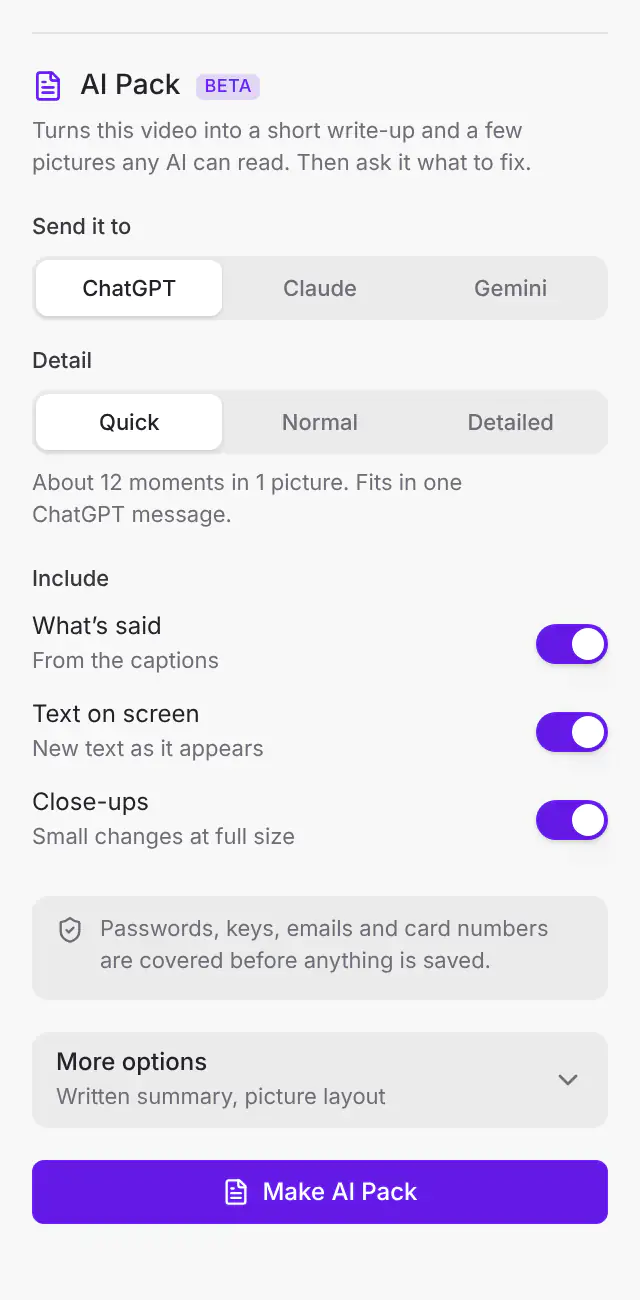
- What's said: what is said, as text, from Automatic Captions.
- Text on screen: new text that appears on screen, on a Mac.
- Close-ups: the part of the screen that changed, at full size. Gemini packs leave them out.
The box under Include says whether private details are covered. More options has the rest:
- Cover private details: keys, passwords, emails and card numbers covered before saving, on a Mac. On by default.
- For the AI reading this: every AI Pack.md ends with a short note asking the AI that reads it to cite moments or pictures, quote on-screen text exactly, say when something isn't shown instead of guessing, and lead with ranked problems and the exact change for each. Whatever you ask it comes first.
- Written summary: when the pack is made, it goes to Claude with your own key, and Claude's summary and review are written at the top of AI Pack.md. Pick what Claude writes: a Summary, a Summary and review (the top three changes first, then each problem ranked Blocker, Major or Minor with the moment it's in and the exact fix), a Bug report (steps, expected and observed, the moments that show it, and a likely fix), or Your own question. Every answer cites the moment or picture it comes from and says when something can't be read instead of guessing. You can use Gemini, OpenAI or your own endpoint instead. Only the pack goes out, never the video.
- Picture layout: Best fit, or a fixed grid from 1x1 to 6x6.
A trimmed video makes a pack of just the part you kept. When the pack is ready, the panel shows Copy for ChatGPT, Show files, Make another and the note itself (see Copy, share or link a pack).
Add your Claude key in Settings › Account › AI tools › Provider connections.
Make everything you drop an AI Pack
In the Drop Zone's preset menu, turn on Drops become AI Packs. Pictures and videos you drop together then become one AI Pack with your last choices, and one video on its own becomes a timeline of the moments that changed. The pack shows under the drop area, ready to copy. A single picture is optimized as usual.
Ask your AI to make one
With Cropped connected to your AI app, ask for a pack in your own words. The tool is called make_ai_pack. It can make a pack for Claude, ChatGPT or Gemini, with a Quick, Normal or Detailed pack (Glance, Standard or Detailed to the tool) or any number of tokens, a grid from 1x1 to 6x6, and just part of a video.
Try:
- “Make an AI Pack of my latest recording and tell me what's confusing in this flow.”
- “Record this checkout flow, then make a Quick pack of it for a bug report.”
- “Make a Detailed AI Pack for Gemini of 0:30 to 1:10 of demo.mov.”
For screenshots, your AI passes two or more files or captures, like “Make an AI Pack of my last five screenshots and tell me what's inconsistent between them.”
When your AI records a window, the steps it marked, and which passed or failed, go into the pack's timeline.
How a pack is made
- Find the moments. Cropped looks at the video a few times a second and marks where the picture changed. It waits for the screen to settle before it keeps a frame, so nothing is caught halfway through a scroll or a fade.
- Keep what fits the budget. If there are more moments than the budget allows, Cropped keeps the start, the end, any steps your AI marked and the biggest changes. A moment that's left out falls inside the time range of the one before it. A short or still video keeps every moment and uses less than the budget.
- Lay out the sheets. Moments go into grids, as large as the budget and the AI allow. For Claude and ChatGPT the size of each picture sets its cost, so Cropped tries the layouts and keeps the one with the most readable tiles for the tokens. For Gemini every picture costs the same, so more moments go on each sheet.
- Add close-ups. When only a small part of the screen changed, like a menu or a toast, that part is saved at full size, as long as the budget and the AI's picture limit leave room. Gemini packs leave close-ups out.
- Add the words. With Automatic Captions, what was said goes into each moment as text. On a Mac, new text that appeared on screen is listed too.
- Write AI Pack.md. The timeline points to the sheet and tile for each moment, and the last line gives the estimated tokens.
- Describe with Claude (optional). The finished pack goes to the AI you picked, and its answer is written into AI Pack.md above the timeline.
How the tokens are estimated
Each AI publishes how it counts a picture, and Cropped uses those rules to plan the pack and show the savings:
| For | How a picture is counted | Most pictures in a pack |
|---|---|---|
| Claude | About one token for each 28 by 28 pixels, up to about 4,800 for one picture | 20 |
| ChatGPT | About 1.2 tokens for each 32 by 32 pixels, after fitting the picture into 2048 pixels | 10 |
| Gemini | About 1,120 tokens a picture, whatever its size | 10 |
Text is counted at about 3.5 characters a token. The "whole video" number it compares against is a full-size frame every second for Claude and ChatGPT, which can't take a video, and the video itself for Gemini, at a resolution that keeps screen text readable, plus the sound.
These are estimates. Each AI counts its own tokens, the rules change from model to model, and the count on your bill is the real one.
Privacy and security
- Made on your computer. Laying out the screenshots, finding the moments, making the sheets and close-ups, the words and the screen text all happen on your machine. Nothing is uploaded.
- Describe with Claude is opt-in. Only when it's on does Cropped send the pack's Markdown and pictures, never the video, to the AI you picked, with your own key. Cropped doesn't see the pack or the answer.
- Private details are covered before saving. On a Mac, Cropped reads each moment's screen and covers API keys, passwords, card and account numbers, email addresses and phone numbers with a gray box in the sheets and close-ups, and writes [hidden] in their place in the text. It happens before anything is saved, so the uncovered pictures never reach the folder. AI Pack.md says how many it covered. Turn it off with Cover private details under More options in the AI Pack panel.
- Still check before you share. Cropped finds most private details, not all of them, and it doesn't look for things like customer names in a table or a face. On Windows and Linux it can't read the screen yet, so nothing is covered and the pack says so. Look through the folder before you paste a pack into a chat.
- Your key stays on this computer. Keys for Describe with Claude are saved on this computer only, in Settings › Account › AI tools › Provider connections. They're kept in your computer's own key store, encrypted and locked to your account: Keychain on a Mac, Windows' encrypted store for your account, or the keyring on Linux (where your desktop has one). Keys saved before are moved there the next time Cropped opens.
Troubleshooting
- The AI Pack button isn't there. Select exactly one video or recording, or two or more images. The button doesn't show for one image on its own, or for several videos.
- "AI Packs are part of Pro". AI Packs need the Pro add-on or a Pro trial.
- The pack has no words. Install Automatic Captions in Settings › General › Optional features and download a speech model. Without them the pack says so and leaves the words out.
- No new text on screen. Reading the screen works on a Mac only.
- Something was covered that didn't need to be. Cropped leans toward hiding, since a pack has no review step. Turn off Cover private details (More options) for that video, then check the pictures yourself.
- Describe with Claude didn't run. The message that appears when the pack is ready says why, for example "Claude refused the key". Check the key in Settings › Account › AI tools › Provider connections, then make the pack again.
- The AI says it can't see some pictures. Attach every picture in the folder, not just the first sheet. ChatGPT takes about 10 pictures in one message, so ChatGPT packs keep to 10.
- The pack came out smaller than expected. That's expected for short or still videos: a pack only keeps the moments that changed.
Good to know
- Everything but Describe with Claude happens on your computer. Describe with Claude sends the pack's Markdown and pictures to the AI you pick, with your own key.
- The words need Automatic Captions (Settings › General › Optional features) and a speech model you already downloaded for captions. Without them the pack says so and leaves the words out.
- New text on screen is read on a Mac. On Windows and Linux the pack has the pictures and the words.
- Packs are saved as JPEG pictures and Markdown, which every AI app accepts.
- AI Packs are a Beta. Tell us what works and what doesn't.
Still stuck? Click the ? button at the bottom left of the Cropped Studio to ask, send us a message, or request a feature.