 Cropped
Help
Cropped
Help
Help / Reference
Preferences
Preferences live on the right side of the Studio window. Open them with ⌘ Command + , (Windows: Ctrl + ,) or Cropped › Settings (Windows: Preferences). There are four tabs.
Studio
Settings for the file that's open in the Studio, and the starting point for new files.
| Section | What's in it | More |
|---|---|---|
| Crop | Free, Orig, 1:1, 4:5, 16:9 | Crop |
| Smart crop | Manual or Smart, Extend edges when needed | Smart crop |
| Export sizes | Social media sizes and your own collections | Export sizes |
| Studio output | Image preset, format, quality, max width, scale; folder, file names, auto-save | Optimize images |
| File size | Original and optimized size for the open file | |
| Video defaults | The preset and settings new videos start with | Video formats |
When a video is open, this tab shows Video optimization for that video instead.
Drop Zone
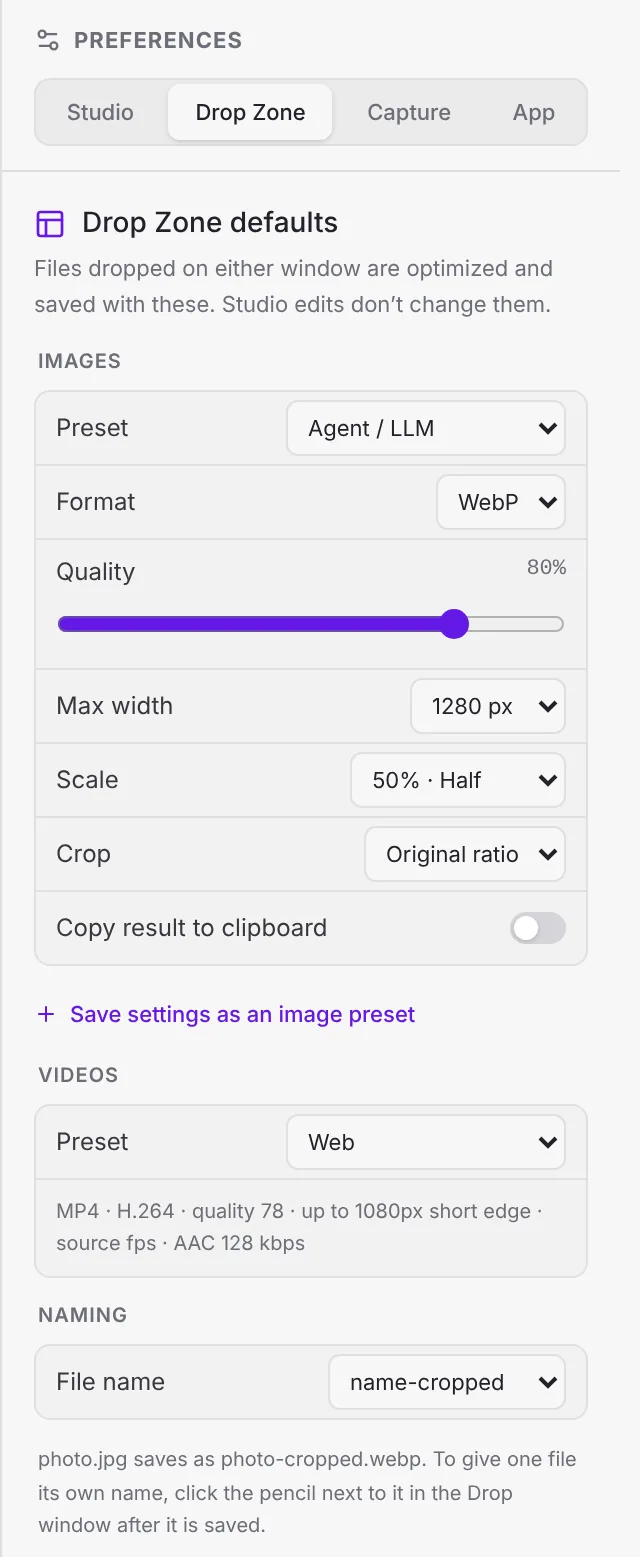
What happens to files you drop on the Drop Zone or that land in a watch folder. Editing files in the Studio never changes these.
| Setting | Choices |
|---|---|
| Preset, Format, Quality, Max width | Same as in the Studio |
| Scale | 100% (full), 75%, 50% (half), 33% or 25% (quarter). Applied after cropping. |
| Crop | Original ratio, 1:1, 4:5 or 16:9 |
| Copy result to clipboard | Copies the result as PNG after each drop. Batches copy the last image. |
| Videos › Preset | The preset for dropped videos. They also use the crop ratio above. |
| File name | name-cropped, name-optimized, Same name or Custom ending |
Show Drop Zone brings the Drop Zone back if you hid it.
Capture
Shortcuts, screenshot options and recording options. See Screenshots, Screen recording and Use Cropped as your screenshot tool. Show capture history in Finder opens the folder with every capture.
App
| Setting | What it does |
|---|---|
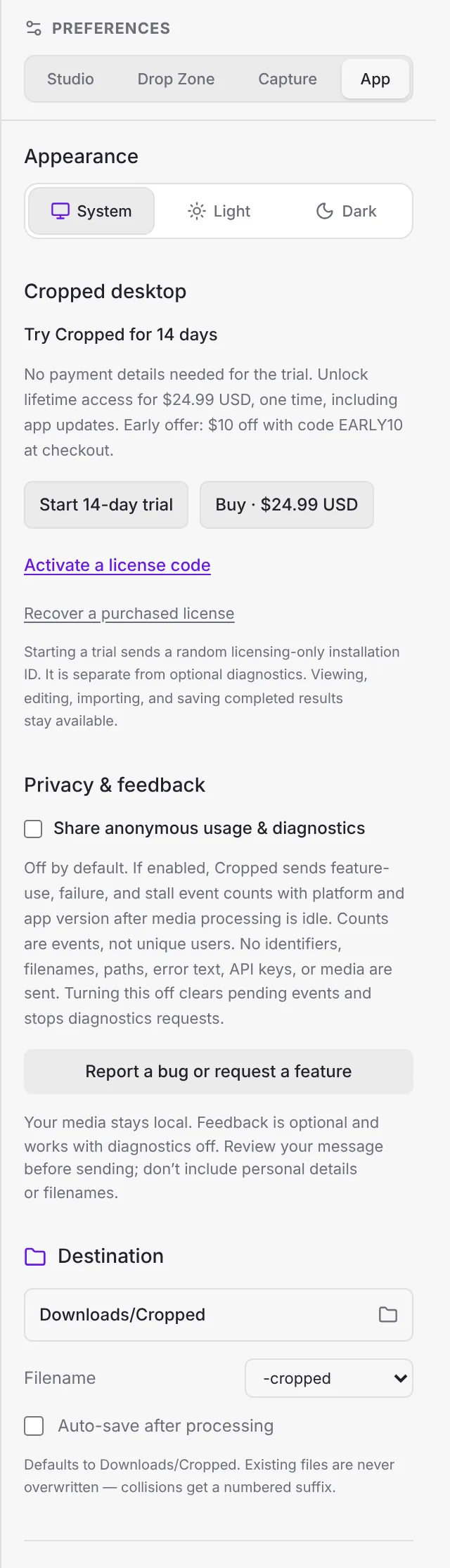
| Appearance | System, Light or Dark |
| License | Your trial or lifetime license. See License and trial. |
| Share anonymous usage & diagnostics | Off by default. Helps fix problems. Never includes your files, file names or paths; the setting lists exactly what is sent. |
| Report a bug or request a feature | Send a note. Emails, links, file paths and IP addresses are removed, and you see the exact text before it's sent. Or request a feature on the website. |
| Destination | The Studio's save folder (with New folder and Show in Finder), file naming, and Auto-save after processing |
| Show Drop Zone | Shows the Drop Zone |
| Launch at login | Opens Cropped when you log in. Off by default. |
| Watch folder (auto-optimize) | Optimizes new files in a folder you choose, with Drop Zone settings |
| Check for updates | Looks for a new version and offers to download it |
| API keys | Optional keys for future AI features, kept only on this computer. Nothing uses them yet. |
Menus
- Cropped › About Cropped opens cropped.app.
- Window › Show Cropped brings back the Studio.
- Help › What's New opens the Updates page, and Help › Contact Support opens the contact form.
- On Mac, the Capture menu has every capture option. See Screenshots.
Still stuck? Click the ? button at the bottom left of the Cropped Studio to ask, send us a message, or request a feature.