 Cropped
Help
Cropped
Help
Help / Crop, optimize & export
Make a favicon and app icons from any image
The short answer: open your logo in the Studio, crop it, then under Favicon and app icons in Preferences › Studio click Save icon set. Cropped saves every icon a website or desktop app needs into one new folder, on your computer, in about a second.
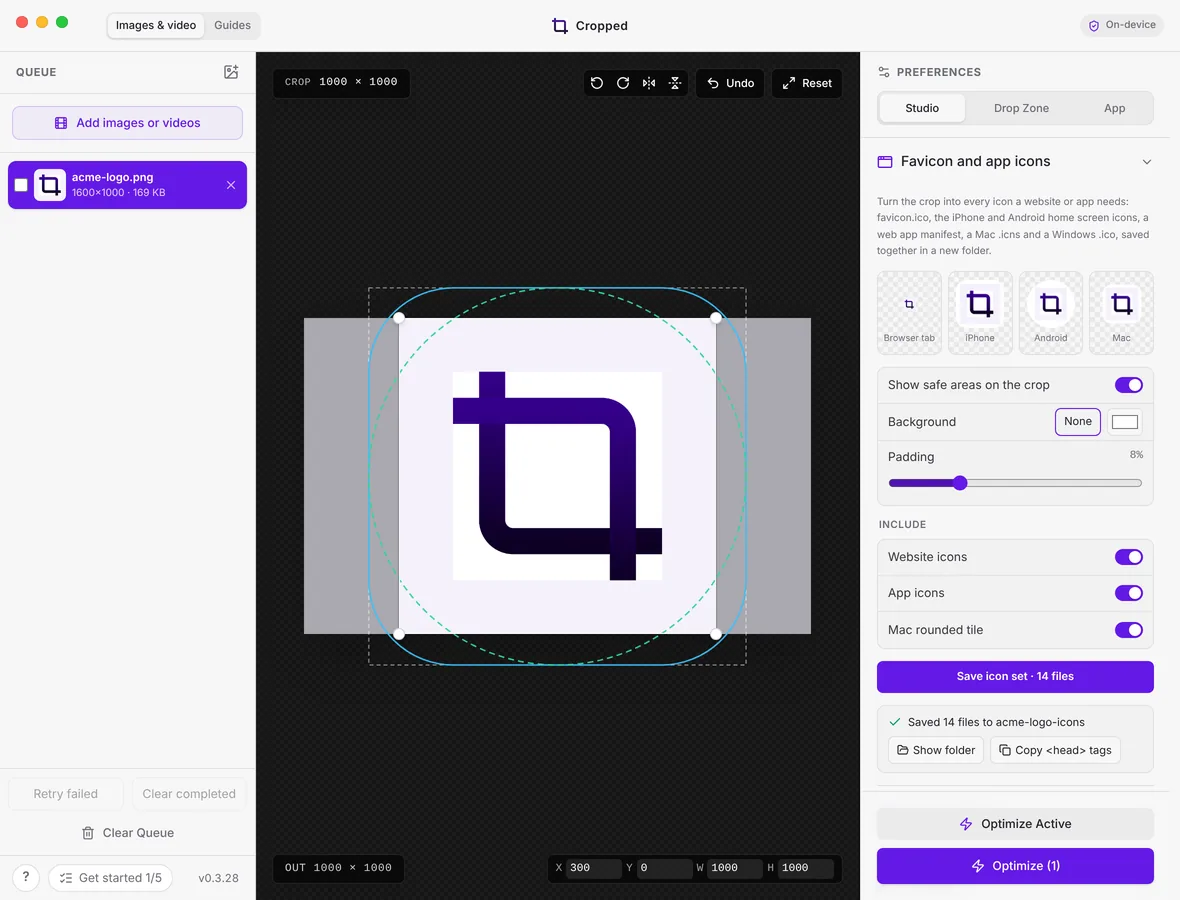
Save an icon set
- Drop your logo or screenshot on the Studio, or press ⌘ Command + O (Windows and Linux: Ctrl + O).
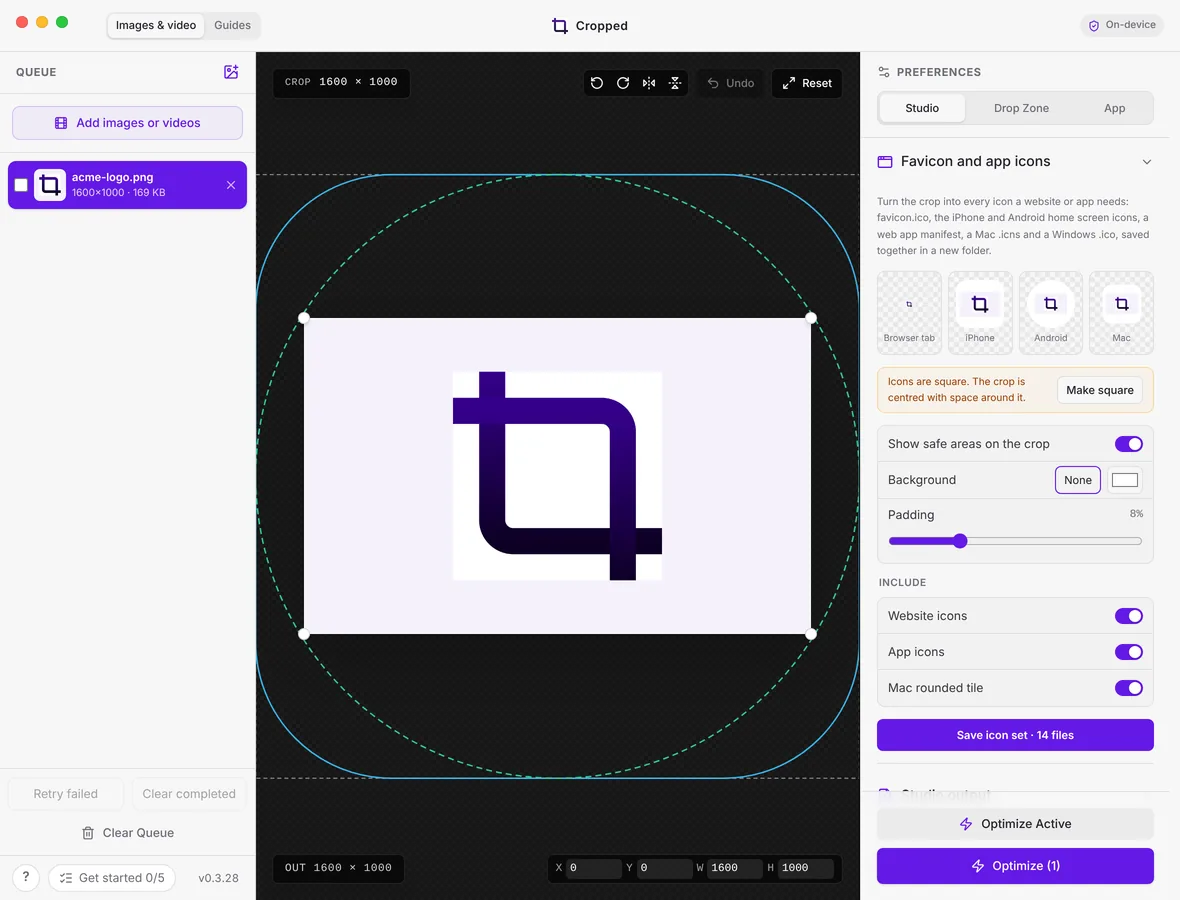
- Crop the part you want as the icon. Icons are square: if your crop isn't, click Make square, or Cropped centres the crop on a square with space around it.
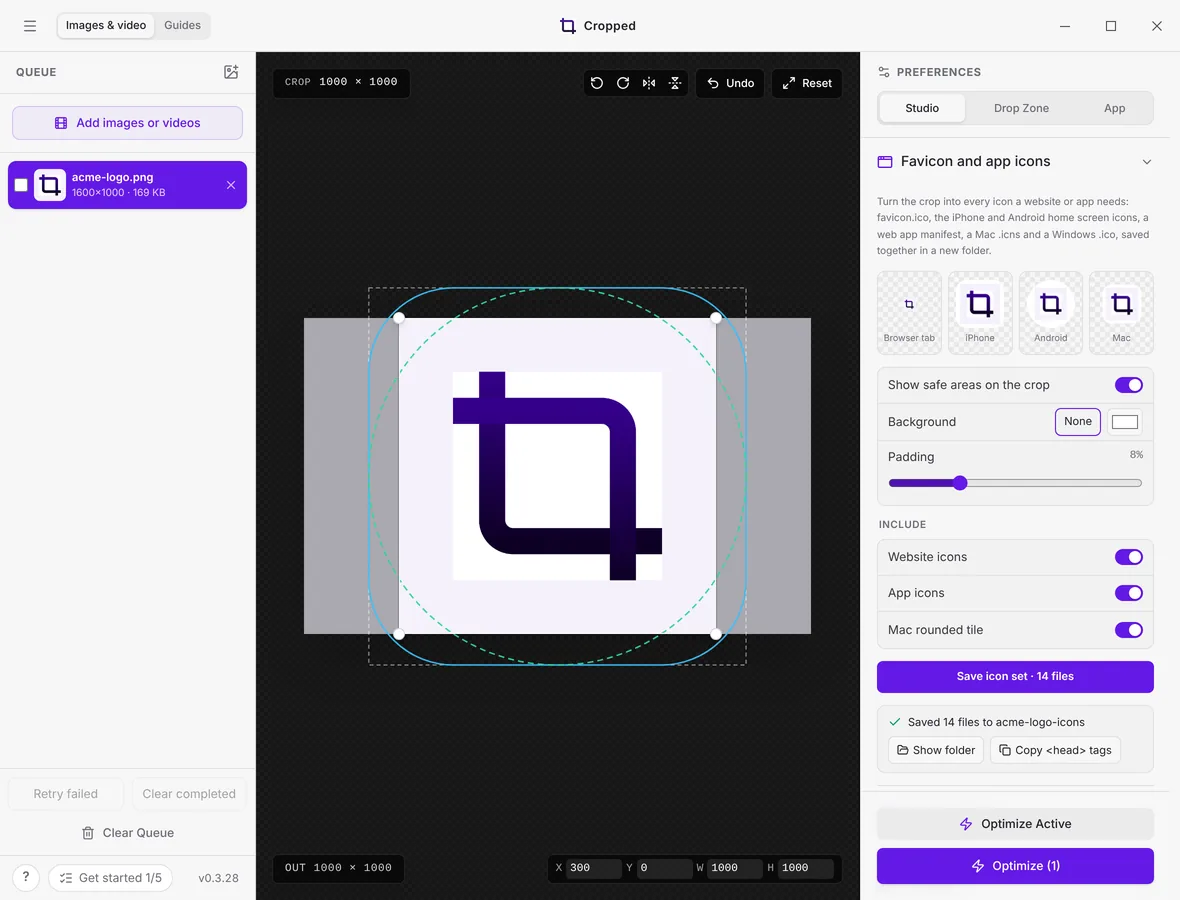
- Open Preferences › Studio › Favicon and app icons. The previews show the icon in a browser tab, on an iPhone, on Android and on a Mac, and follow the crop as you drag it.
- Pick a Background (or None for transparent) and a Padding. Logos usually look best with 8 to 12% padding.
- Click Save icon set. The files go into a new folder named after your image, such as acme-logo-icons, inside your output folder. Click Show folder to open it.
What's in the folder
Website icons:
| File | Size | Used for |
|---|---|---|
| favicon.ico | 16, 32 and 48 px | Every browser, and the old /favicon.ico request |
| favicon-16x16.png, favicon-32x32.png | 16 and 32 px | Browser tabs and bookmarks |
| apple-touch-icon.png | 180 px | iPhone and iPad home screen. Always filled, because iOS shows transparent parts black |
| android-chrome-192x192.png, android-chrome-512x512.png | 192 and 512 px | Android home screen and splash screen |
| maskable-icon-512x512.png | 512 px | Android adaptive icons: your icon inside the safe circle on a filled square |
| site.webmanifest | The web app manifest, with your icons and colour | |
| favicon-head.html | The tags to paste into your page's <head> |
App icons:
| File | Size | Used for |
|---|---|---|
| icon.icns | 16 to 1024 px | Mac apps (Xcode, Electron, Tauri, Electrobun) |
| icon.ico | 16 to 256 px | Windows apps and shortcuts |
| icon-1024.png, icon-512.png, icon-256.png | 1024, 512, 256 px | Linux apps, app stores and app builders |
Turn Website icons or App icons off under Include if you only need one kind. All PNGs keep transparency unless the icon has to be filled.
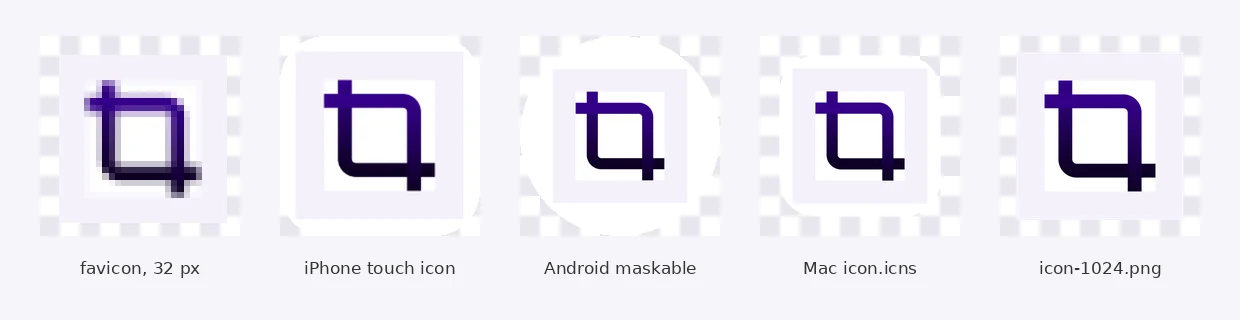
Add the favicon to your website
Copy the files from the website list to the root of your site, next to your home page. Then click Copy <head> tags after saving, or open favicon-head.html, and paste the tags into the <head> of your pages:
<link rel="icon" href="/favicon.ico" sizes="48x48">
<link rel="icon" type="image/png" sizes="32x32" href="/favicon-32x32.png">
<link rel="icon" type="image/png" sizes="16x16" href="/favicon-16x16.png">
<link rel="apple-touch-icon" href="/apple-touch-icon.png">
<link rel="manifest" href="/site.webmanifest">
<meta name="theme-color" content="#ffffff">
Open site.webmanifest to change the app name, which starts as your image's name.
Safe areas
Turn on Show safe areas on the crop to draw three guides over the crop box:
- Dashed square: the whole icon, including the padding.
- Green dashed circle: Android can cut adaptive icons to a circle. Keep anything important inside it.
- Blue rounded square: how far iPhone and Mac round off the corners.
Mac icons
Mac app icons sit on a rounded tile with a little space around it, like Apple's own icons. Mac rounded tile does this for icon.icns, using your background colour, or white when there is none. Turn it off if your picture is already a finished Mac icon.
On Windows and Linux
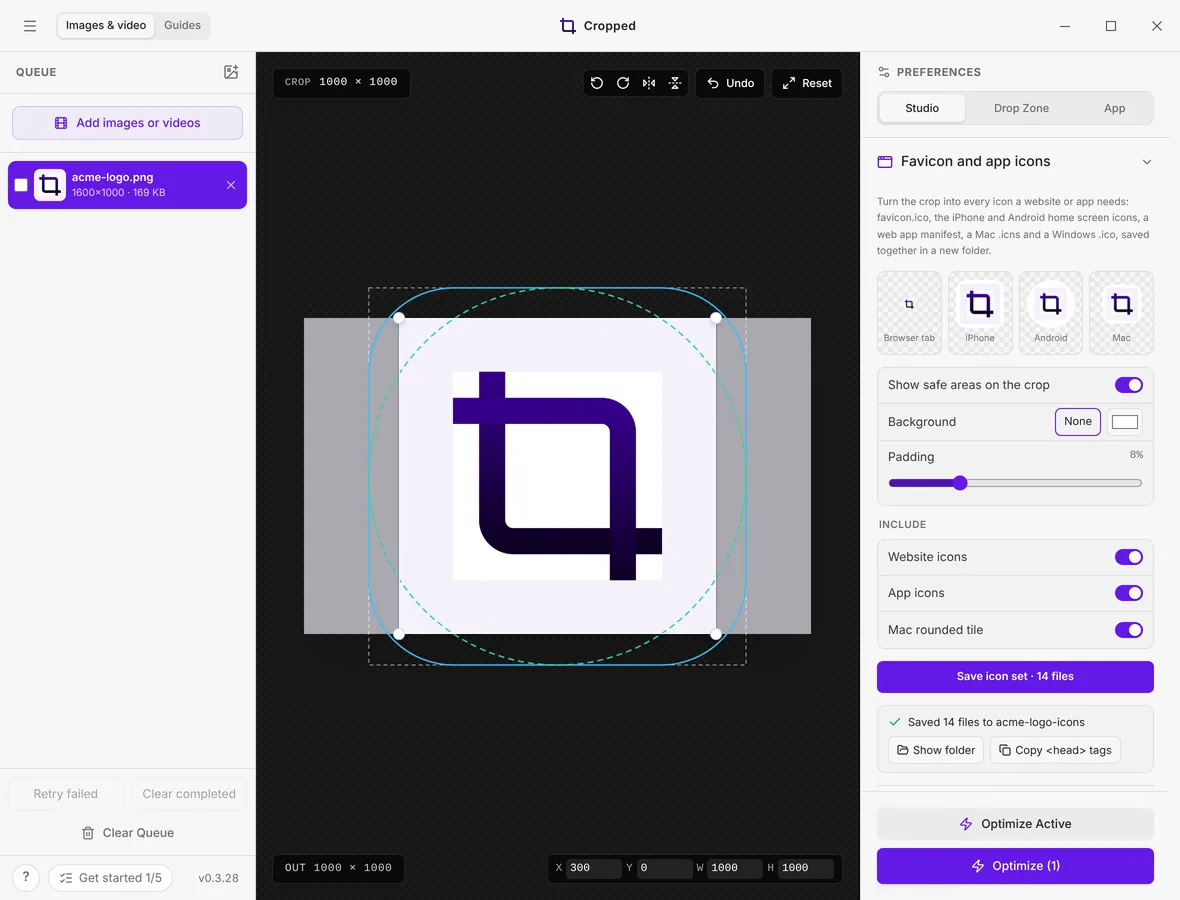
Favicon and app icons works the same on Windows and Linux, and every file in the set is made on every system: you can make a Mac .icns on Windows, or a Windows .ico on a Mac.
Still stuck? Click the ? button at the bottom left of the Cropped Studio to ask, send us a message, or request a feature.