 Cropped
Help
Cropped
Help
Help / How to
Hide API keys, passwords and email addresses in a screenshot
The short answer: in Cropped's Annotate window, choose Hide (H) and drag over the secret. Cropped paints it solid black, so the hidden text can't be read or recovered from the saved file.
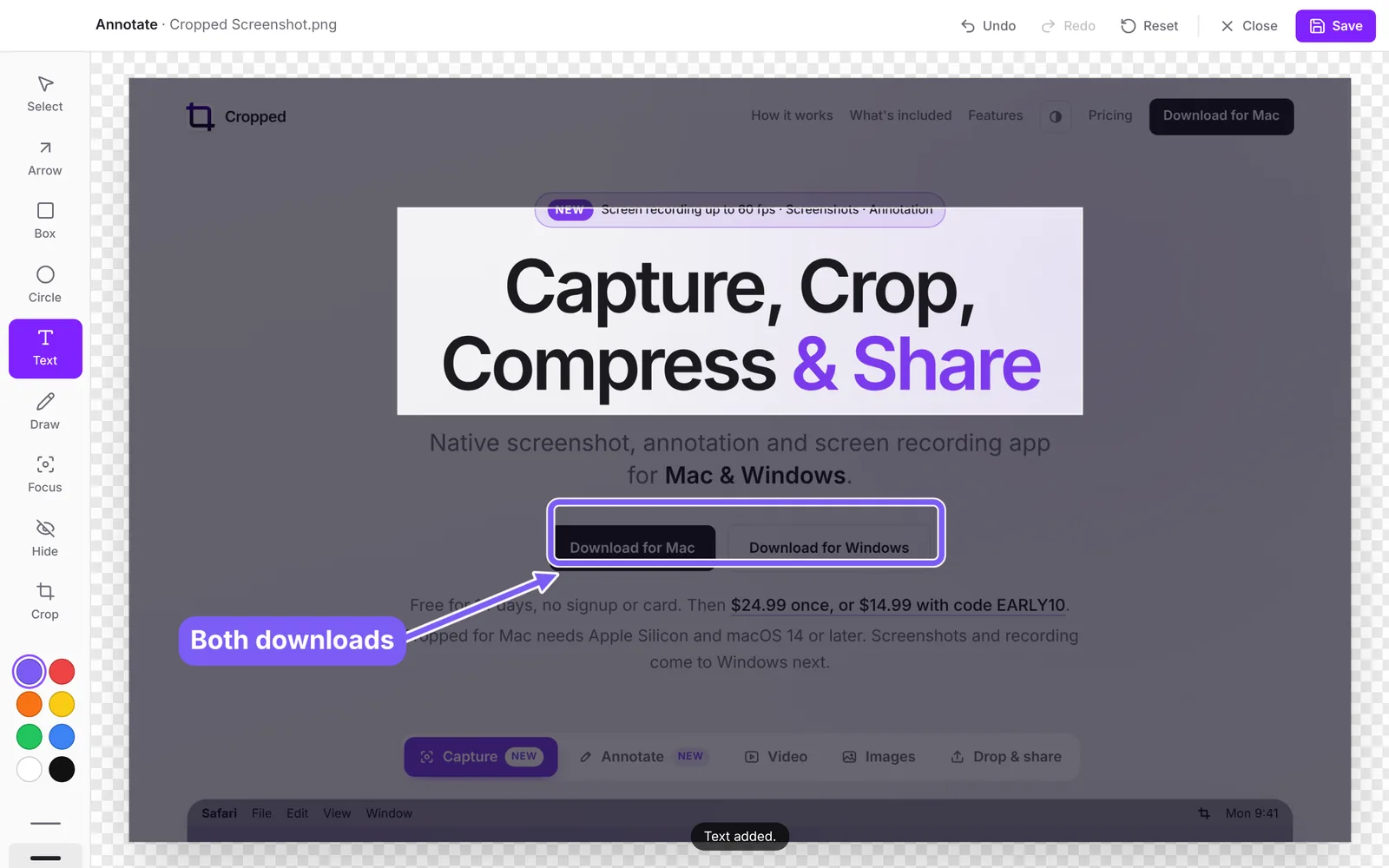
Steps
- Take a screenshot with ⇧ Shift + ⌘ Command + 8 (Windows and Linux: Ctrl + Shift + 8), or capture just one window with Window in the Drop Zone.
- Click the screenshot in the Drop Zone to open the Annotate window.
- Pick Hide (H) and drag over each API key, password, token or email address.
- Click Save (⌘ Command + S, Windows and Linux Ctrl + S). The new copy is optimized, copied to your clipboard and ready to drag into GitHub, Slack or Jira.
Hide or Blur?
| Tool | What it does | Use it for |
|---|---|---|
| Hide (H) | Solid black. The pixels underneath are gone. | Passwords, API keys, tokens, card numbers |
| Blur (B) | A coarse mosaic that shows something was there. | Faces, names in a list, numbers you'd rather keep vague |
A blur can sometimes be reversed or guessed, so always use Hide for secrets.
Good to know
- Your original screenshot stays in your capture history, unchanged. Share the saved copy.
- Everything happens on your computer. The screenshot is never uploaded.
More in Annotate screenshots.
Still stuck? Click the ? button at the bottom left of the Cropped Studio to ask, send us a message, or request a feature.