 Cropped
Help
Cropped
Help
Help / How to
Turn a screen recording into a GIF
The short answer: record with ⇧ Shift + ⌘ Command + 0, trim it, open it in the Studio, pick GIF · small loop or GIF · smooth loop, and save. Drag the GIF straight into your README, pull request or chat.
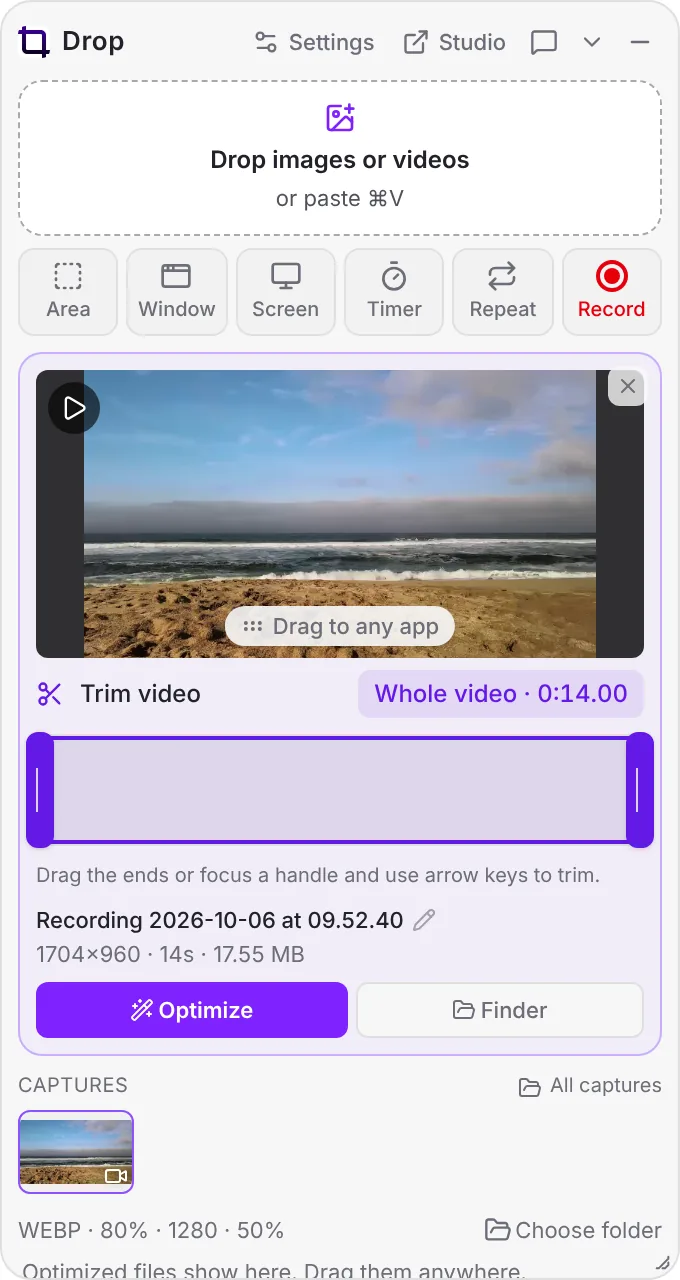
Steps
- Press ⇧ Shift + ⌘ Command + 0 (Windows and Linux: Ctrl + Shift + 0), pick the area and record. Press the same keys again to stop.
- In the Drop Zone, drag the trim handles to keep only the few seconds you need.
- Open the recording in the Studio and choose a preset:
- GIF · small loop: 320p, 10 fps, 64 colors. Tiny, good for READMEs.
- GIF · smooth loop: 480p, 20 fps, 256 colors. Nicer motion.
- Click Optimize & Save Video.
Keep GIFs small
- Keep it short: 3 to 8 seconds is plenty for a UI interaction.
- Record a smaller area, such as one window, instead of the whole screen.
- GitHub and most docs sites also play silent MP4 and WebM, which are usually much smaller than a GIF. Try WebM silent loop 720p.
More GIF settings (palette, colors, dithering, loop): Video formats, presets and GIFs.
Still stuck? Click the ? button at the bottom left of the Cropped Studio to ask, send us a message, or request a feature.