 Cropped
Help
Cropped
Help
Help / Capture & annotate
Zoom in on clicks in screen recordings
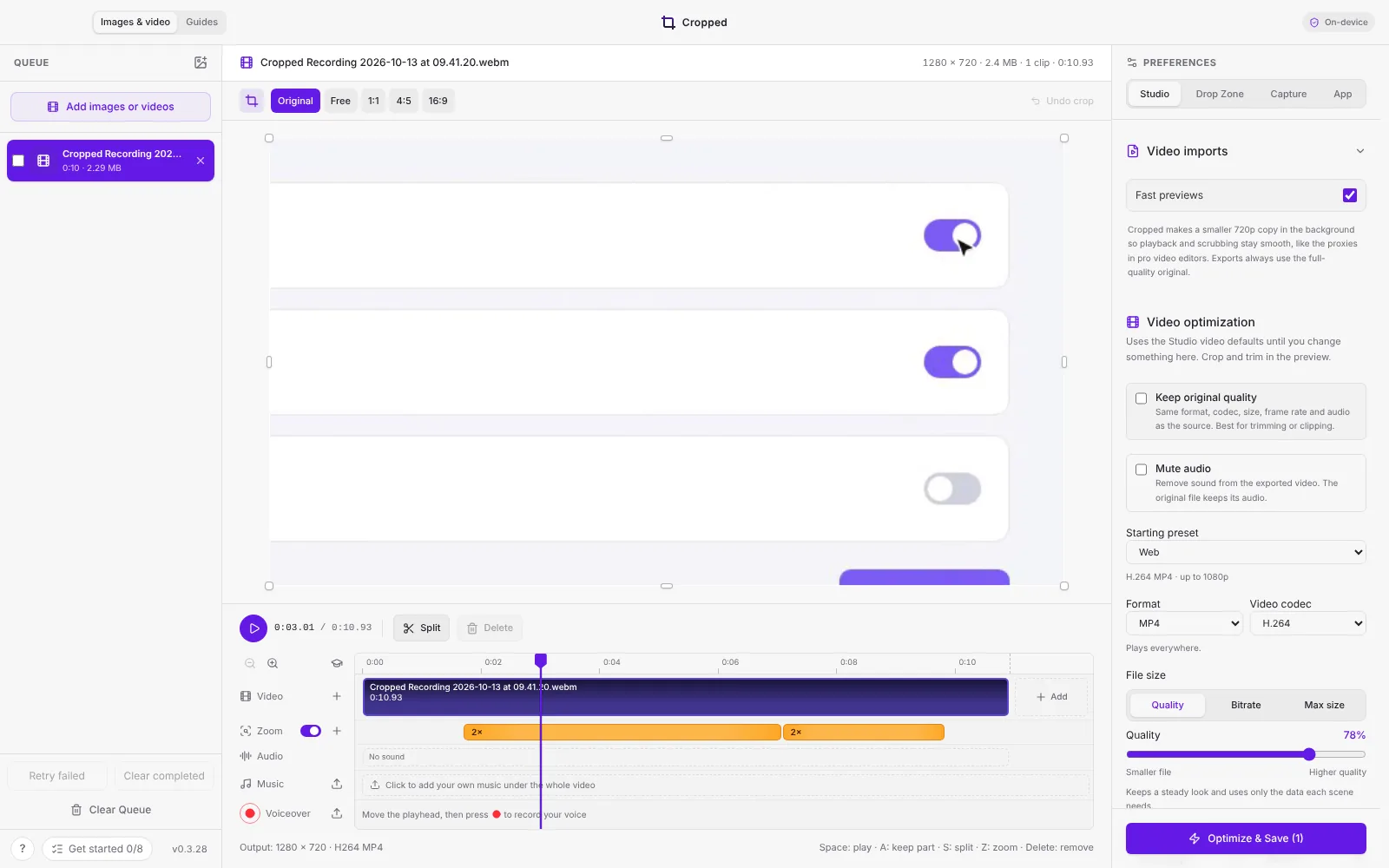
The short answer: record your screen as usual. Cropped notes where and when you click, and when you open the recording in the Studio, it zooms in smoothly on each click. The zooms sit on their own Zoom lane, where you can move, resize, change or remove them, and they're saved into the exported video.
How it works
- Record with ⇧ Shift + ⌘ Command + 0 (Windows: Ctrl + Shift + 0). Click around as you normally would.
- Open the recording in the Studio: click it in the Drop Zone, or drop it on the Studio.
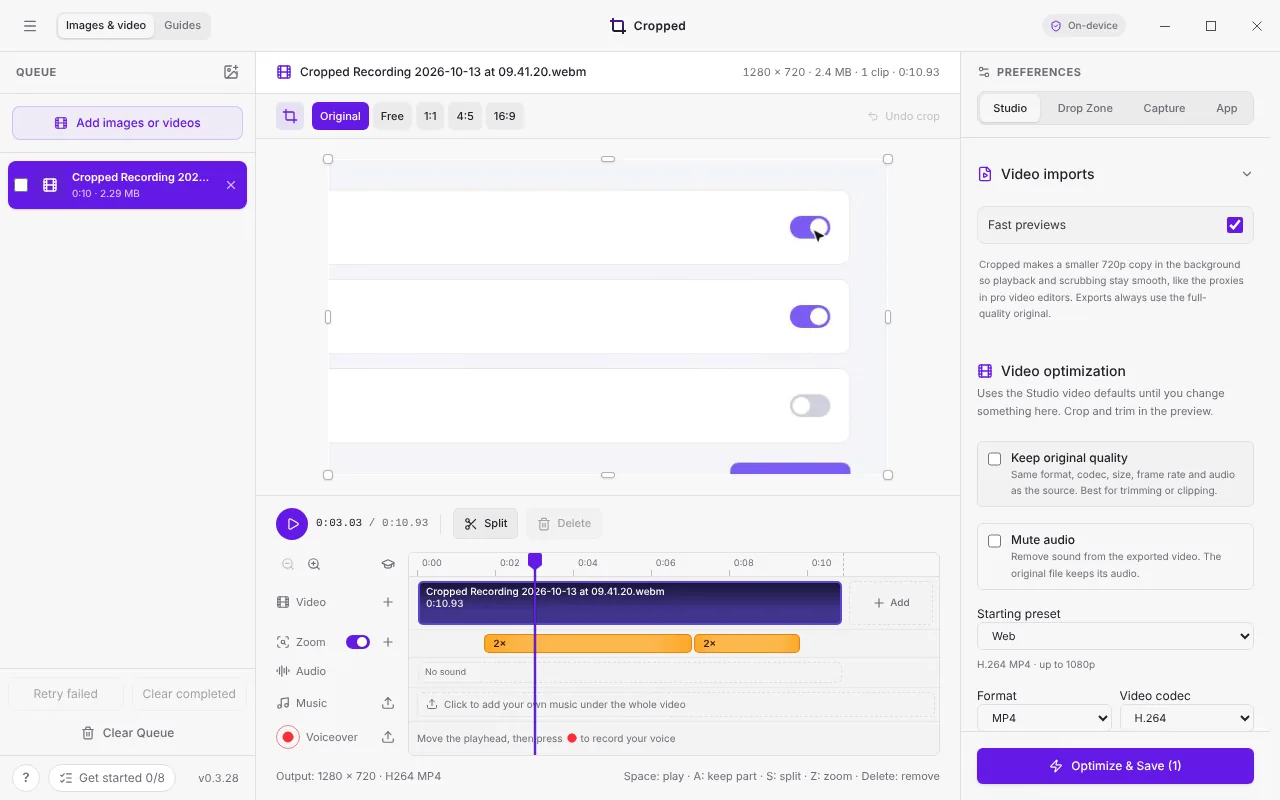
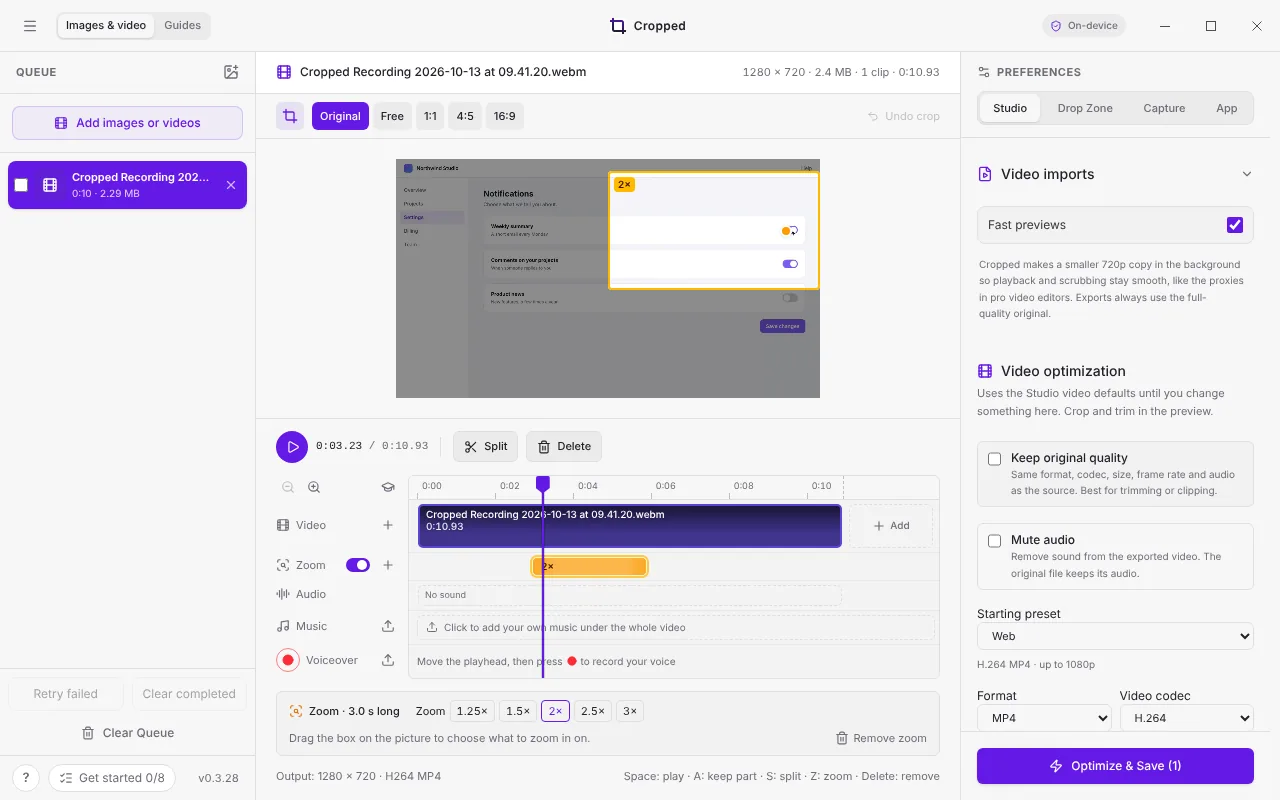
- The Zoom lane under the video shows an amber block for each zoom. Press Space to watch it: the picture eases in on the click, holds, then eases back out.
- Click Optimize & Save. The zooms are rendered into the saved video, so they play anywhere.
Clicks close together share one zoom when they fit in the same view, and zooms that touch glide from one spot to the next instead of zooming out and back in. Each zoom starts a moment before its click, so the viewer sees where the pointer is heading.
Change a zoom
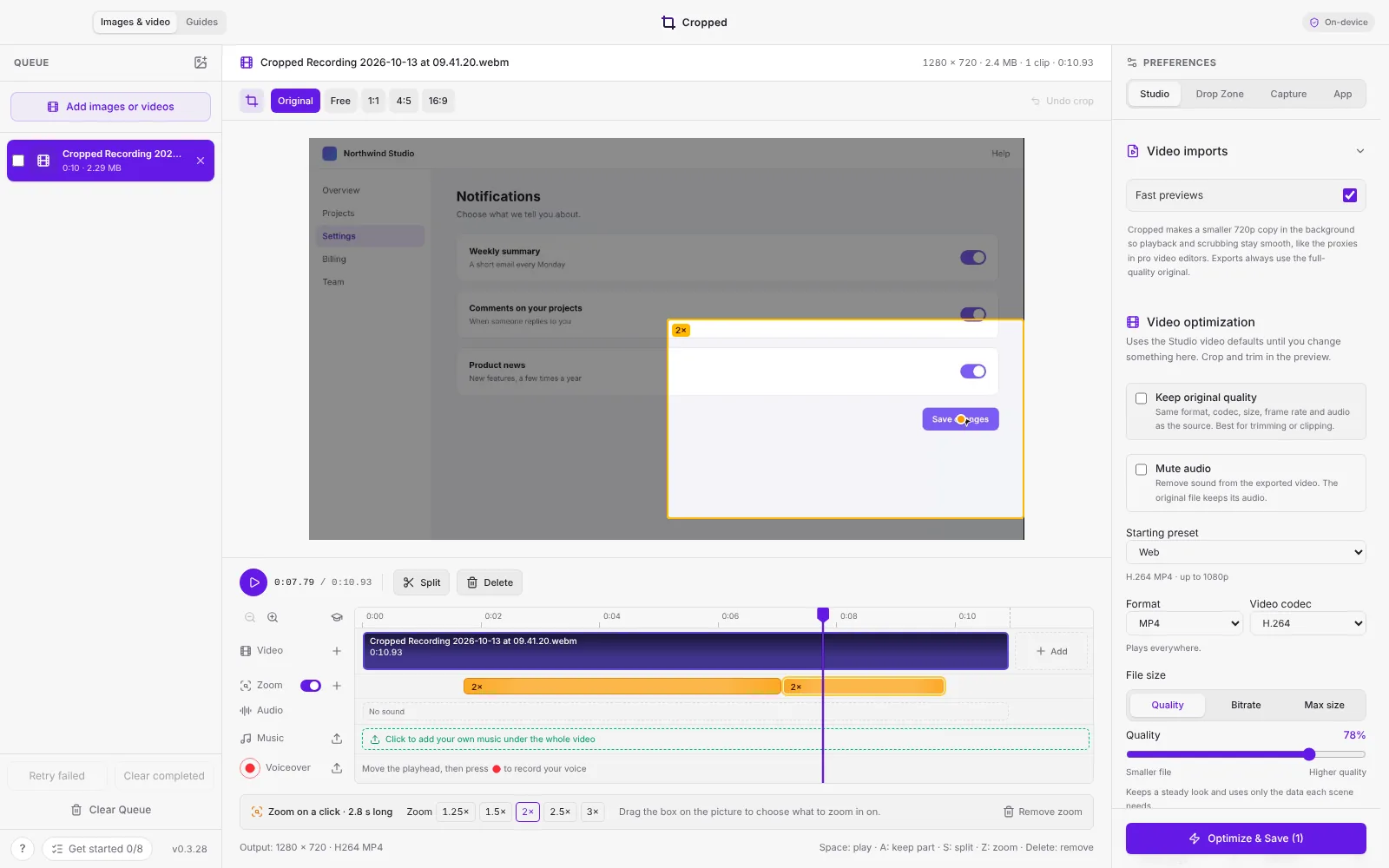
Click a zoom on the Zoom lane to select it. Then:
| To | Do this |
|---|---|
| Move it to another moment | Drag the block along the lane |
| Make it longer or shorter | Drag either end of the block |
| Choose what it zooms in on | Drag the amber box on the picture, or click where you want it |
| Zoom in more or less | Pick 1.25×, 1.5×, 2×, 2.5× or 3× under the timeline |
| Remove it | Click × on the block, click Remove zoom, or press Delete |
While a zoom is selected and the video is paused, the preview shows the whole picture so you can see what's around the box. Press play to see the zoom.
Add a zoom by hand
Move the playhead to where you want a zoom and press Z, or click + on the Zoom lane. Then drag the box on the picture to choose what it zooms in on. This works for any video, including recordings made with other apps and recordings made before Cropped remembered clicks.
Turn zooms off
The switch next to Zoom on the left of the timeline turns every zoom in this video off or on. Turned off, the blocks stay on the lane (dimmed) and the export has no zoom, so you can compare both and change your mind.
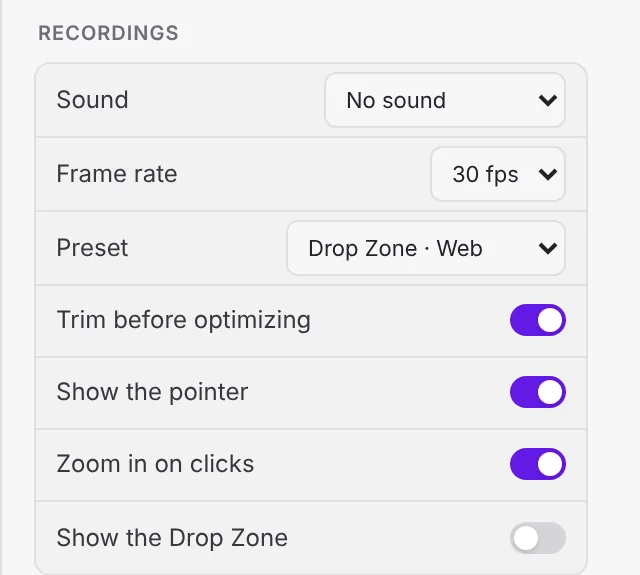
To stop Cropped noting clicks at all, turn off Zoom in on clicks in Preferences › Capture › Recordings. New recordings then open without zooms.
Mac, Windows and Linux
| Mac | Windows | Linux Beta | |
|---|---|---|---|
| Remembers clicks while recording | Yes, no extra permission needed | Yes. Clicks on the recording bar are left out | No. The desktop records the screen for Cropped, so clicks aren't seen |
| Zooms added when you open a recording | Yes | Yes | Add them with Z or + |
| Move, resize, change and remove zooms | Yes | Yes | Yes |
| Zooms in the saved video | Yes | Yes | Yes |
Good to know
- Cropped keeps the clicks inside the recording file, so they're still there if you open the recording again later. Only times and positions are kept, never what you clicked on.
- Zooms only follow clicks inside the area you record.
- Zooms are added in the Studio. Recordings you Trim & optimize straight from the Drop Zone are saved without zooms; open them in the Studio to add zooms.
- Combining videos? Each recording you add to a sequence brings its own click zooms with it.
- The zoom is part of the picture, so it works with every format, including GIF.
Still stuck? Click the ? button at the bottom left of the Cropped Studio to ask, send us a message, or request a feature.