 Cropped
Help
Cropped
Help
Help / How to
Shrink a video under 10 MB for Discord, Slack or email
The short answer: open the video in Cropped, pick the Discord · under 10 MB preset (or type any limit in Max size), and click Optimize & Save Video. Cropped works out the bitrate from the video's length so the file lands under the limit the first time.
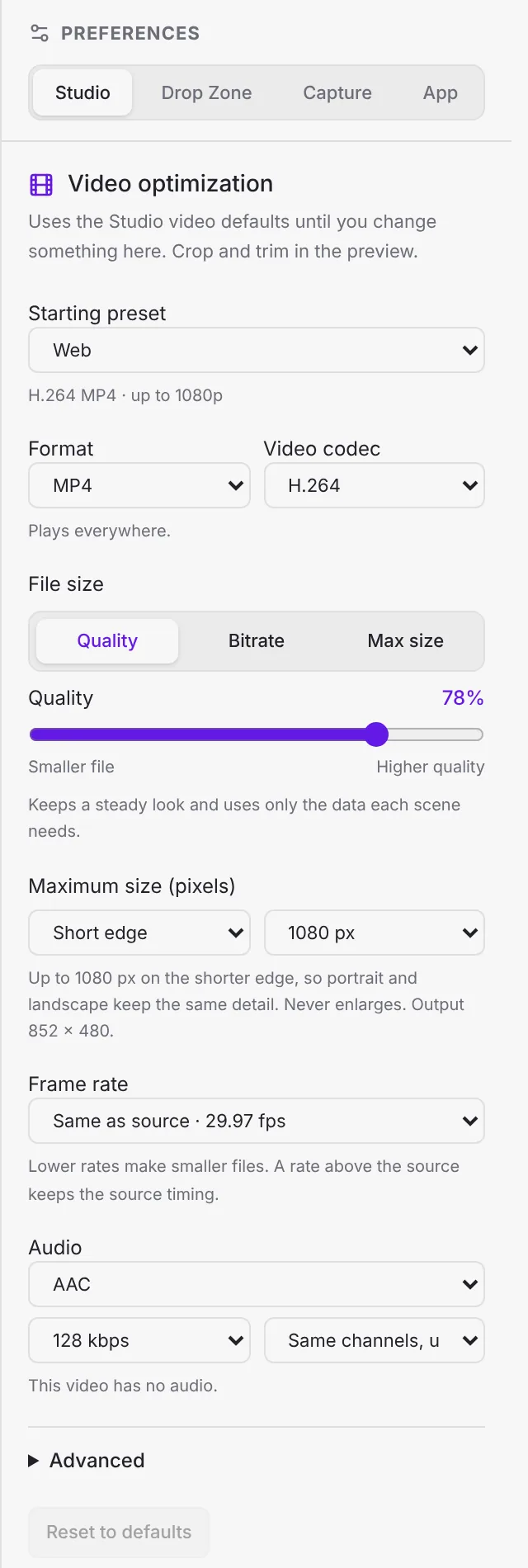
Steps
- Drop the video on the Studio, or press ⌘ Command + O (Windows and Linux: Ctrl + O).
- Under Starting preset, pick one of the size-limited presets:
- Discord · under 10 MB
- WhatsApp · under 16 MB
- Email · under 25 MB 720p
- For any other limit, set How file size is chosen to Max size and type the limit in MB. Cropped shows an estimate.
- If it says "Too small for this length", trim the start and end on the timeline, or lower Maximum size to 720 or 480.
- Click Optimize & Save Video. Your original is never changed.
Do it without opening the Studio
Set the Drop Zone's video preset to Discord · under 10 MB in Settings, then drop videos on the Drop Zone. Each one comes back under 10 MB, ready to drag straight into Discord or Slack. See Video settings for dropped videos.
Tips for a sharper small file
- Cut every second you don't need. Length matters more than anything else.
- 720p at 30 fps looks fine in chat apps and leaves more data for each frame.
- Remove audio from silent screen recordings.
More options: Video formats, presets and GIFs.
Still stuck? Click the ? button at the bottom left of the Cropped Studio to ask, send us a message, or request a feature.