 Cropped
Help
Cropped
Help
Help / Crop, optimize & export
Crop images and export social media sizes
Crop by hand, let smart crop find the subject, or tick a list of social media sizes and export them all at once.
Crop an image
- Open an image in the Studio.
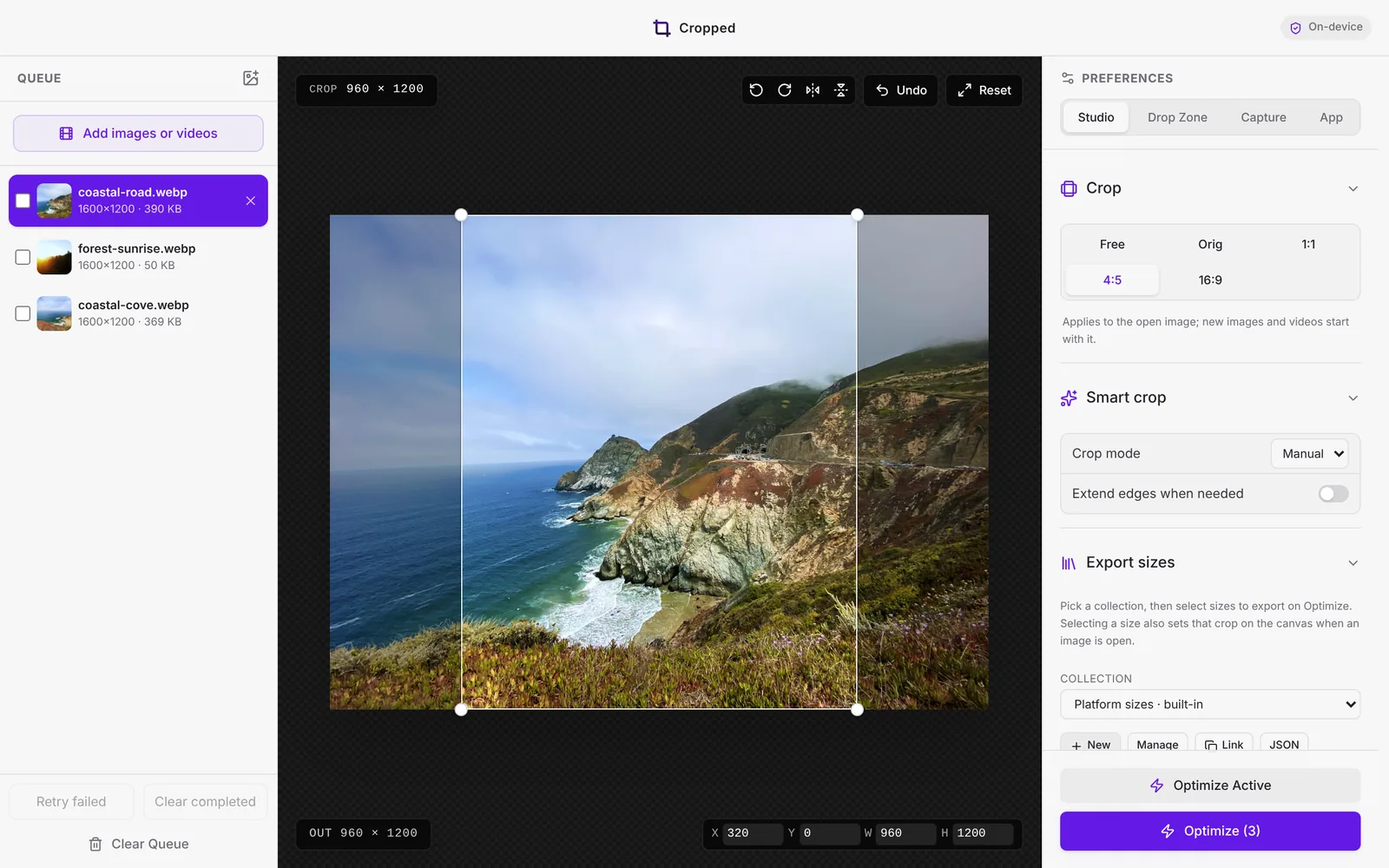
- Pick a ratio under Crop in Preferences: Free, Orig (original), 1:1, 4:5 or 16:9.
- Drag the crop box to move it, or drag a corner or edge to resize it.
- Hold Shift while dragging to keep the current ratio.
- Hold Option (Windows: Alt) to resize from the center.
- With the crop selected, the arrow keys move it 1 pixel, Shift-arrow 10 pixels, and Option-arrow resizes it.
- Type exact values in the X, Y, W and H fields at the bottom right. They're in pixels of the original image.
The CROP pill at the top left shows the crop size, and OUT at the bottom left shows the size of the file you'll get.
The ratio you pick also becomes the starting crop for new images and videos.
Rotate and flip
Use the buttons at the top right of the image: rotate left, rotate right, flip horizontally and flip vertically. Undo steps back one crop change, and Reset returns to the original image.
Smart crop
Under Smart crop, set Crop mode to Smart. Cropped finds the main subject and keeps it in frame when the ratio changes. It runs on your computer and works offline. Use Apply smart crop to selection to apply it to the files ticked in the queue.
Extend edges when needed fills in missing edges from nearby pixels when a ratio needs more room than the photo has, instead of cutting the subject. It doesn't use generative AI.
Export sizes for social media
Under Export sizes, tick every size you need. Selecting a size also shows that crop on the canvas, so you can check the framing. Then click Optimize & Save: Cropped saves one file per size, never enlarging a small image.
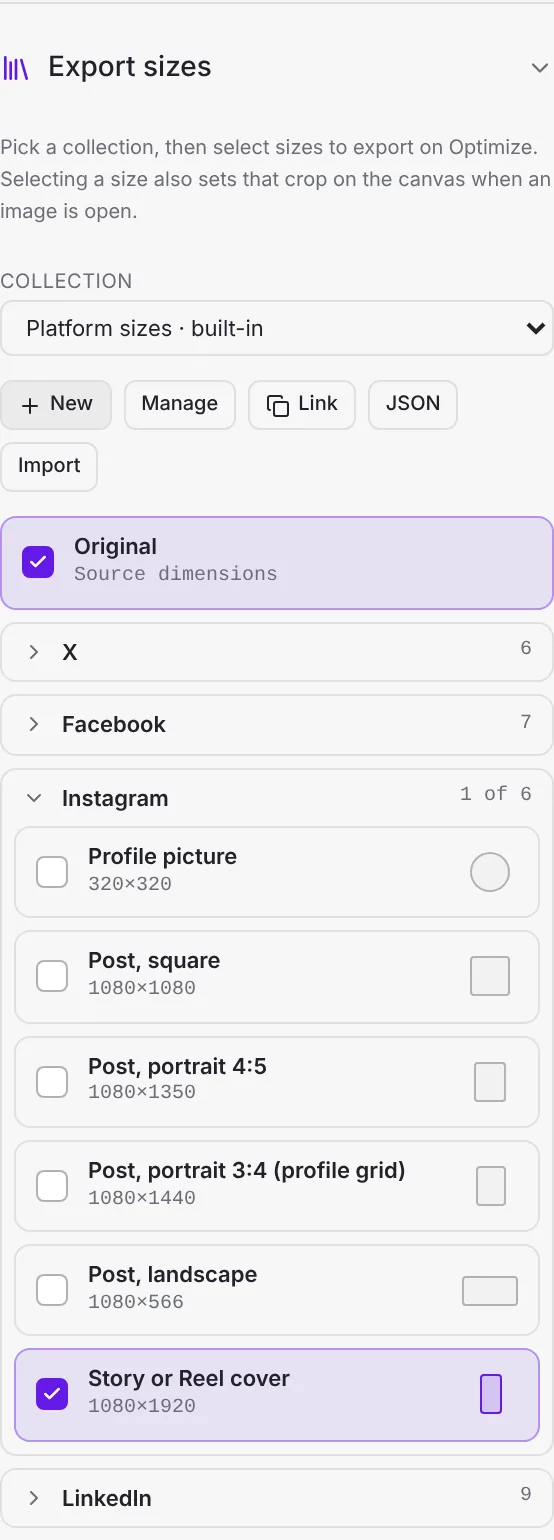
Files are named after the size, for example photo-cropped-x-header-1500x500.webp.
Built-in platform sizes
| Platform | Sizes |
|---|---|
| X | Profile photo 400×400, Header 1500×500, Post landscape 1600×900, Post square 1080×1080, Post portrait 1080×1350, Link card 1200×628 |
| Profile picture 320×320, Cover photo 851×315, Post square 1080×1080, Post portrait 1080×1350, Link share 1200×630, Story 1080×1920, Event cover 1920×1005 | |
| Profile picture 320×320, Post square 1080×1080, Post portrait 4:5 1080×1350, Post portrait 3:4 (profile grid) 1080×1440, Post landscape 1080×566, Story or Reel cover 1080×1920 | |
| Profile photo 400×400, Profile background 1584×396, Company logo 400×400, Company cover 1128×191, Post landscape or link 1200×627, Post square 1200×1200, Post portrait 1080×1350, Article cover 1920×1080, Event banner 1776×444 | |
| YouTube | Profile picture 800×800, Channel banner 2560×1440, Video thumbnail 1280×720, Shorts thumbnail 1080×1920, Post image 1080×1080 |
| TikTok | Profile photo 200×200, Photo post or cover 1080×1920 |
| Profile photo 165×165, Profile cover 1920×1080, Standard Pin 1000×1500, Square Pin 1000×1000 | |
| Threads | Profile photo 320×320, Post portrait 1080×1350, Post square 1080×1080 |
| Bluesky | Avatar 1000×1000, Banner 3000×1000 |
| Mastodon | Avatar 400×400, Header 1500×500 |
| Snapchat | Story 1080×1920 |
| Etsy | Listing photo 2000×2000, Big banner 1600×400, Mini banner 1600×213, Shop icon 500×500 |
Your own collections
Make a list of sizes for a client, a site or a brand.
- New creates a collection. Add sizes with a name, width and height.
- Manage lets you rename, edit or remove sizes, or delete the collection. Built-in collections can be duplicated to edit.
- Link copies a shareable link to the collection, and JSON copies it as JSON.
- Import takes a link or JSON from someone else.
Still stuck? Click the ? button at the bottom left of the Cropped Studio to ask, send us a message, or request a feature.