 Cropped
Help
Cropped
Help
Help / How to
Send lighter screenshots to Claude, ChatGPT and Cursor
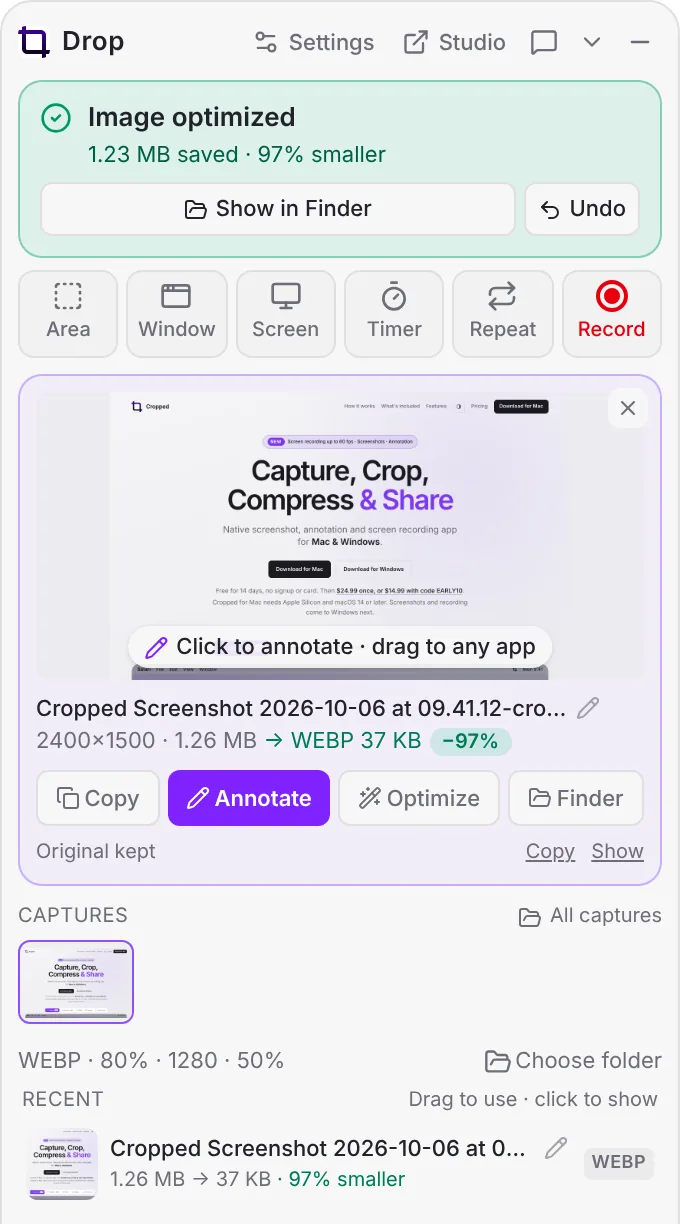
The short answer: capture just the window you mean with Cropped and keep the Drop Zone's default Agent / LLM preset. Each screenshot is saved as a half-size WebP and copied to your clipboard, ready to paste into Claude, ChatGPT or Cursor. A window capture this way costs Claude about 76% fewer image tokens than a full Retina screenshot.
Steps
- Click Window in the Drop Zone and click the app you're asking about, or drag over just the part that matters with ⇧ Shift + ⌘ Command + 8 (Windows and Linux: Ctrl + Shift + 8).
- Leave the Drop Zone image preset on Agent / LLM: WebP at 80%, at most 1280 px wide, then scaled to 50%.
- Paste into your AI chat with ⌘ Command + V (Windows and Linux: Ctrl + V).
Why it helps
- Less noise. The model reads the window you meant, not your dock, sidebar and other tabs.
- Fewer tokens. AI models charge for image size. Half of a Retina capture is what a regular screen shows, so nothing readable is lost.
- Hide secrets first. Click the capture to annotate it and use Hide on keys and tokens before you paste.
Let the AI take the screenshot
Connect Cropped to Claude, Cursor or Codex and ask in plain words. The AI can take screenshots, read what's on screen, mark it up and crop it, and every picture comes back with the Agent / LLM preset. See Use Cropped with Claude, Cursor and Codex.
Still stuck? Click the ? button at the bottom left of the Cropped Studio to ask, send us a message, or request a feature.