 Cropped
Help
Cropped
Help
Help / How to
Make a product demo video with music and a voiceover
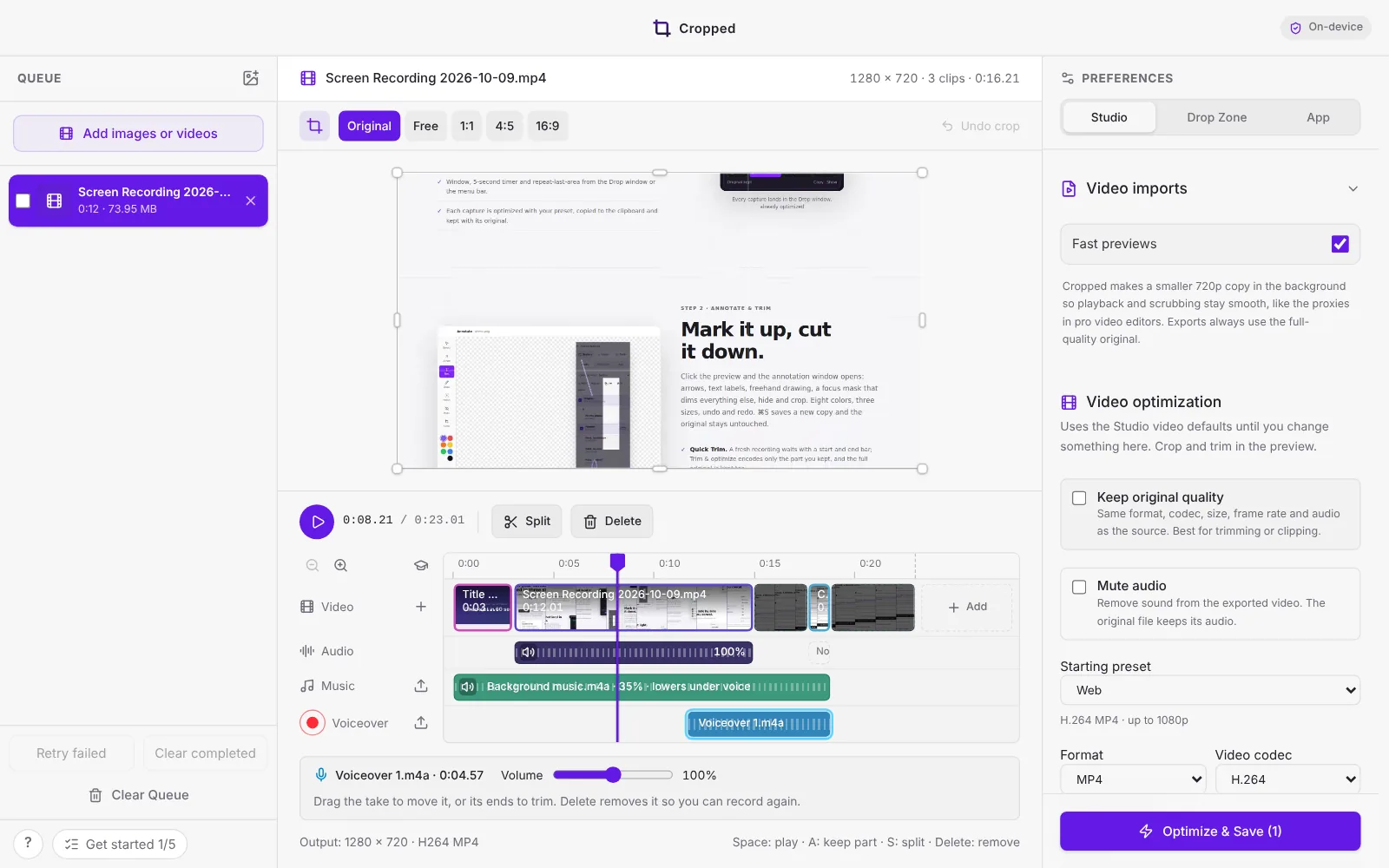
The short answer: record your screen with Cropped, drop the recordings on the Studio as one edit, press S to cut out the loading and waiting, add a song on the Music lane and record a Voiceover, then export with a preset like YouTube 1080p60.
Steps
- Record each part with ⇧ Shift + ⌘ Command + 0 (Windows and Linux: Ctrl + Shift + 0). On Windows, recordings take your microphone but not computer sound yet.
- Drop the recordings, plus an image for a title card if you like, on the Studio and choose As one edit.
- Press S to split at the playhead and delete the parts where nothing happens. Drag clips to change the order.
- Cropped zooms in on each click you made while recording. Drag the amber blocks on the Zoom lane to adjust them, or press Z to add one. See Zoom in on clicks.
- Click the empty Music lane to add a song. It fades in and out and dips while someone talks.
- Press the red record button next to Voiceover to talk over the video, or add a voiceover file.
- Pick a preset (YouTube 1080p60, Social · 1080p / 30 fps, or a 9:16 crop for Shorts and Reels) and click Optimize & Save Video.
Good to know
- Heavy 4K footage previews from a light 720p copy, and the export always uses the originals.
- Mute or turn down any clip's own sound from the Audio lane.
Full guide: Combine videos, add music and a voiceover.
Still stuck? Click the ? button at the bottom left of the Cropped Studio to ask, send us a message, or request a feature.