 Cropped
Help
Cropped
Help
Help / How to
Crop a video
The short answer: drop the video on the Cropped Studio, pick 1:1, 4:5 or 16:9 above the preview, drag the crop box over the part you want to keep, and click Optimize & Save. Cropped saves a new, smaller video and never changes the original.
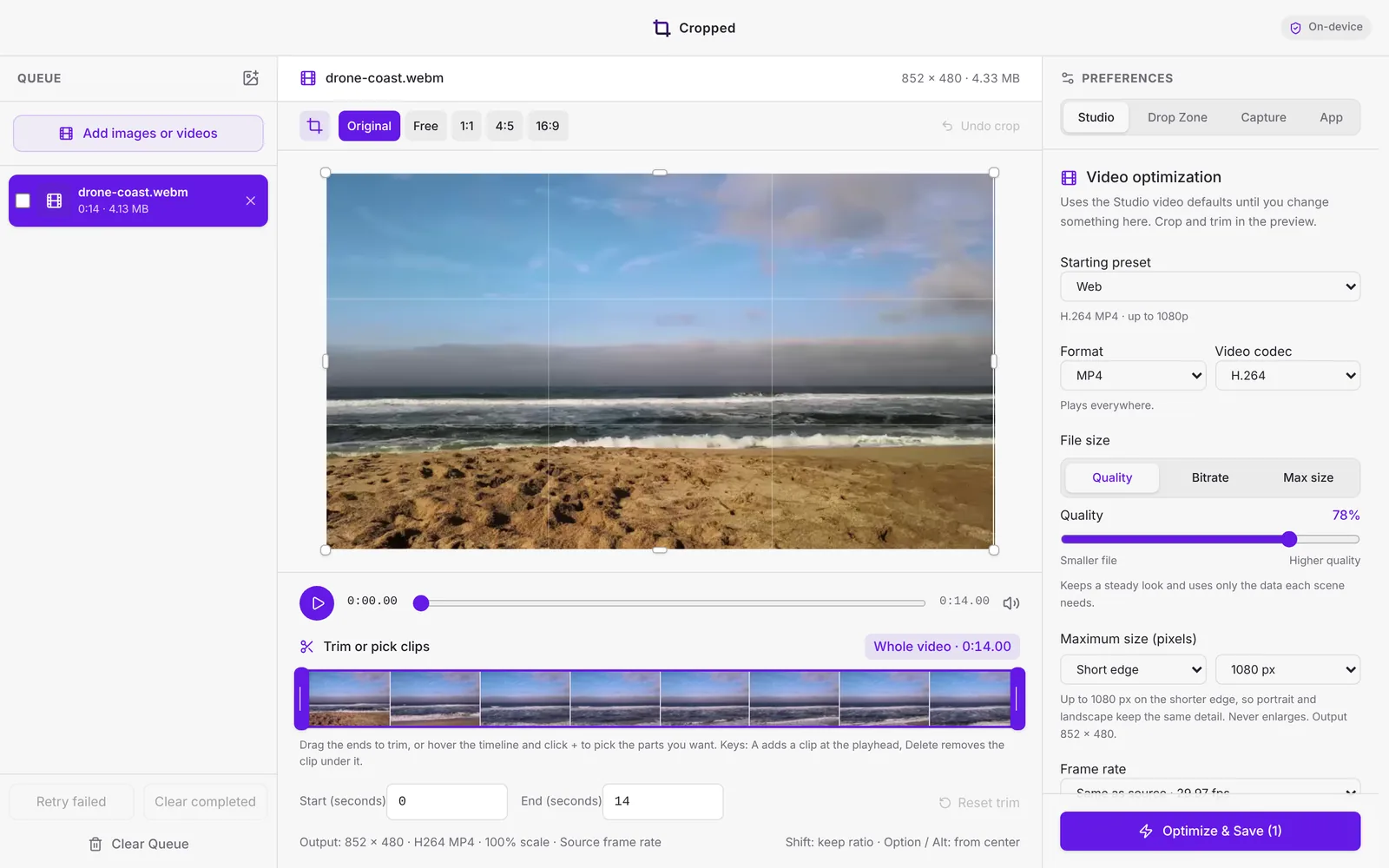
Steps
- Drop the video on the Studio. MP4, MOV, MKV, WebM and screen recordings all open.
- Pick a ratio above the preview: Original, Free, 1:1, 4:5 or 16:9.
- Drag the crop box, or its handles, over the part you want to keep. Hold Shift to keep the ratio.
- For an exact size, open Precise crop dimensions on the right. Videos are encoded at even pixel sizes, so odd values round down by one.
- Choose a preset under Video optimization, or tick Keep original quality to only crop.
- Click Optimize & Save.
Trim it while you're there
Drag the ends of the clip on the timeline to cut the start and end, or keep several parts and Cropped joins them. See Trim, crop and pick clips from videos.
Follow a moving subject
When the subject moves around the frame, subject tracking (Beta) can move the crop with it.
Save it as a GIF
Pick a GIF preset under Video optimization. See Turn a screen recording into a GIF and Video formats and presets.
Still stuck? Click the ? button at the bottom left of the Cropped Studio to ask, send us a message, or request a feature.