 Cropped
Help
Cropped
Help
Help / How to
Crop an image on a Mac
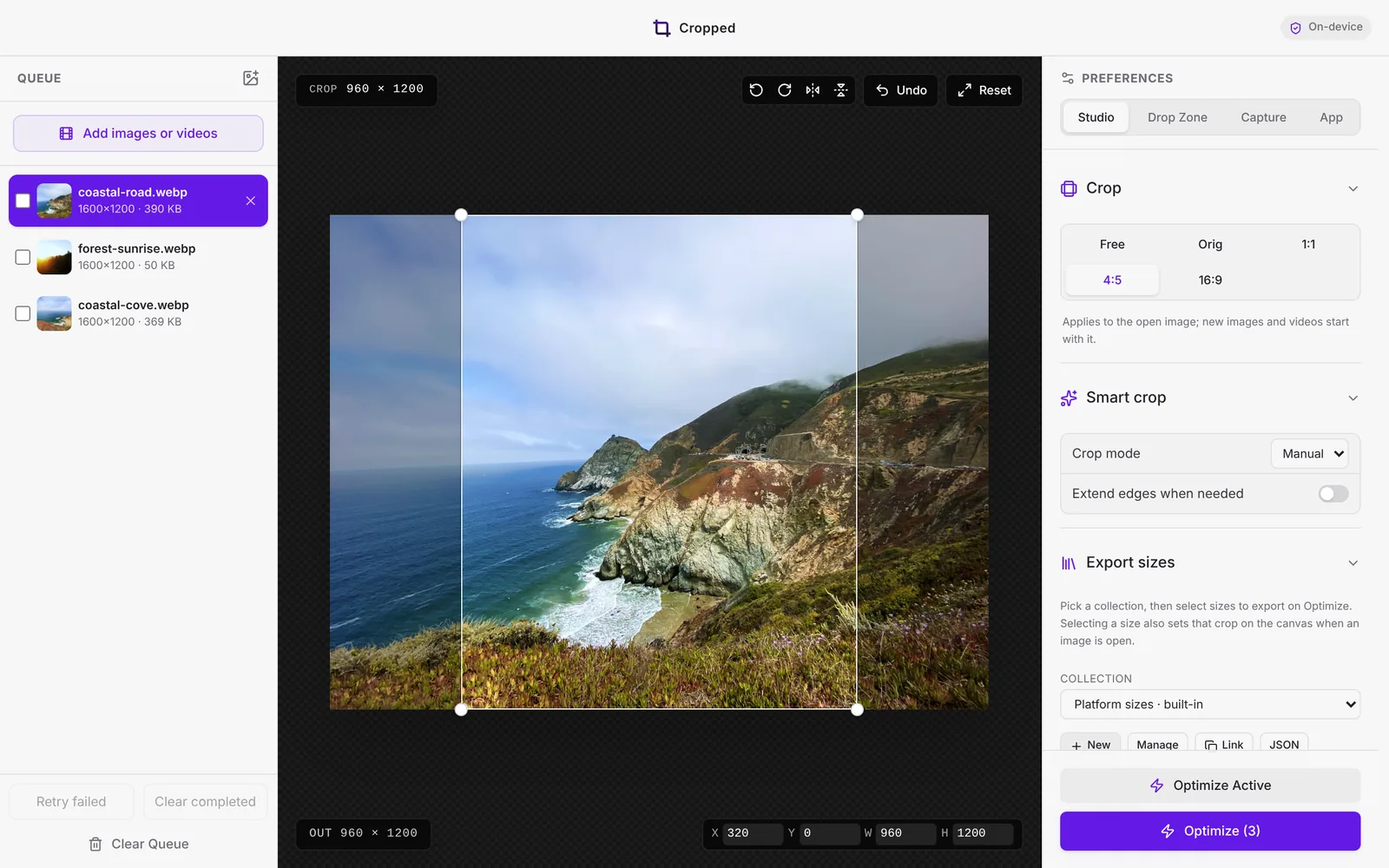
The short answer: drop the picture on the Cropped Studio, pick a shape such as 1:1, 4:5 or 16:9 on the picture toolbar, drag the crop box over the part you want to keep, and click Optimize & Save. The cropped copy is saved in Downloads/Cropped, and your original is never changed.
Steps
- Drop the image on the Studio, or press ⌘ Command + O. JPEG, PNG, HEIC, WebP and AVIF all open.
- Pick a shape on the picture toolbar: Original, Free, 1:1, 4:5 or 16:9.
- Drag the box to move it, or drag a corner or edge to resize it. It snaps to edges in the picture; hold ⌘ Command to place it freely, or Shift to keep the ratio.
- For an exact size, type it in the W and H fields at the bottom right, or tick a size such as Instagram portrait under Export sizes.
- Click Optimize & Save (⌘ Command + ↩ Return). Cropped saves a smaller WebP, AVIF, JPEG or PNG.
Click Smart crop on the toolbar and Cropped centers the crop on the subject for you, on your Mac, with no upload.
Crop many pictures at once
Drop several pictures, or a whole folder, on the Studio. They wait in the queue, so you can crop each one, then click Optimize to save them all. To give every file the same shape without opening them, pick a Crop ratio in the Drop Zone's Settings and drag the folder onto the Drop Zone. See Batch crop images.
Cropping with the apps that come with your Mac
| App | How to crop | What it can't do |
|---|---|---|
| Cropped | Pick a shape or size, drag, Optimize & Save | |
| Preview | Drag a selection, then Tools › Crop (⌘ Command + K) | No ratio or size presets, one file at a time, and it saves over the original unless you duplicate it first |
| Photos | Edit › Crop, then pick a ratio | Works only on pictures in your Photos library, no exact pixel sizes or social media sizes |
Just one picture and no app to hand? The free image cropper on our website crops it in your browser, with nothing uploaded.
Next: Crop images and export social media sizes covers smart crop, rotate and flip, fill and every export size.
Still stuck? Click the ? button at the bottom left of the Cropped Studio to ask, send us a message, or request a feature.