 Cropped
Help
Cropped
Help
Help / How to
Put screenshots side by side in one image
The short answer: drop the screenshots on the Drop Zone, click the small circle on two or more of them, and click Arrange. Cropped puts them on one image, evenly spaced, and saves it next to your other results. Two screenshots are enough.
Step by step
- Take the screenshots with Cropped, or drop existing ones on the Drop Zone. They appear in the Captures strip or in Recent.
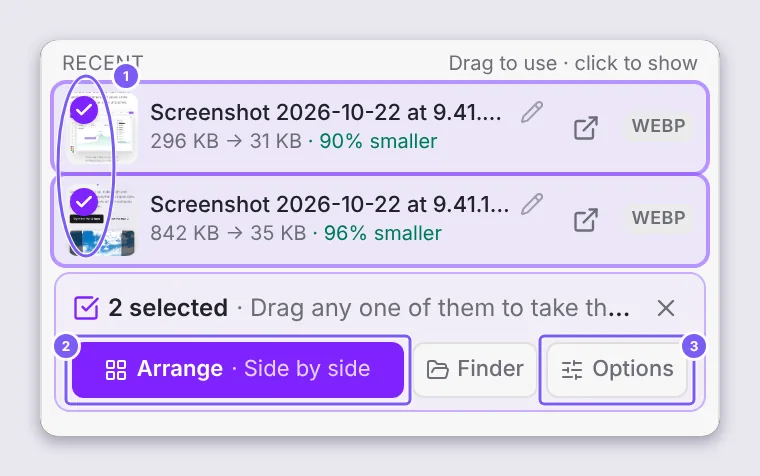
- Point at each one and click the circle that appears at its top left. ⇧ Shift + click selects a range.
- Click Arrange in the bar under them. The button says what you'll get, such as "Side by side".
- Drag the new image from the top of Recent into Slack, Mail, a doc or an AI chat.
Side by side, stacked or a grid
Auto chooses from the shapes: tall phone screenshots go side by side, wide desktop screenshots stack, and four or more make a grid. To choose yourself, click Options in the selection bar and pick Row, Column or Grid. Options also sets the Padding (0 to 200 px) and the Background: light gray, white, black, transparent, Cropped violet or any color.
Keep it sharp and small
Each screenshot keeps its own size, and the arranged image is compressed once with your Drop Zone format and quality, without the preset's width limit. The example above would be 1.89 MB as a PNG; Cropped saved it as a 150 KB WebP. For full-size PNGs instead, pick PNG in the Drop Zone's Settings.
Arrange every drop
To combine every batch you drop, turn on Arrange multiple images into one in the Drop Zone's Settings, or hold ⌥ Option (Windows and Linux: Alt) while you drop to do it once. See Arrange several images into one.
Still stuck? Click the ? button at the bottom left of the Cropped Studio to ask, send us a message, or request a feature.