 Cropped
Help
Cropped
Help
Help / Capture & annotate
Check a screenshot for accessibility
Before you ship a screen, check that everyone can read it. Cropped reads the text in a screenshot, measures the contrast of every line, finds text that is too small and colors that people with color blindness can't tell apart, and tells you exactly which colors fix each problem.
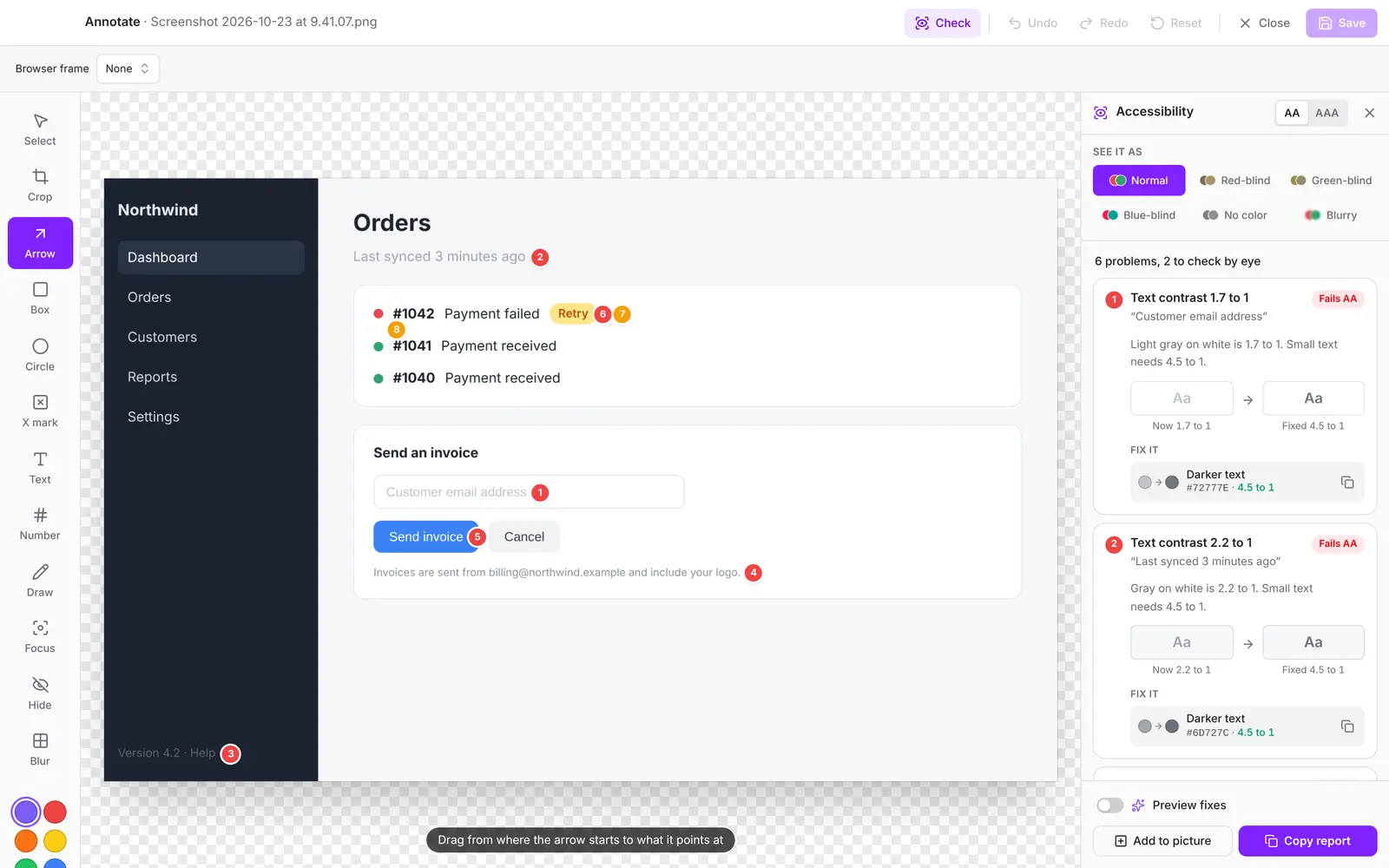
Quick answer: open a screenshot in Annotate, click Check (or press K), then click a problem. Each one shows where it is, how far it is from passing, and colors that pass, with a button to copy them as CSS.
The check runs on your computer. Nothing is uploaded.
Run the check
- Click a screenshot in the Drop Zone to open it in Annotate.
- Click Check at the top of the window, or press K.
- The Accessibility panel opens on the right with every problem it found. Numbered pins show where each one is on the screenshot. Red pins fail, amber pins are worth a look.
Press K or click Check again to close the panel. Your marks are not changed by the check.
What it checks
| Problem | What it means |
|---|---|
| Text contrast | The text is too close to its background color. Small text needs 4.5 to 1, large text 3 to 1. |
| Small text | Text that shows smaller than 12 pixels is hard for many people to read. |
| Hard to read | Text on a photo, a gradient or a pattern, where the contrast changes from letter to letter. |
| Control edge | A button or field whose edge barely stands out from what is around it. Edges need 3 to 1. |
| Color only | Two colors, such as a red and a green dot, that look the same to someone who is color blind. Add a label, an icon or a shape. |
Contrast is measured with the same math as the WCAG 2.2 guidelines. AA is the usual goal. Switch to AAA at the top of the panel for the stricter level: 7 to 1 for small text and 4.5 to 1 for large text.
Problems with the same colors are grouped, so ten gray captions show as one problem with ten places.
Fix a problem
Click a problem in the list. Its place on the screenshot is outlined, and the card shows:
- Now and Fixed samples, so you can see the difference side by side.
- Colors that pass, such as Darker text or Lighter background, picked to stay as close to your design as possible. Each shows the old and new color, its hex code and its new contrast. The smallest change is listed first.
- The copy button beside a color copies it as CSS, ready to paste.
- Tips for problems a color can't fix, such as making small text bigger or adding a label next to a colored dot.
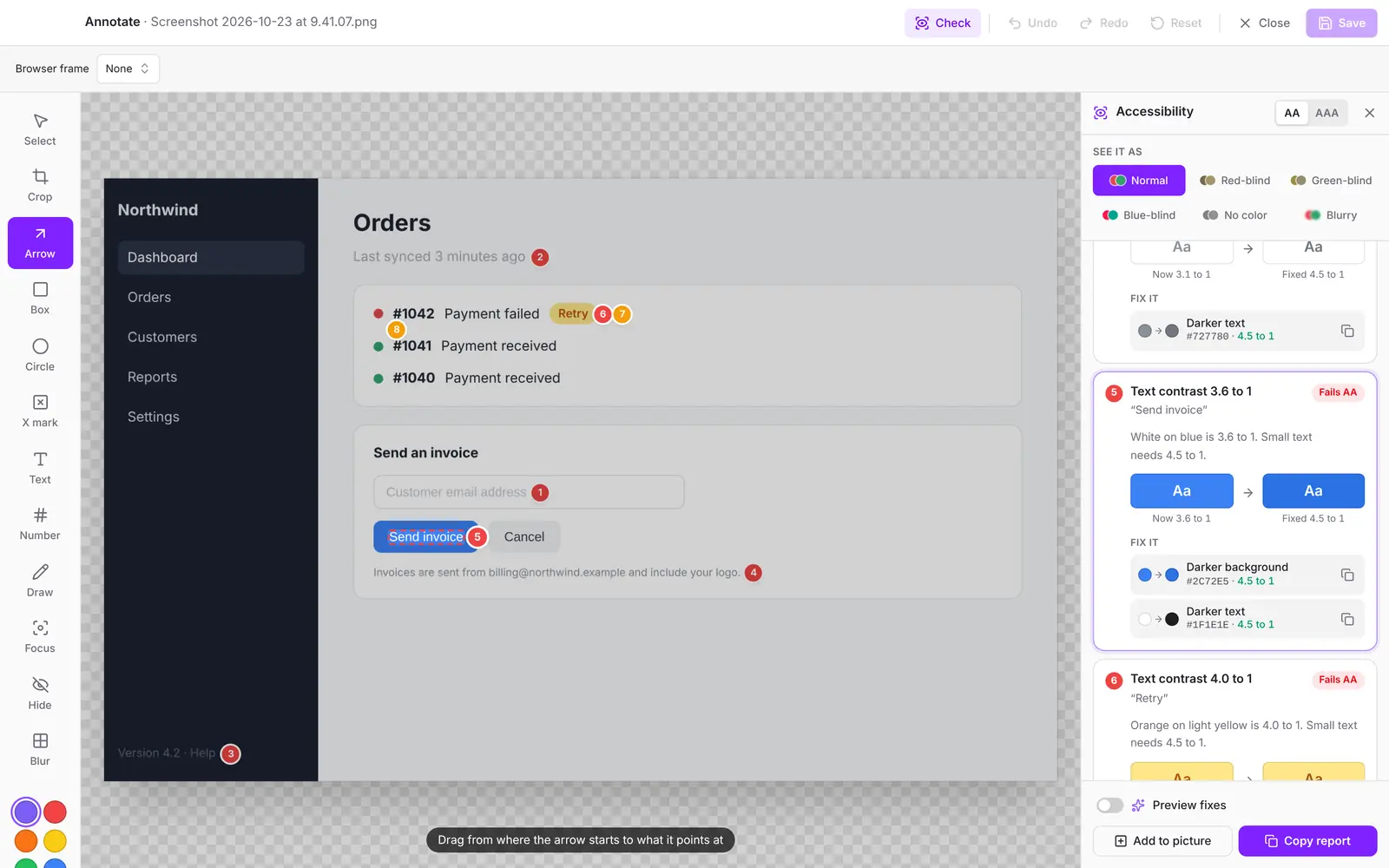
Turn on Preview fixes at the bottom of the panel to see the whole screenshot with the fixed text colors. It only changes the preview; your screenshot stays as it was.
See it as someone else does
Under See it as, pick how to look at the screenshot:
- No red and No green: the two most common kinds of color blindness, where reds and greens look alike.
- No blue: a rarer kind, where blues and yellows look alike.
- No color: gray only.
- Blurry: roughly how it looks to someone with low vision, or on a phone held at arm's length.
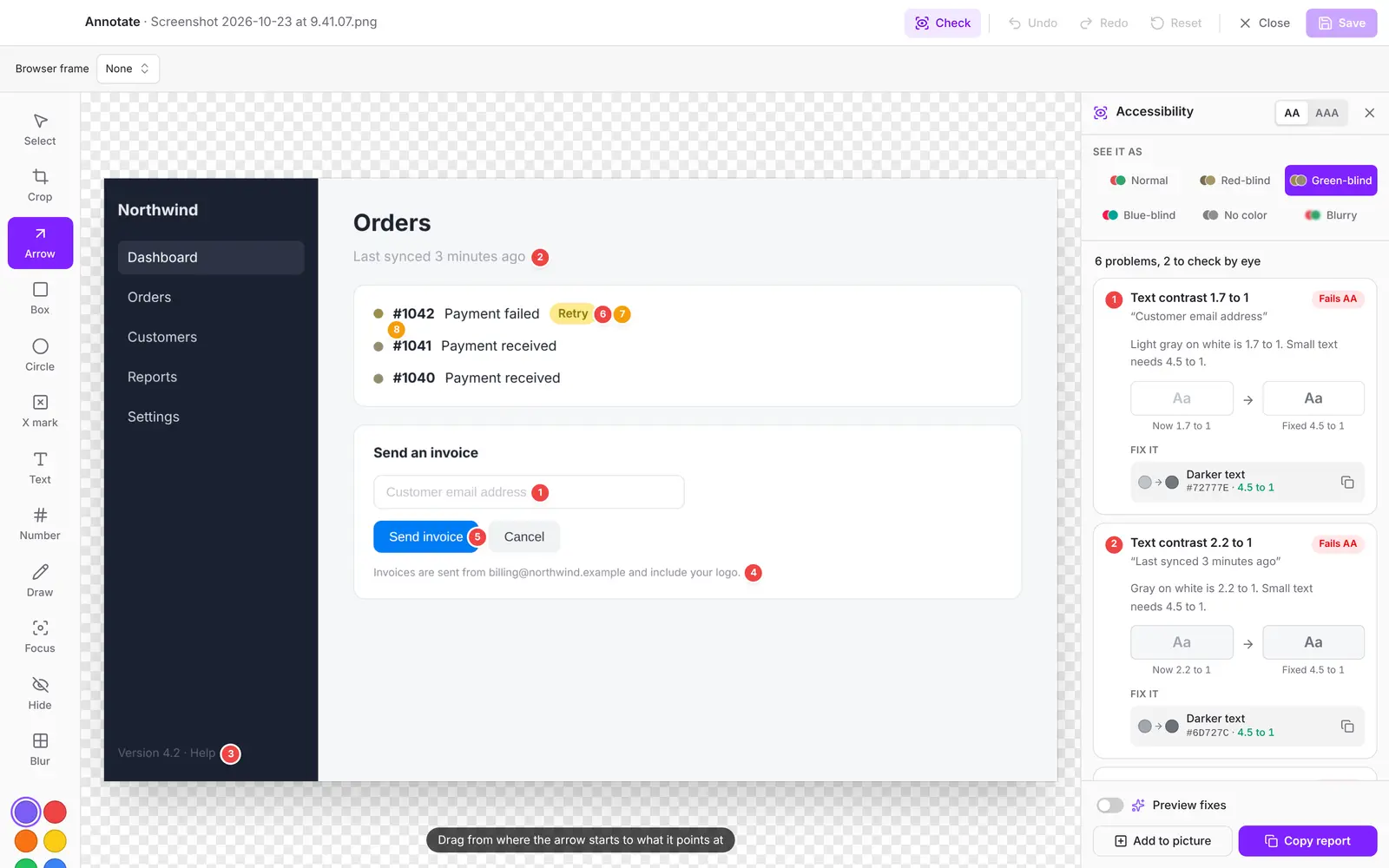
On a Color only problem, click See it to jump to the preview that shows it.
Share what it found
- Add to picture draws a numbered box around every problem, in red or amber. They are normal marks: move them, delete them, then click Save.
- Copy report copies every problem as Markdown: what it looks like now, the colors that fix it with the CSS to paste, and where it is on the screenshot. Paste it into a ticket, a pull request or your AI coding tool.
Windows and Linux (Beta)
On a Mac, Cropped reads the text with the reader built into macOS. On Windows and Linux, it uses its own text reader. The first time you click Check, Cropped offers to download it (about 16 MB). After that it works offline. The color checks and the previews work without it. If the download doesn't finish, click Try again.
Reading text on Windows and Linux is in Beta. Tell us about text it misses or misreads.
Good to know
- The check looks at pixels, so it can't tell you about keyboard focus, screen reader labels or the order things are read in. Test those in the app itself.
- Text under a Hide or Blur mark is skipped.
- When you crop the screenshot, only what is inside the crop is checked.
- Retina screenshots are measured at the size they show on screen, so a 12-pixel label counts as 12 pixels, not 24.
Your AI can run the same check with the check_accessibility tool. See AI tools.
Still stuck? Click the ? button at the bottom left of the Cropped Studio to ask, send us a message, or request a feature.